Docker
Spin up a temporary local instance of OpenCloud using Docker
Prerequisites
Create Required Directories for Bind Mounts
mkdir -p $HOME/opencloud/opencloud-config
mkdir -p $HOME/opencloud/opencloud-data
OpenCloud's default POSIX storage requires Linux extended attributes. Some Docker Desktop host bind mounts do not support the required operations, causing startup to fail with extended attributes not supported.
For a new installation on macOS, use a Docker named volume for OpenCloud data instead:
docker volume create opencloud-quickstart-data
In both the initialization and startup commands below, replace this data mount:
-v $HOME/opencloud/opencloud-data:/var/lib/opencloud
with:
-v opencloud-quickstart-data:/var/lib/opencloud
Use the same named volume for initialization and startup. Docker manages the volume and preserves its contents across container restarts.
If you already have an installation with existing data, do not switch storage mounts without backing up and migrating that data first. Changing the mount does not automatically migrate files.
Pull OpenCloud Image
docker pull opencloudeu/opencloud-rolling:latest
Initialize OpenCloud (First-time Setup)
docker run --rm -it \
    -v $HOME/opencloud/opencloud-config:/etc/opencloud \
    -v $HOME/opencloud/opencloud-data:/var/lib/opencloud \
    -e IDM_ADMIN_PASSWORD=admin \
    opencloudeu/opencloud-rolling:latest init
You can set your own password using IDM_ADMIN_PASSWORD=your_password. If not set, a password will be auto-generated

During opencloud init, you may be asked whether to disable certificate checking.
Choose yes only for an isolated local test that requires connections to services with untrusted certificates. For public or production deployments, keep certificate verification enabled by choosing no (the default).
Disabling certificate verification reduces TLS security and does not make a self-signed certificate trusted by your browser.
Start OpenCloud
docker run \
    --name opencloud \
    --rm \
    -d \
    -p 9200:9200 \
    -v $HOME/opencloud/opencloud-config:/etc/opencloud \
    -v $HOME/opencloud/opencloud-data:/var/lib/opencloud \
    -e OC_INSECURE=true \
    -e PROXY_HTTP_ADDR=0.0.0.0:9200 \
    -e OC_URL=https://localhost:9200 \
    opencloudeu/opencloud-rolling:latest
The default example uses port 9200. If you change the port,
ensure that OC_URL is reachable both from your browser and
from inside the OpenCloud container. OpenCloud uses this URL
for OIDC authentication.
For example, to use port 19200 on localhost, change these
settings in the startup command:
-p 127.0.0.1:19200:19200-e PROXY_HTTP_ADDR=0.0.0.0:19200-e OC_URL=https://localhost:19200
Then open https://localhost:19200 in your browser.
Changing only the host port and OC_URL may cause login to
fail with /access-denied, because localhost inside the
container refers to the container itself.
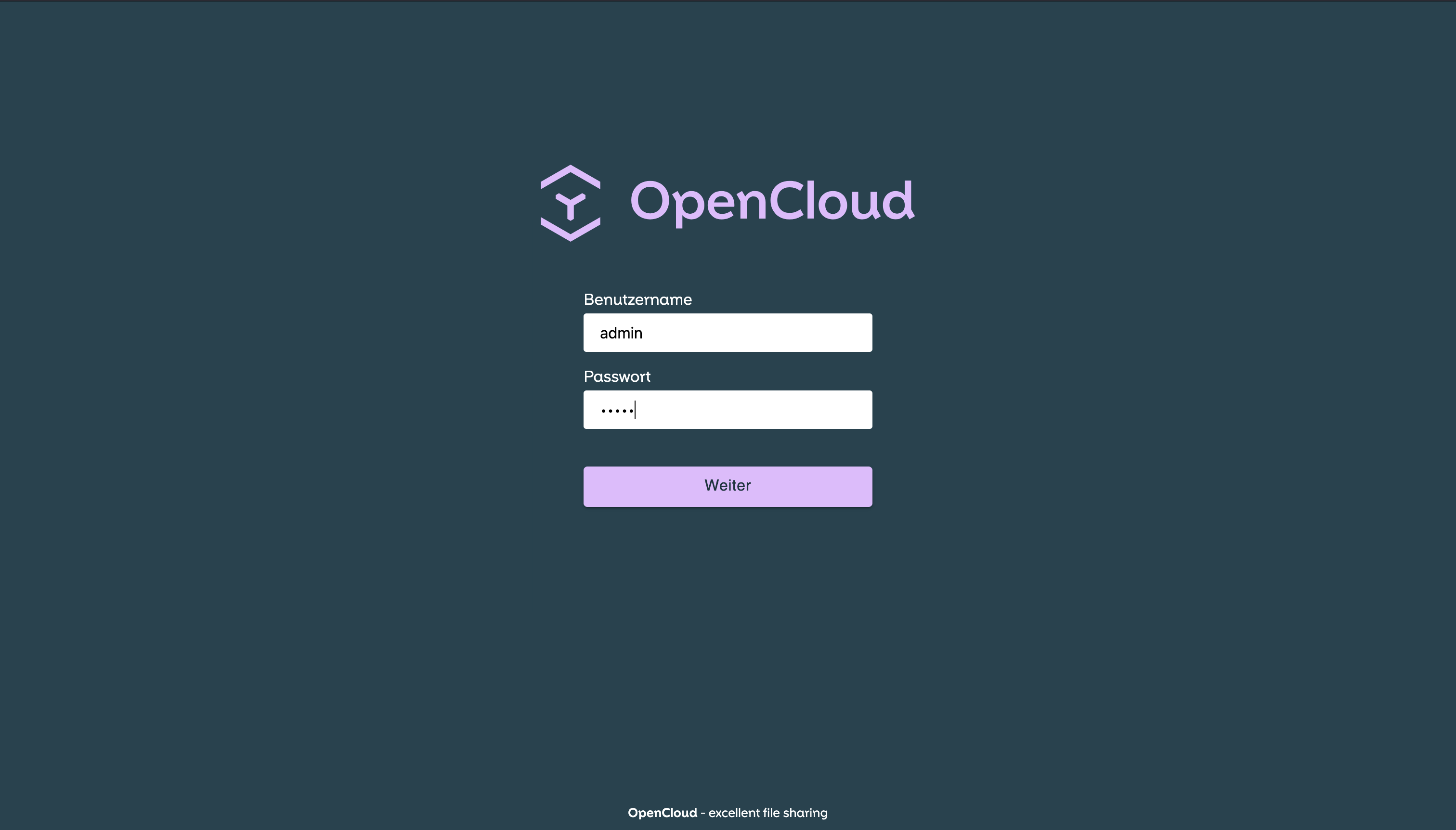
Login
Login with your browser:
- https://localhost:9200
- user: admin
- password: admin
Conclusion
Your OpenCloud server is now running and ready to use 🚀
Troubleshooting
If you encounter any issues or errors, try finding a solution here: