Auto Upload
Auto Upload automatically uploads newly created photos and videos from your iPhone or iPad to your OpenCloud account.
Once configured, new media is uploaded automatically whenever the OpenCloud app is opened and running in the foreground.
Requirements
Before using Auto Upload, ensure that:
- You are signed in to your OpenCloud account.
- The OpenCloud app has permission to access your photo library.
- A destination folder has been configured for uploads.
Configure Auto Upload
- Open the OpenCloud app.
- Tap Settings.
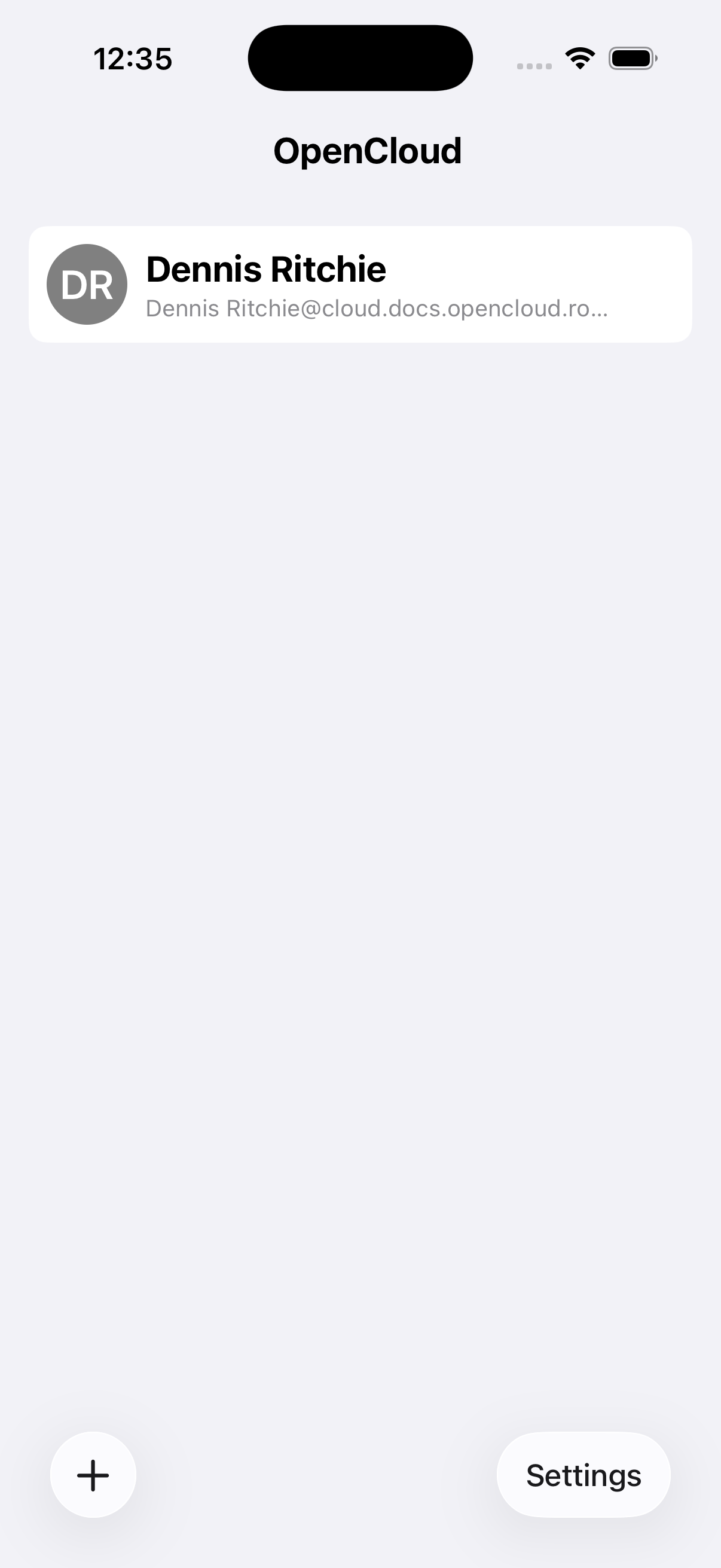
- Scroll down to the Media Files section.
- Tap Media Upload.
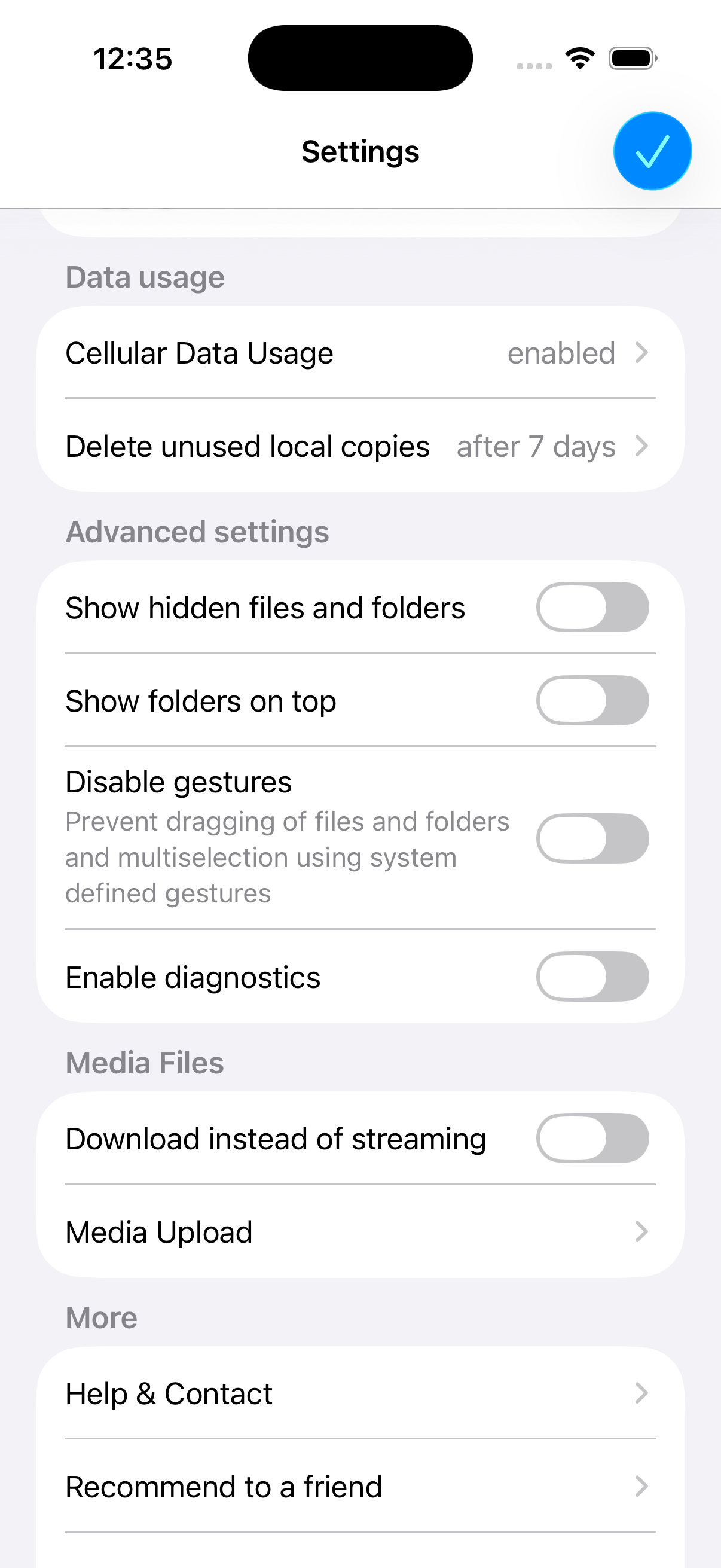
Enable Auto Upload
Photos and videos can be enabled independently.
The following options are available:
- Convert HEIC to JPEG – Converts HEIC images to JPEG before uploading.
- Convert videos to MP4 – Converts videos to MP4 before uploading.
- Preserve original media file names – Keeps the original filename instead of generating a new one.
- Auto Upload Photos – Automatically uploads newly created photos.
- Auto Upload Videos – Automatically uploads newly created videos.
- Photo upload path – Selects the destination folder for uploaded photos.
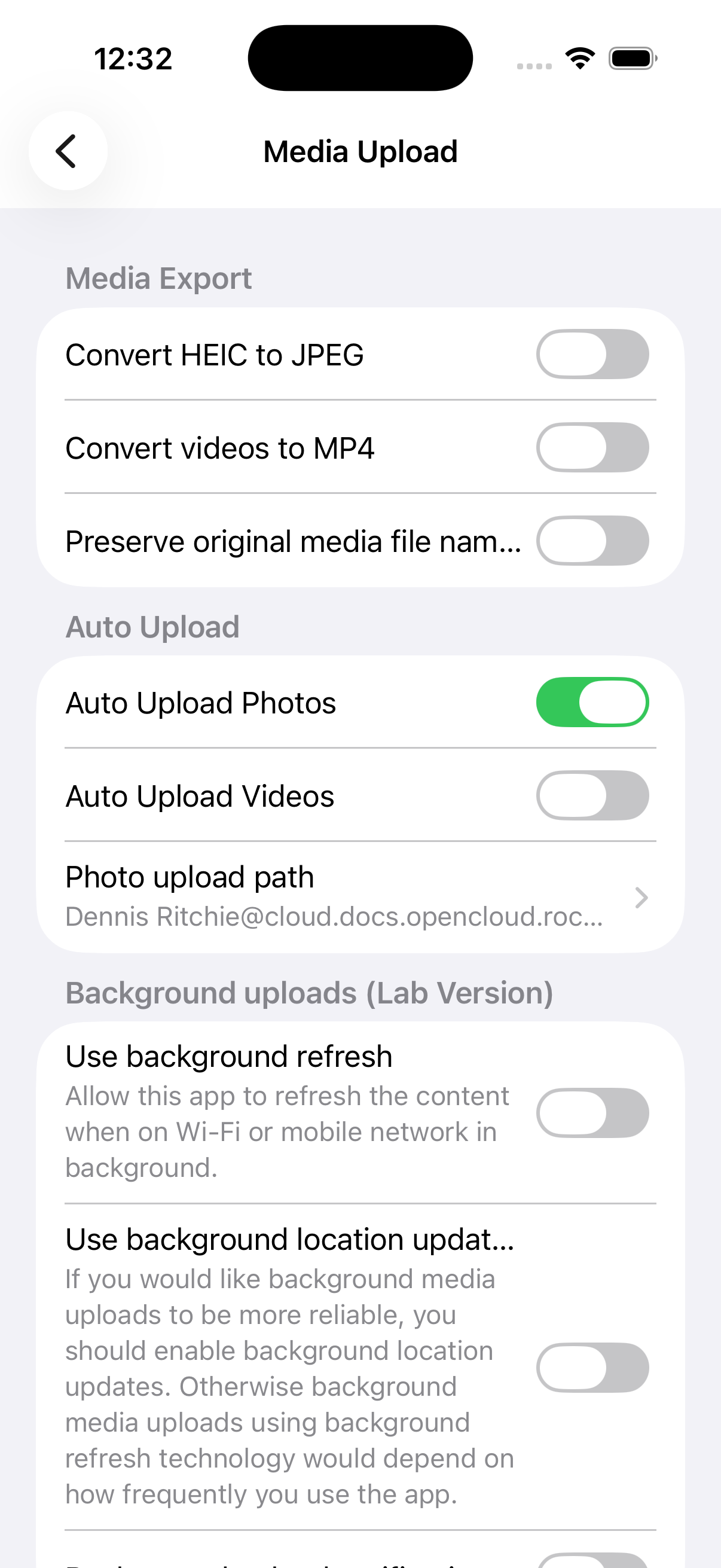
Select the Upload Destination
Before Auto Upload can begin, you must select the destination folder.
- Tap Photo upload path.
- Browse to the folder where photos should be uploaded.
- Tap Select Destination.
How Auto Upload Works
At the moment, Auto Upload only detects and uploads newly created photos and videos while the OpenCloud app is running in the foreground.
If the app is closed or running in the background, new media is not uploaded until the app is opened again.
Simply opening the OpenCloud app starts the Auto Upload process. Any new media created since the last successful upload is detected automatically and uploaded.
If the configured upload folder is deleted, Auto Upload stops automatically until a new destination folder is selected.
Preventing Duplicate Uploads
To prevent duplicate uploads, Auto Upload stores the timestamp of the last successfully uploaded item.
When Auto Upload is enabled for the first time, the activation timestamp is stored and compared with the creation date of each photo and video. After a file has been uploaded successfully, its creation timestamp becomes the new reference point.
This approach provides several advantages:
- Prevents photos and videos from being uploaded more than once.
- Eliminates the need to maintain a local database of uploaded files.
- Previously uploaded media is not uploaded again, even if it is edited later.
Media Conversion
If media conversion is enabled, Auto Upload automatically applies the selected conversion settings before uploading photos and videos.