Photos and Videos
OpenCloud can preview photos, Motion Photos, Live Photos, and videos directly in the web interface. You can browse media from the current folder without downloading each file first.
Photo preview
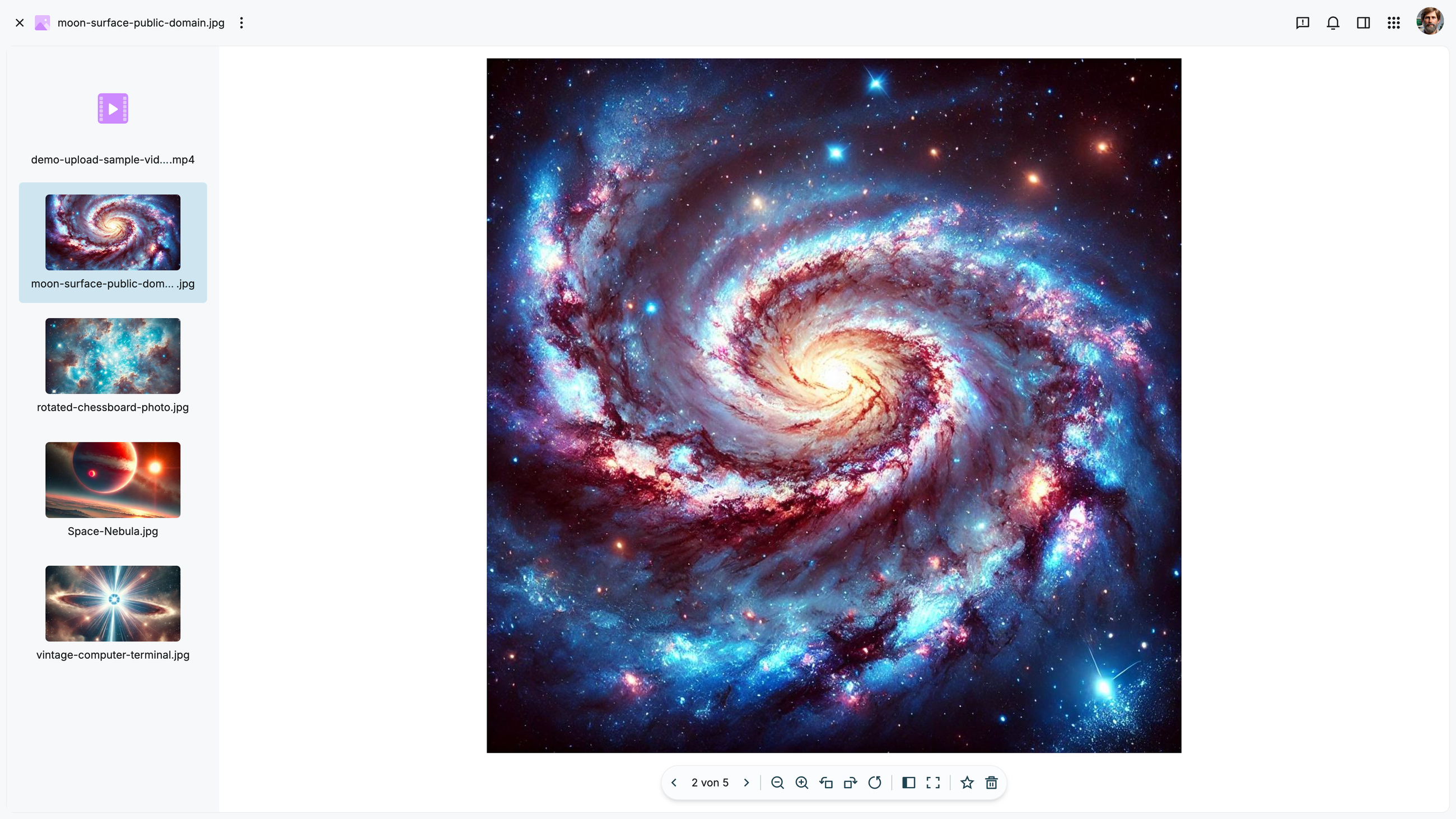
Open a photo to display it in the preview viewer. The photo roll shows the other previewable media files in the folder. Select a thumbnail or use “Show previous media file in folder” and “Show next media file in folder” to move between files.
Use the viewer controls to:
- Enlarge or shrink the image. You can also hold
Ctrl, or⌘on macOS, while using the mouse wheel. - Rotate the image 90 degrees to the left or right.
- Select “Reset” to restore the original zoom and rotation.
- Show or hide the photo roll.
- Enter or exit full screen mode.
Supported image formats
The preview viewer supports JPEG, PNG, GIF, HEIC, HEIF, AVIF, and SVG files.
- HEIC, HEIF, and AVIF previews use a thumbnail generated by the server. If a preview cannot be generated, OpenCloud offers the file for download.
- SVG files can be opened in the preview viewer, but they are not included in the photo roll. Some unusual SVG files, such as files with embedded bitmap images, may not render.
- In end-to-end encrypted folders, the browser decodes images instead of the server. Support for HEIC, HEIF, and AVIF previews therefore depends on the browser. For example, HEIC previews are available in Safari. If the browser cannot decode the image, the viewer displays a message.
HEIC, HEIF, and AVIF previews depend on server-side thumbnail generation and the server configuration.
Motion Photos and Live Photos
Viewing Motion Photos
OpenCloud supports Live Photos created with Apple devices and Motion Photos created with Android devices.
- A play icon identifies a Motion Photo or Live Photo in table and tile views.
- In tile view, hover over the photo to play it in a loop. Use the play icon to start or pause playback.
- When you open the photo in the preview viewer, it plays once automatically and then displays the still image.
- Select “Play Live Photo” or “Play Motion Photo” in the viewer to replay it. The control changes to “Pause Live Photo” or “Pause Motion Photo” during playback.
Uploading Live Photos
An Apple Live Photo consists of a still image in HEIC or JPG format and a corresponding MOV video. To upload a Live Photo manually through the OpenCloud web interface:
- Open the folder where you want to store the Live Photo.
- Upload both the still image (
.HEICor.JPG) and the corresponding video (.MOV) to that folder. - Make sure both files have the same base filename. You can rename both files as long as their base filenames remain identical.
For example, you can keep each Live Photo in its own folder:
IMG_0762/
├── IMG_0762.HEIC
└── IMG_0762.MOV
The surrounding folder is optional but can make Live Photos easier to organize. The two files can also be renamed together, for example:
Earth.HEIC
Earth.MOV
When OpenCloud recognizes the files as a Live Photo, open the still image in the preview viewer to play the animation.
Video playback
Videos open in the preview viewer and use the browser's video controls. You can play or pause the video, move through the timeline, adjust the volume, and enter full screen mode. The available controls and their appearance can vary by browser.
The toolbar below the viewer groups related actions: navigation between media files, view controls, and file actions such as adding a favorite or deleting the file when available.
Notes
- Very large media files may take longer to load.