Cellular Data Usage
The Cellular Data Usage settings allow you to control whether OpenCloud is permitted to use your mobile data connection and which features are allowed to transfer data while you are not connected to Wi-Fi.
Configure Cellular Data Usage
- Open the OpenCloud app.
- Tap Settings.
- Select Cellular Data Usage.
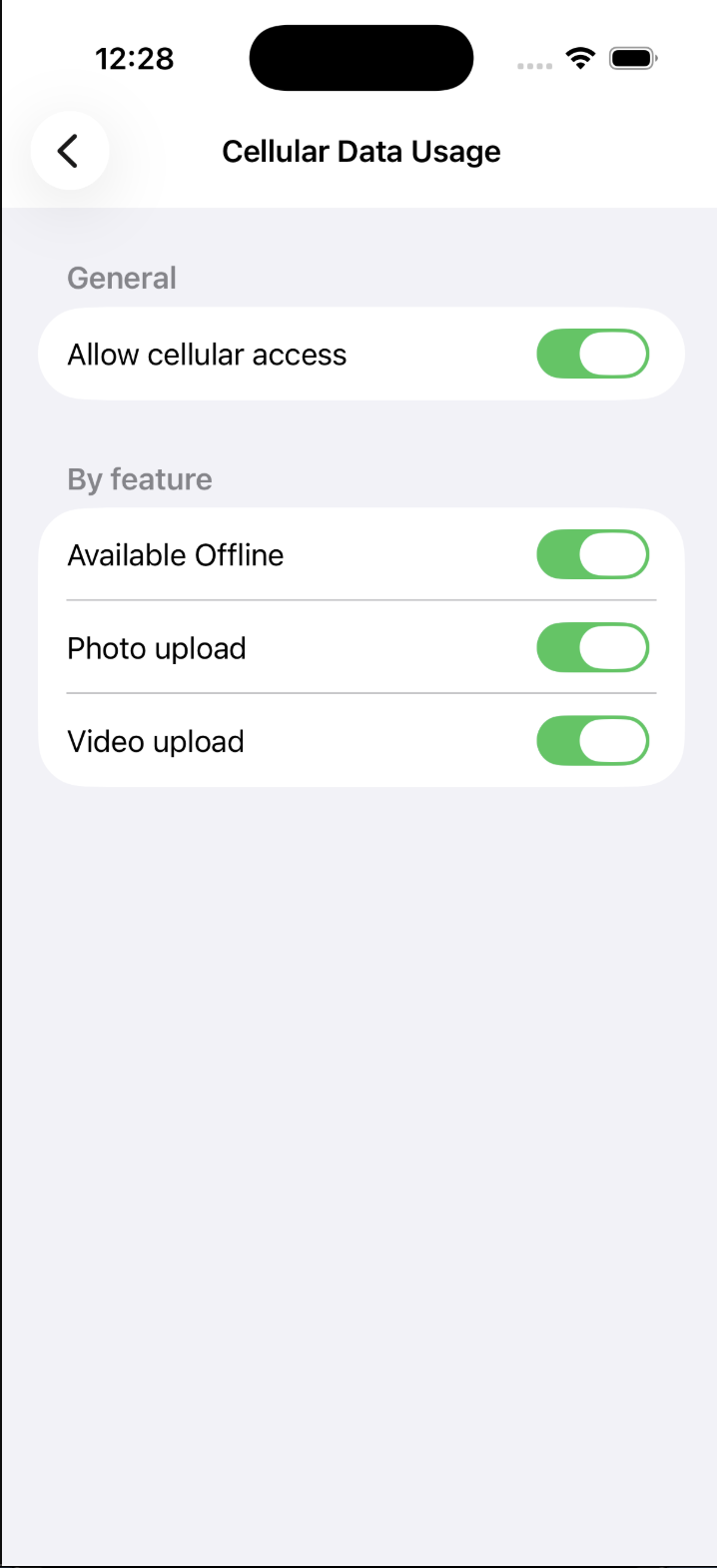
The Cellular Data Usage page lets you configure how the app uses your mobile data connection.
General Settings
The following option is available under General:
- Allow cellular access – Enables or disables the use of mobile data for the entire OpenCloud app.
When this option is disabled, OpenCloud transfers data only while connected to Wi-Fi.
Feature-specific Settings
You can independently control which features are allowed to use mobile data.
The following options are available:
- Available Offline – Allows files marked as available offline to be downloaded and synchronized using a mobile data connection.
- Photo upload – Allows Auto Upload to upload photos using mobile data.
- Video upload – Allows Auto Upload to upload videos using mobile data.
How Cellular Data Usage Works
Disabling Allow cellular access overrides all feature-specific settings.
When this option is turned off, OpenCloud uses Wi-Fi connections only, regardless of the individual feature settings.
Feature-specific settings only take effect when Allow cellular access is enabled.
This allows you to decide exactly which OpenCloud features may use your mobile data connection while preventing unnecessary data usage.