Upload Files in iOS
With the OpenCloud iOS App, you can easily upload files and make them available for offline use.
Open the Desired Folder
Navigate to the folder where you want to upload a file.
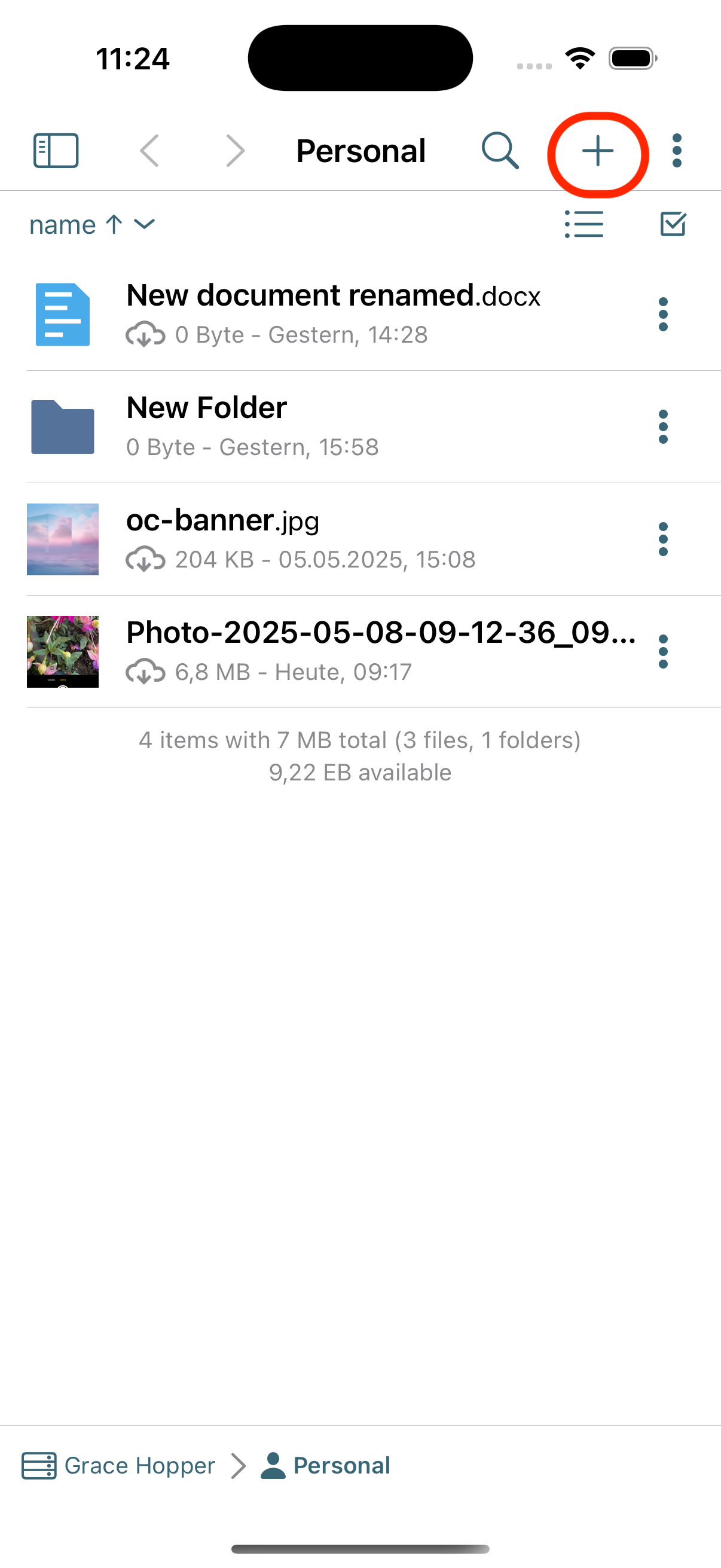
The "+" Icon
Tap the “+” icon in the top right corner
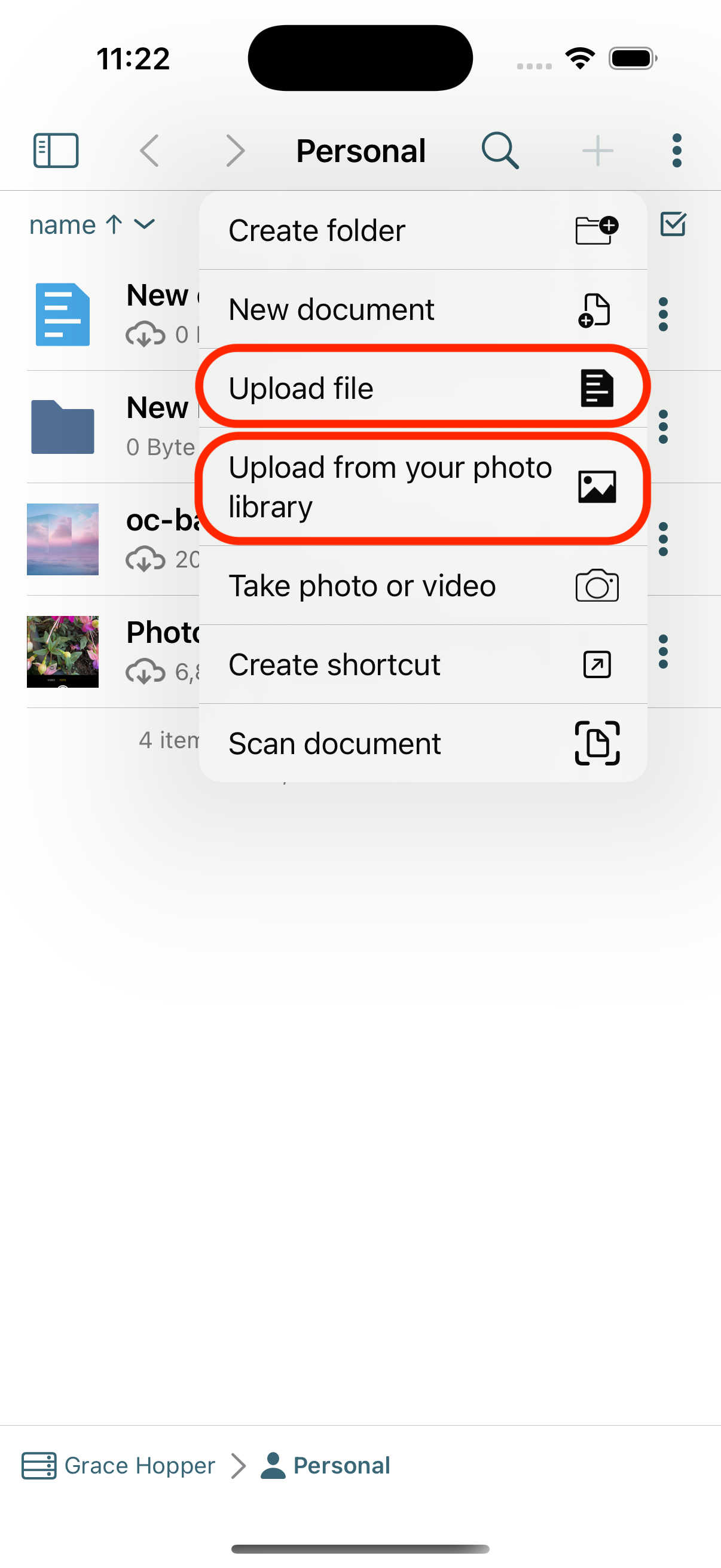
Upload options
From the menu, you can choose an Upload option:
-
"Upload file" – upload a file from your device's Files app
-
"Upload from your photo library" – upload an existing photo or video from your media library
Confirm the Selection
Choose the file or media you want to upload. The upload will start automatically.
Make Files Available Offline
You can also make files available offline so they are accessible without an internet connection.
-
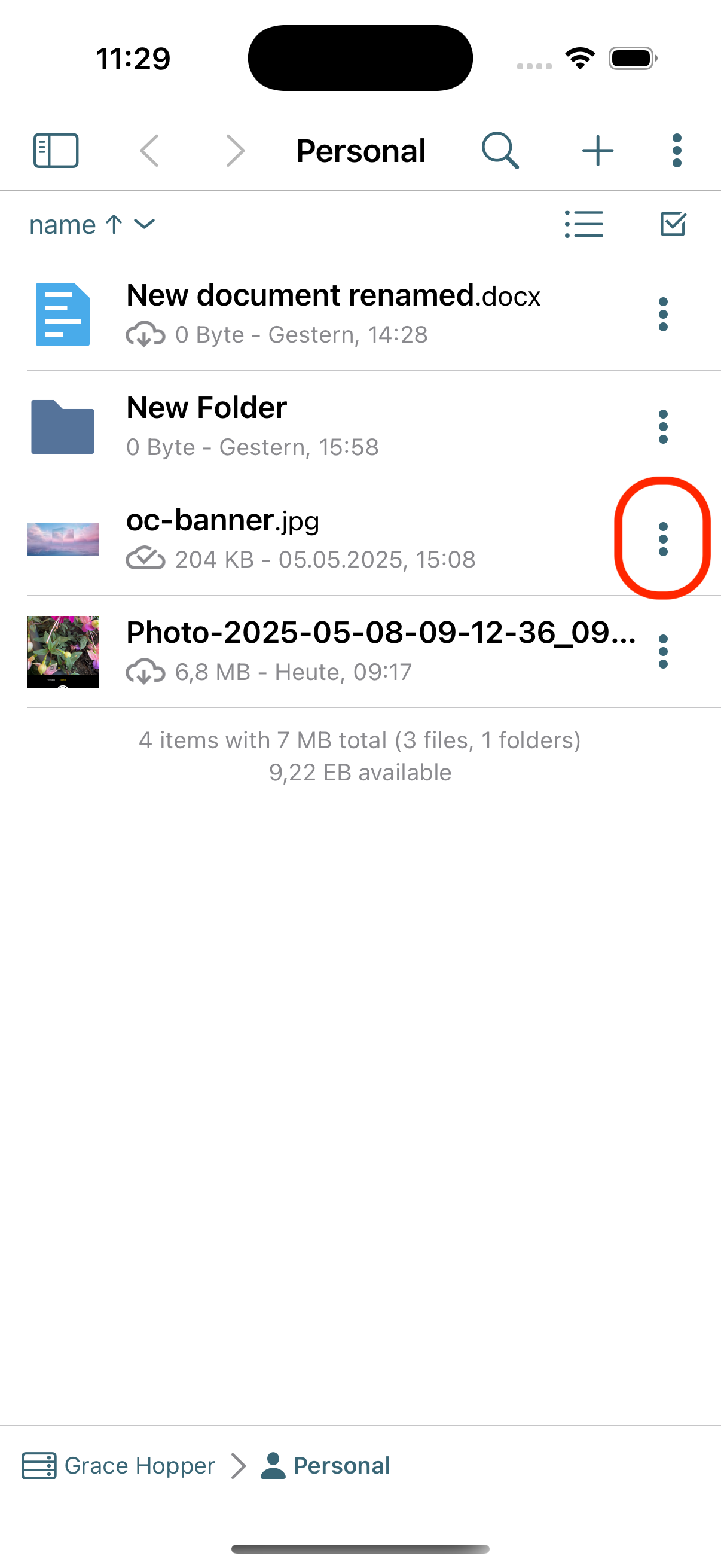
Tap the three dots (⋯) next to the file
-
Select “Make available offline”
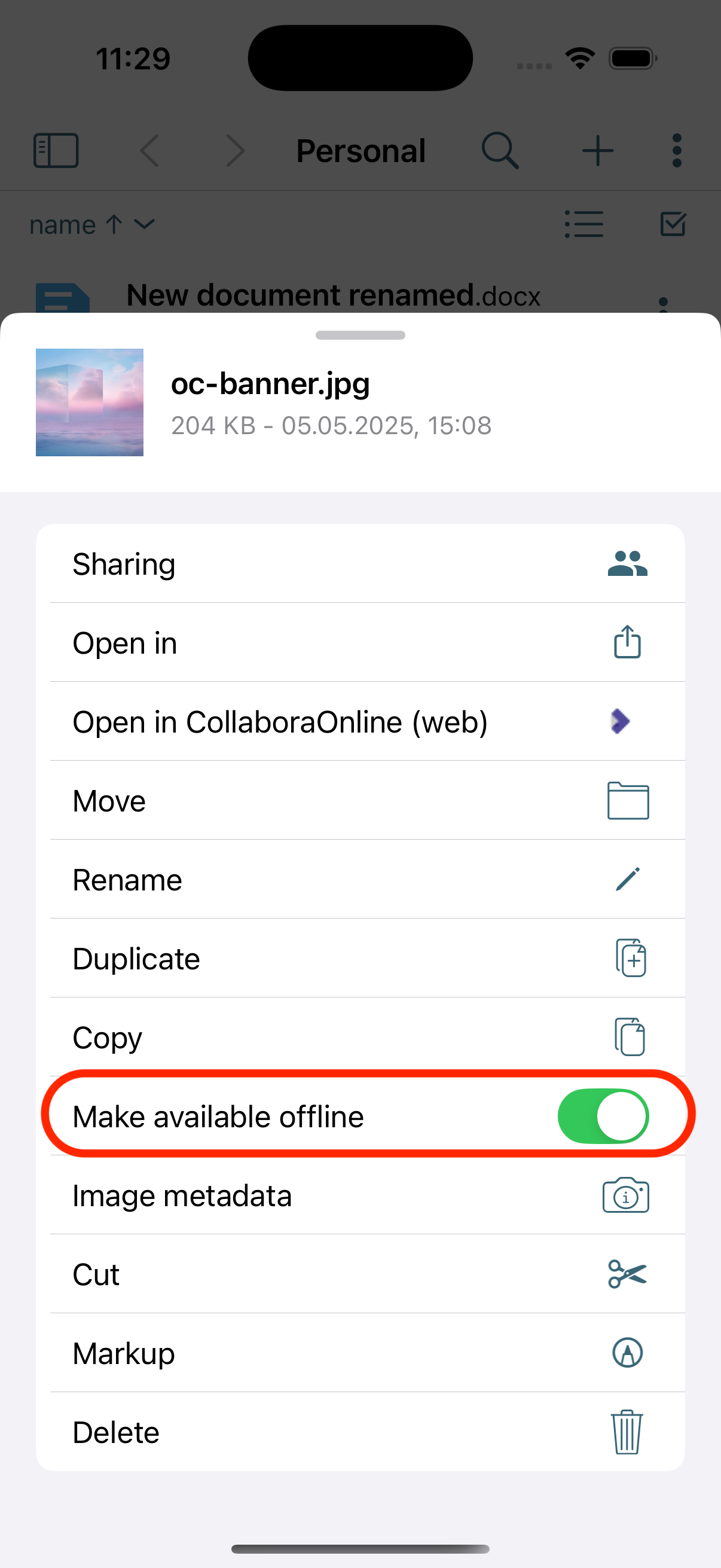
The file will be downloaded and stored locally on your device.
-
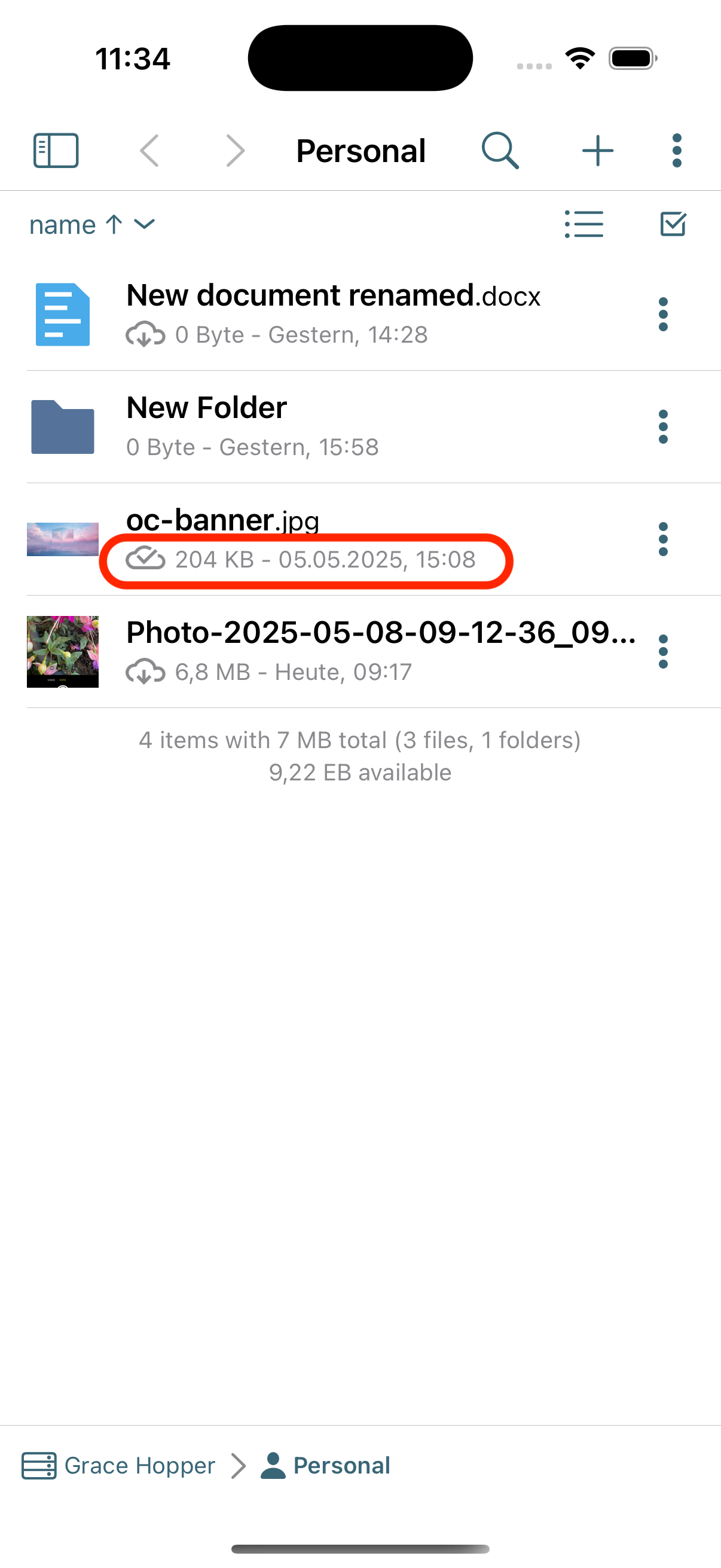
Offline files are marked with a cloud icon with a checkmark.
Remove Offline Availability
To free up space:
- Tap the three dots (⋯) again on an offline file
- Select “Remove offline access”
These features ensure you’re always prepared — even when you’re offline!