Common Issues & Help
Check whether the containers are running
docker ps

Several containers should be listed here, e.g., for opencloud, traefik, etc.
Accept Self-Signed Certificates
As the local environment is self-signed, you must accept the security risk in your browser.
For Firefox:
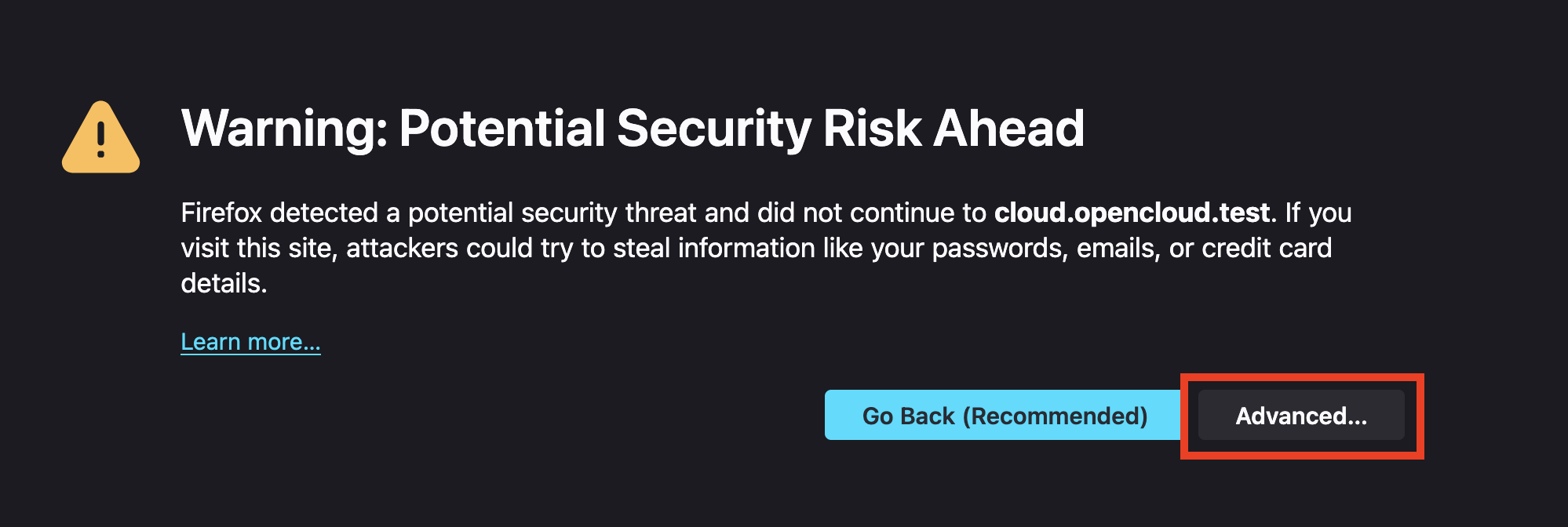
You need to click on Advanced
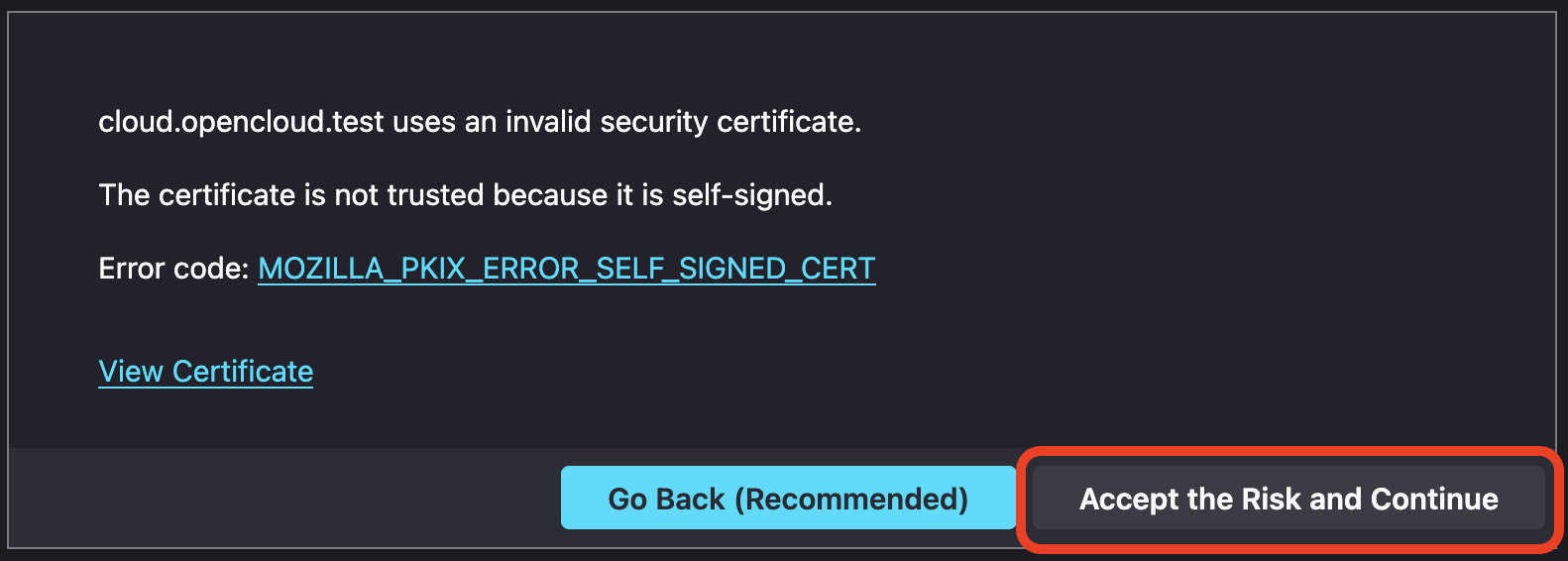
Confirm the risk with Accept the risk and Continue
Docker Permission Issues
If your Docker Compose setup fails to start and the logs contain messages such as permission denied, it's likely due to incorrect ownership of local directories used by the containers.
Example log output:
opencloud-1 | {"level":"fatal","service":"nats","time":"2025-04-08T09:59:59Z","line":"github.com/opencloud-eu/opencloud/services/nats/pkg/logging/nats.go:33","message":"Can't start JetStream: could not create storage directory - mkdir /var/lib/opencloud/nats: permission denied"}
This error typically occurs when the mounted directories are owned by the wrong user, such as root, instead of the standard Docker user (UID 1000).
Incorrect directory ownership:
drwxr-xr-x 3 root root 4096 Apr 8 09:59 opencloud-data
Correct ownership should be:
drwxr-xr-x 9 1000 1000 4096 Apr 7 07:57 opencloud-data
To resolve this issue, adjust the ownership of the directory using the chown command:
chown -R 1000:1000 opencloud-data
Security Warning
The user with UID 1000 on your host system will have full access to these mounted directories. This means that any local user account with this ID can read, modify, or delete OpenCloud config and data files.
This can pose a security risk in shared or multi-user environments. Make sure to implement proper user and permission management and consider isolating access to these directories.
Ensure you apply this to all relevant folders that are mounted into your containers. This will grant the Docker container the necessary permissions to access and write to these directories.
Change Admin Password Set in .env
If you initially set the OpenCloud admin password using the .env file, please note:
You cannot simply change the password again by editing the .env file.
Once the container is running, password changes must be made via the Web UI or terminal.
Option 1: Change via Web UI
If the current admin password is known:
- Log in to the OpenCloud Web Interface.
- Navigate to Settings > Security.
- Enter your current password and choose a new one.
If the admin password is forgotten or you prefer command-line tools, use the terminal method below.
Option 2: Change via Terminal
If the admin password is forgotten or needs to be changed via the terminal:
Stop the Docker container
First, stop your OpenCloud container:
docker compose stop opencloud
Run the password reset command
Use the following command to reset the password:
sudo docker run -it --rm -v <opencloud-data-path>:/var/lib/opencloud -v <opencloud-config-path>:/etc/opencloud opencloudeu/opencloud:<opencloud-version> idm resetpassword
Replace
<opencloud-data-path> – Docker volume for OpenCloud data
<opencloud-config-path> – Docker volume for OpenCloud config
<opencloud-version> – Use latest or your specific version
🔍 How to find the volume names You can list your current Docker volumes with:
docker volume ls
Look for volumes like:
opencloud-compose_opencloud-data
opencloud-compose_opencloud-config
Example for standard setup
sudo docker run -it --rm -v opencloud-compose_opencloud-data:/var/lib/opencloud -v opencloud-compose_opencloud-config:/etc/opencloud opencloudeu/opencloud:latest idm resetpassword
Start the container again
docker compose up -d
Internal LibreIDM cert expires
Starting with OpenCloud 7.3, certificates used by the internal LibreIDM are renewed automatically before they expire.
No manual certificate removal or container restart is required.
For affected older releases, see the remediation instructions for OpenCloud 7.2 or OpenCloud 4.0.
Login fails with LDAP Result Code 49 (Invalid Credentials)
When using the built-in IDM (LibreIDM), login can fail with Unexpected HTTP response: 500 in the browser, and the logs show the internal directory rejecting a bind:
opencloud-1 | {"level":"error","service":"idm","bind_dn":"uid=idp,ou=sysusers,o=libregraph-idm","op":"bind","message":"not found"}
opencloud-1 | {"level":"error","service":"idp","error":"ldap identifier backend logon connect error: LDAP Result Code 49 \"Invalid Credentials\": ","message":"identifier failed to logon with backend"}
The built-in IDM seeds its service-account passwords once, at first start, into a
bolt-store on the data volume (idm.boltdb), matching the values opencloud init
writes into opencloud.yaml on the config volume. The bind fails when the two volumes
are no longer from the same init. The idm line reads either not found or
invalid credentials; both mean the same mismatch. This usually comes from setting an
internal LDAP password in the environment, or from reusing one volume (for example a
restored or carried-over data volume) without the other.
Solution
With the built-in IDM, do not set the internal LDAP or service passwords in .env or
the environment. Let opencloud init generate them, and keep only
INITIAL_ADMIN_PASSWORD.
Treat opencloud.yaml (config volume) and the data volume as one set. When you back
up, restore, or move the instance, keep them together and from the same point in time.
If you do not need the existing data, remove both volumes so init generates a
matching set, then start again:
docker compose down
docker volume rm opencloud-compose_opencloud-config opencloud-compose_opencloud-data
docker compose up -d
Deleting idm.boltdb alone may not be enough: it is re-seeded from the current config,
but a bind password still set in the environment keeps the two sides out of sync.
Recommendation
The built-in IDM is intended for testing and small installations. For production, use an external identity provider, for example Keycloak with an external LDAP.