Linux: Synchronization Settings
On Linux, files are downloaded to your system. You can configure what to sync and how often through the OpenCloud Desktop Client.
Access Synchronization Settings
- Open the OpenCloud Desktop Client.
- Go to the Account View.
- Click the three-dot menu (...) next to the Space you want to configure.
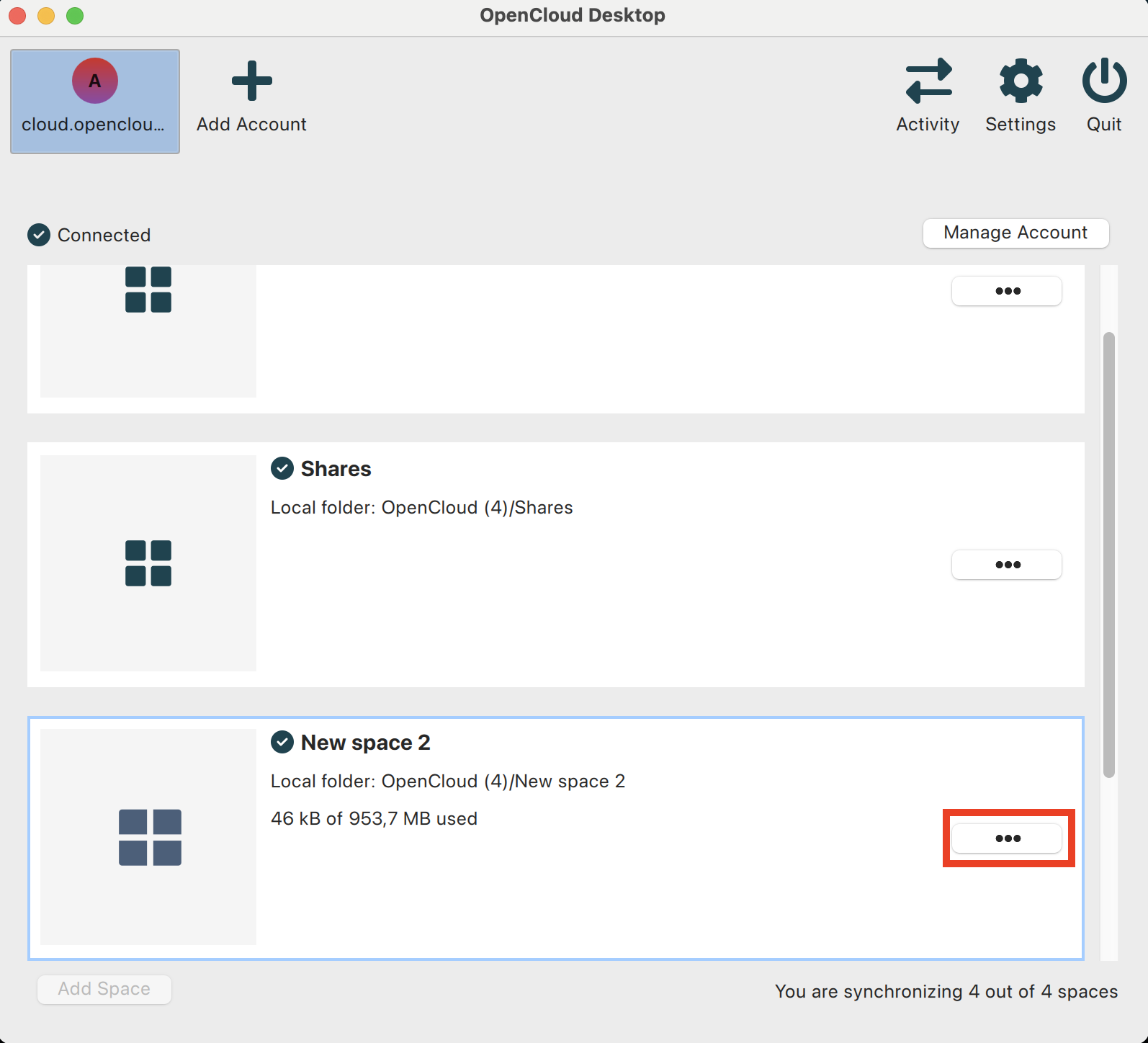
Synchronization Options
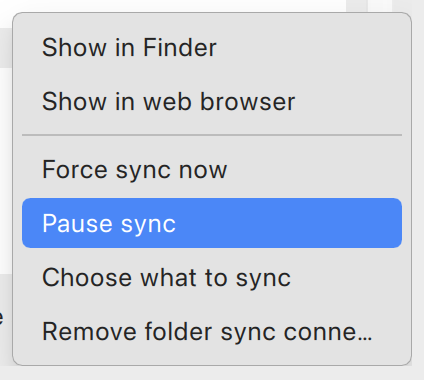
Show in Linux file manager
- Opens the Space in your Linux desktop environment file manager.
Show in Web Browser
- Opens the Space in your web browser.
- You may need to sign in if not already logged in.
Force Sync Now
- Manually triggers an immediate synchronization.
Pause Sync
- Temporarily stops synchronization.
- Resume anytime via Resume Sync.
Remove Sync Folder Connection
- Stops syncing the Space but does not delete local files.
- The Space remains on the server.
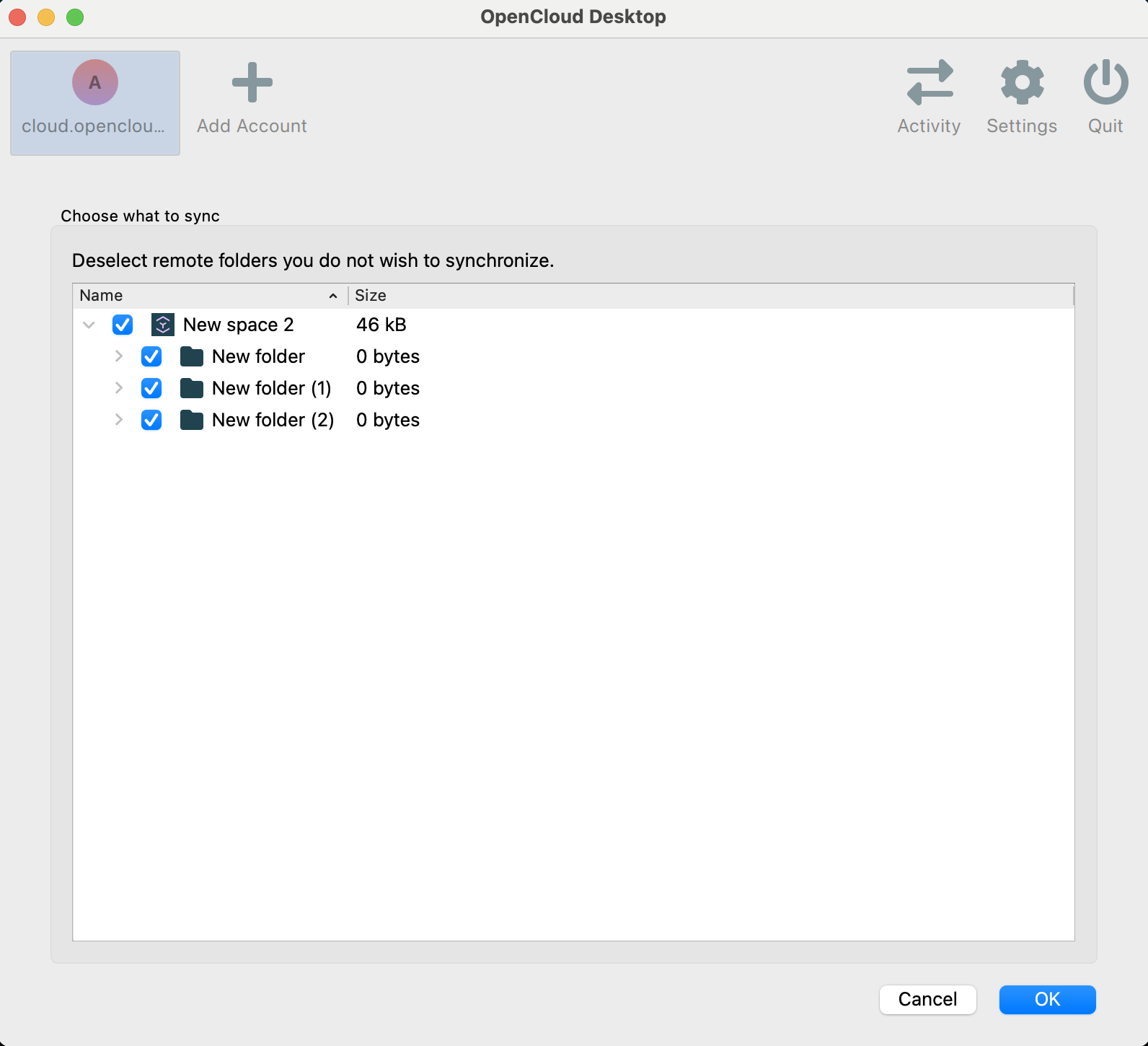
Choose What to Sync
- Select specific folders to sync locally.
- Helps save disk space by keeping only necessary files synced.
note
Files and folders not selected for sync will not be available locally.