Windows: Synchronization Settings
The OpenCloud Desktop Client uses the Windows Virtual File System (VFS) to integrate your cloud data directly into the File Explorer.
Files and folders appear in the system without needing to be fully downloaded, saving local disk space.
File States
Files and folders can appear in different states, depending on whether they are stored locally or only available online.
Always available on this device (full pinned)
- Stored locally and always accessible offline.
- Windows will not remove the file automatically.

Available on this device (full)
- Downloaded and accessible offline.
- Can be removed by Windows if disk space is needed.
- Newly created or added files automatically receive this state.

Available when online (placeholder)
- Shown in File Explorer but stored only in the cloud.
- Downloaded automatically when opened; requires an internet connection.

Making Items Available Offline
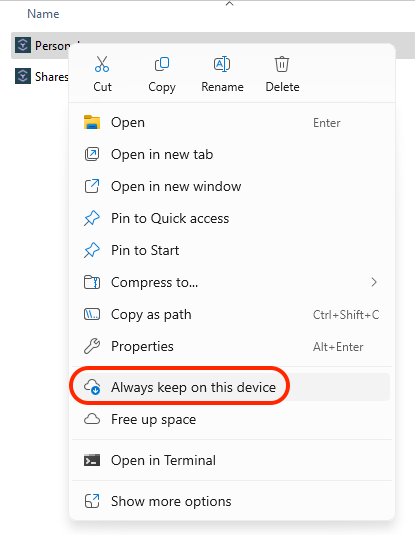
To store a file, folder, or Space locally:
- Right-click the item in File Explorer.
- Select “Always keep on this device”.
Freeing Up Disk Space
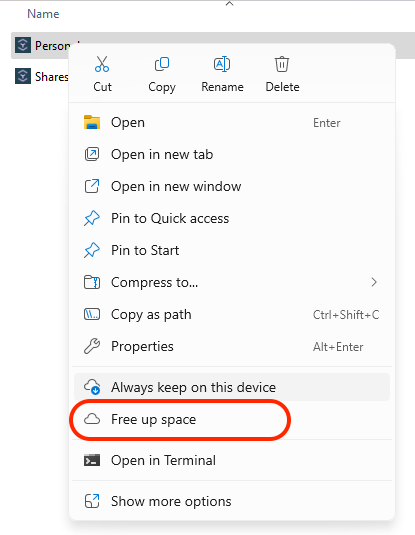
To remove local copies while keeping them visible in File Explorer:
- Right-click the item.
- Select “Free up space”.
Accessing Files
- Online-only items are downloaded automatically when opened.
- Changes are synced back to OpenCloud.
note
An internet connection is required for online-only files.