Verify SSL Certification
After starting OpenCloud, verify that the SSL certificates were issued correctly
Open the following URL in your web browser:
https://cloud.YOUR.DOMAIN
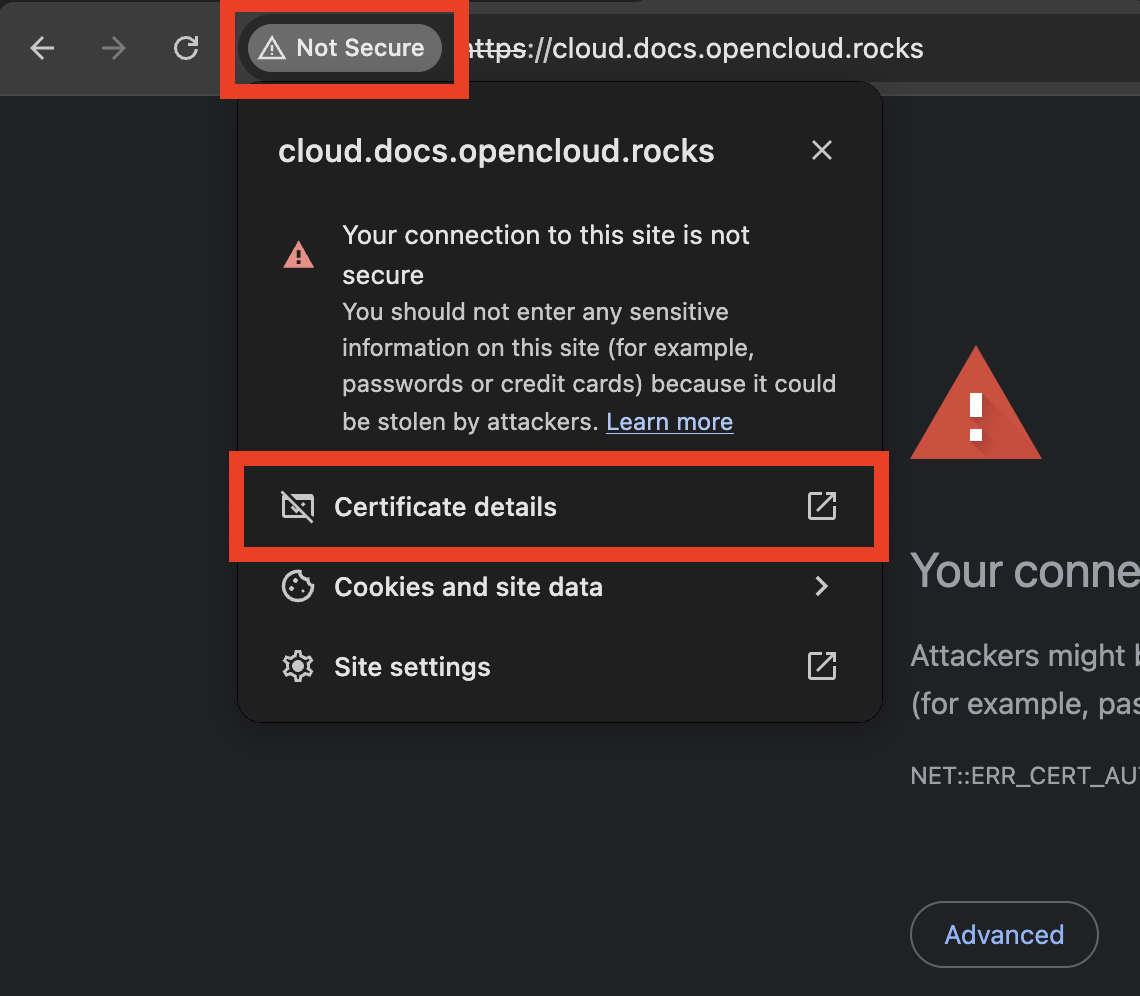
Because the setup currently uses Let's Encrypt staging certificates, your browser will show a security warning. This is expected, as staging certificates are not trusted by browsers.
The same warning may appear for the other domains you configured.
Example in the Chrome browser:
-
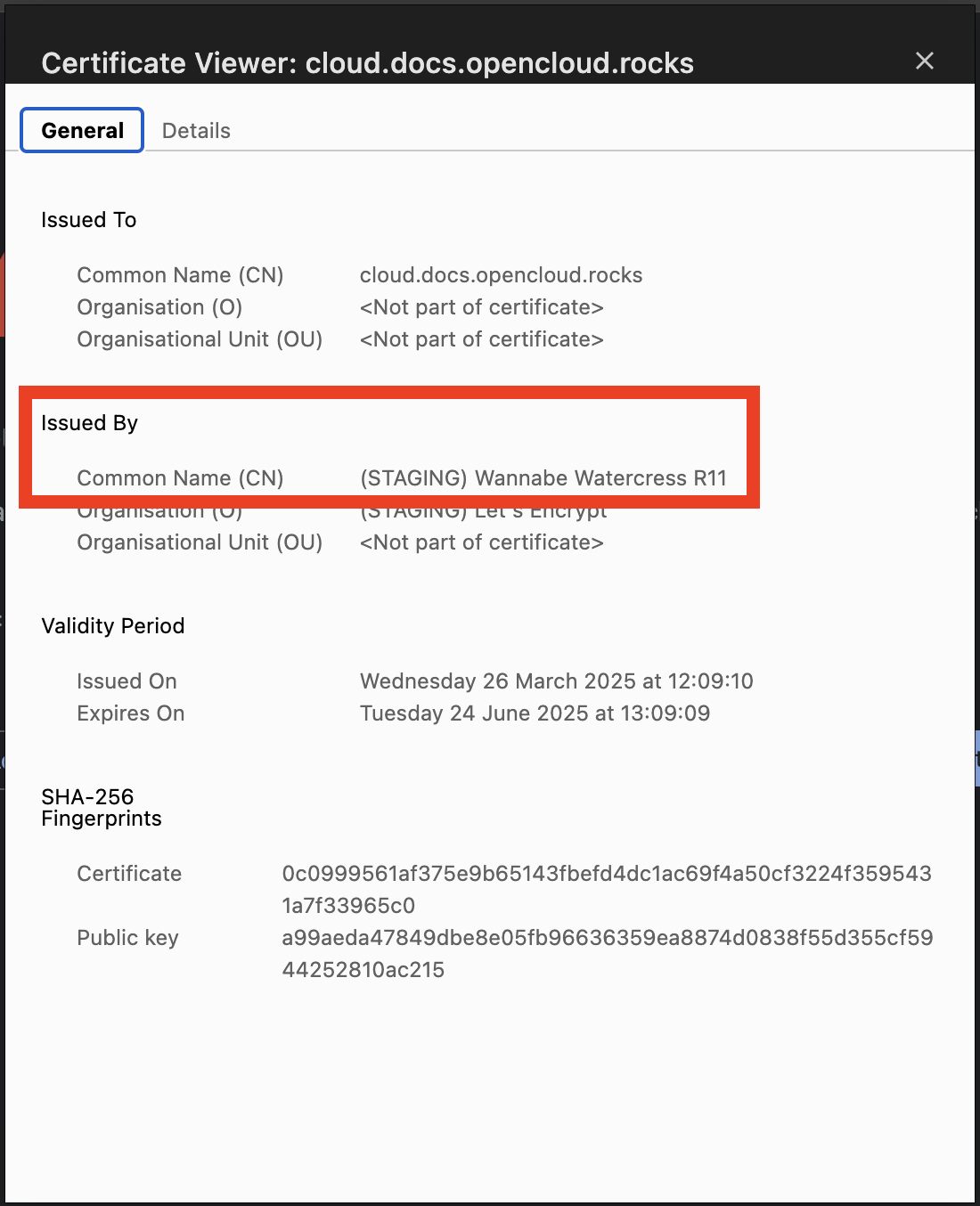
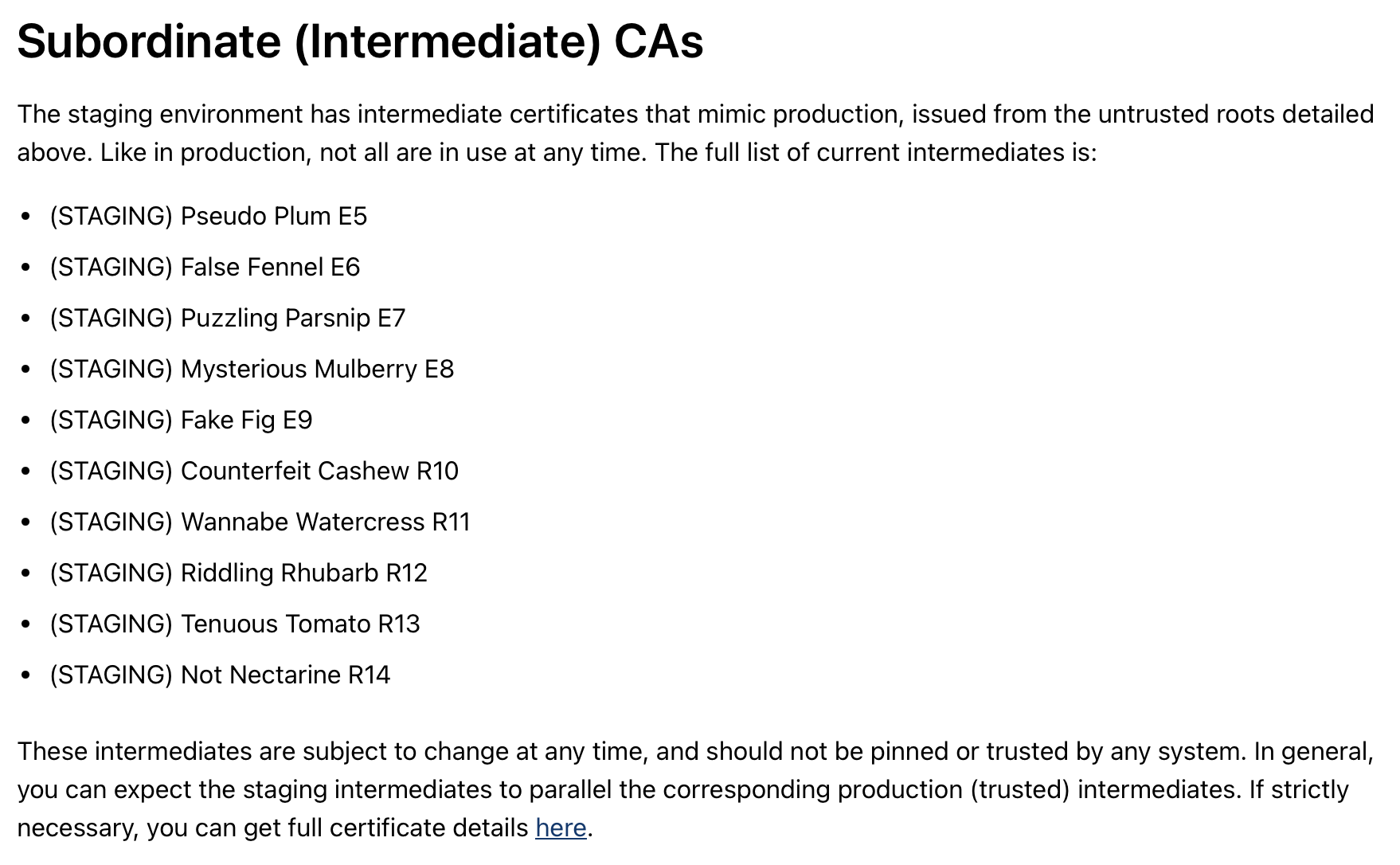
Check the certificate details to confirm that the certificate was issued by Let's Encrypt Staging.
Apply a Real SSL Certificate
Once the staging certificate works correctly, you can switch to a production SSL certificate.
Stop Docker Compose
Stop the running containers:
docker compose down
Remove old staging certificates
Delete the previously generated staging certificates:
rm -r certs
If you changed volume names or paths, adjust this command accordingly.
Disable staging mode in .env
Open the environment file:
nano .env
Comment the staging server:
# TRAEFIK_ACME_CASERVER=https://acme-staging-v02.api.letsencrypt.org/directory
Restart OpenCloud with a real SSL certificate
Start the containers again:
docker compose up -d
OpenCloud will now request trusted production certificates from Let's Encrypt.
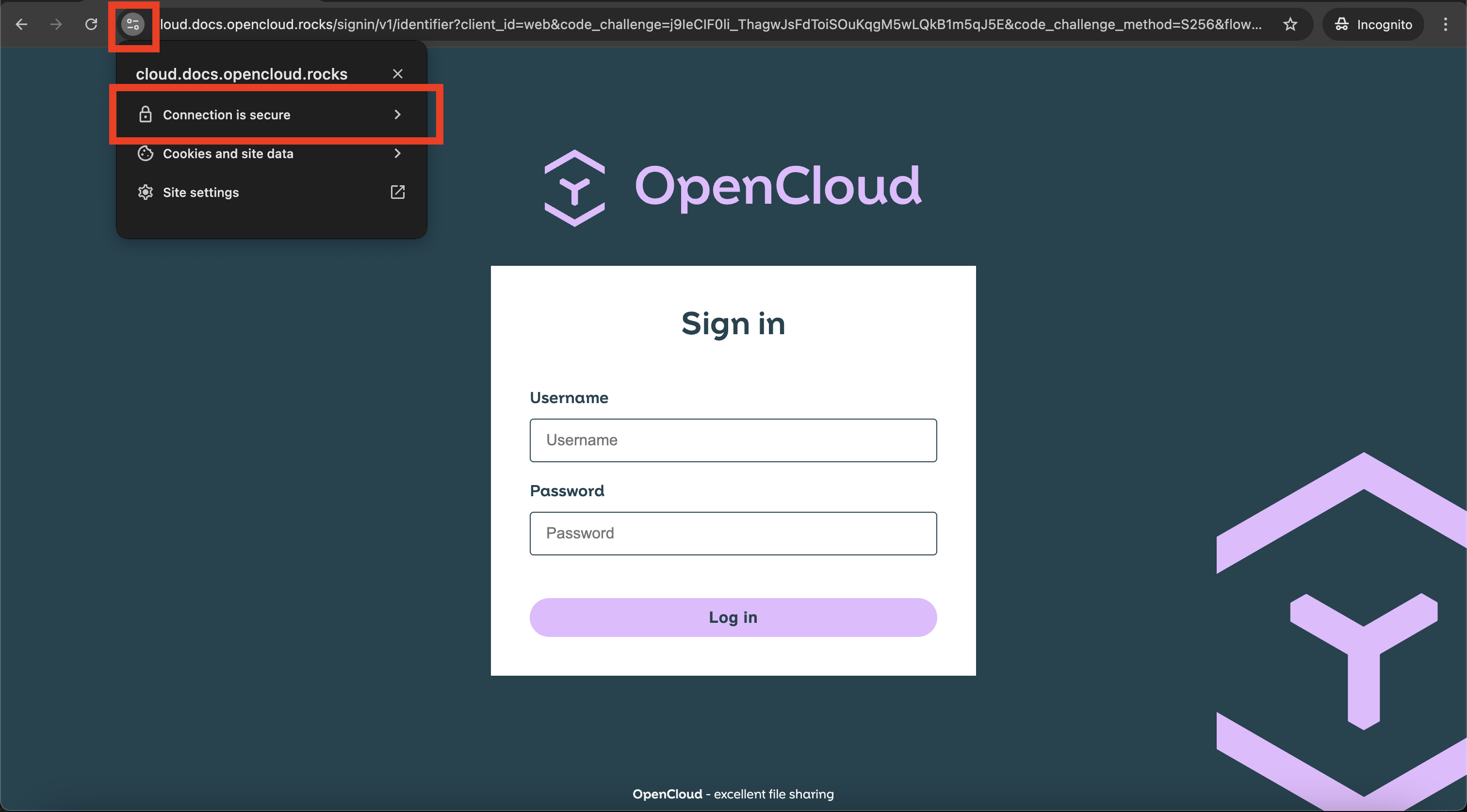
After a short moment, visiting the following URL should show a secure HTTPS connection:
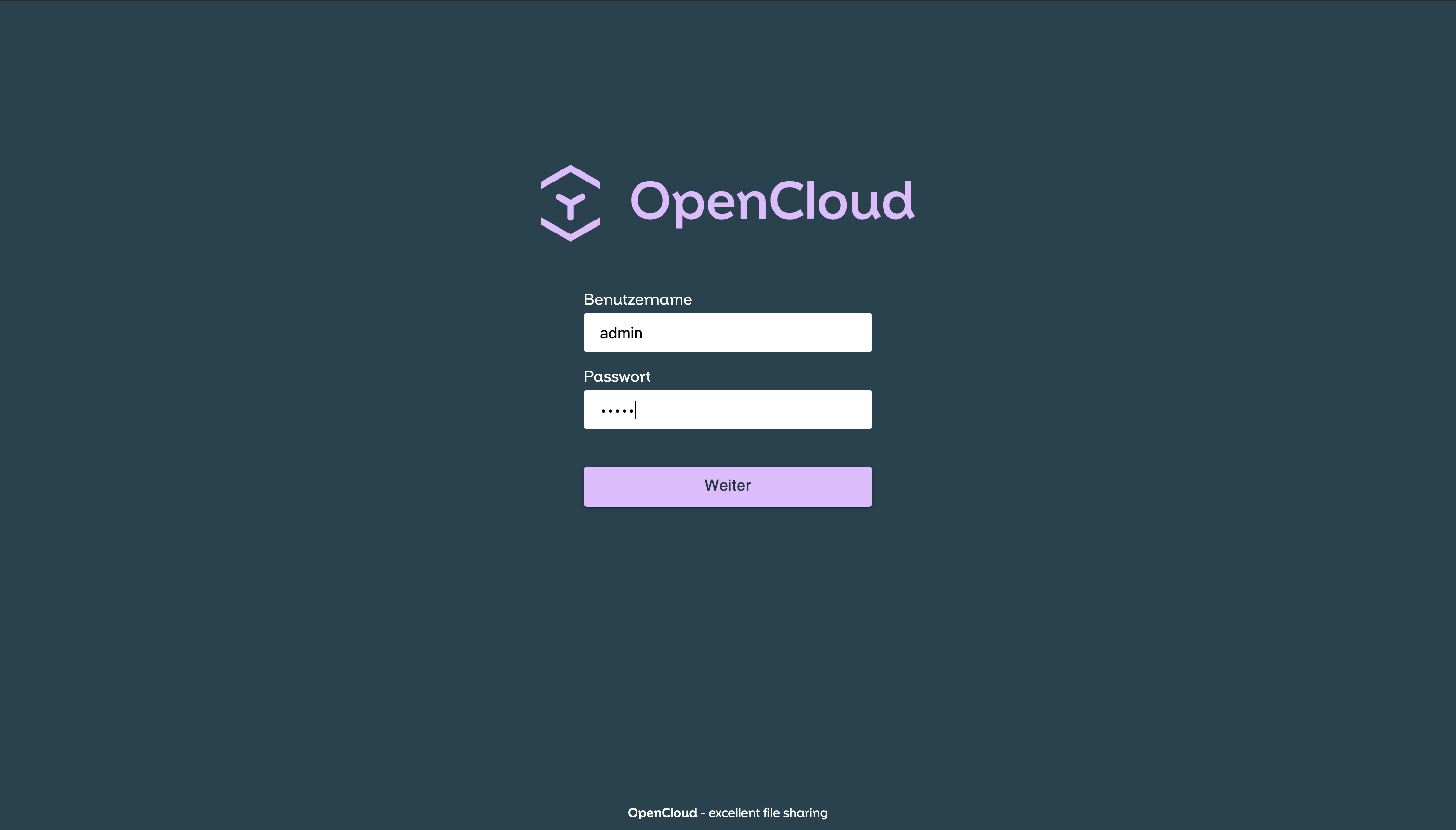
Log into OpenCloud
Open a browser and visit:
https://cloud.YOUR.DOMAIN
Login with:
Username: admin
Password: (the password you configured in the .env file)
Troubleshooting
If you encounter any issues during the setup process, check the troubleshooting guide: Common Issues & Help