Web Applications
Administrators have the ability to provide additional web applications to their users. This feature is especially useful for organizations that want to integrate third-party tools or provide internally developed apps within the OpenCloud environment.
Installing a Web Application
You can install a web application in just a few steps:
Open the App Store
Use the Application Switcher in the top navigation bar of OpenCloud and navigate to the App Store.
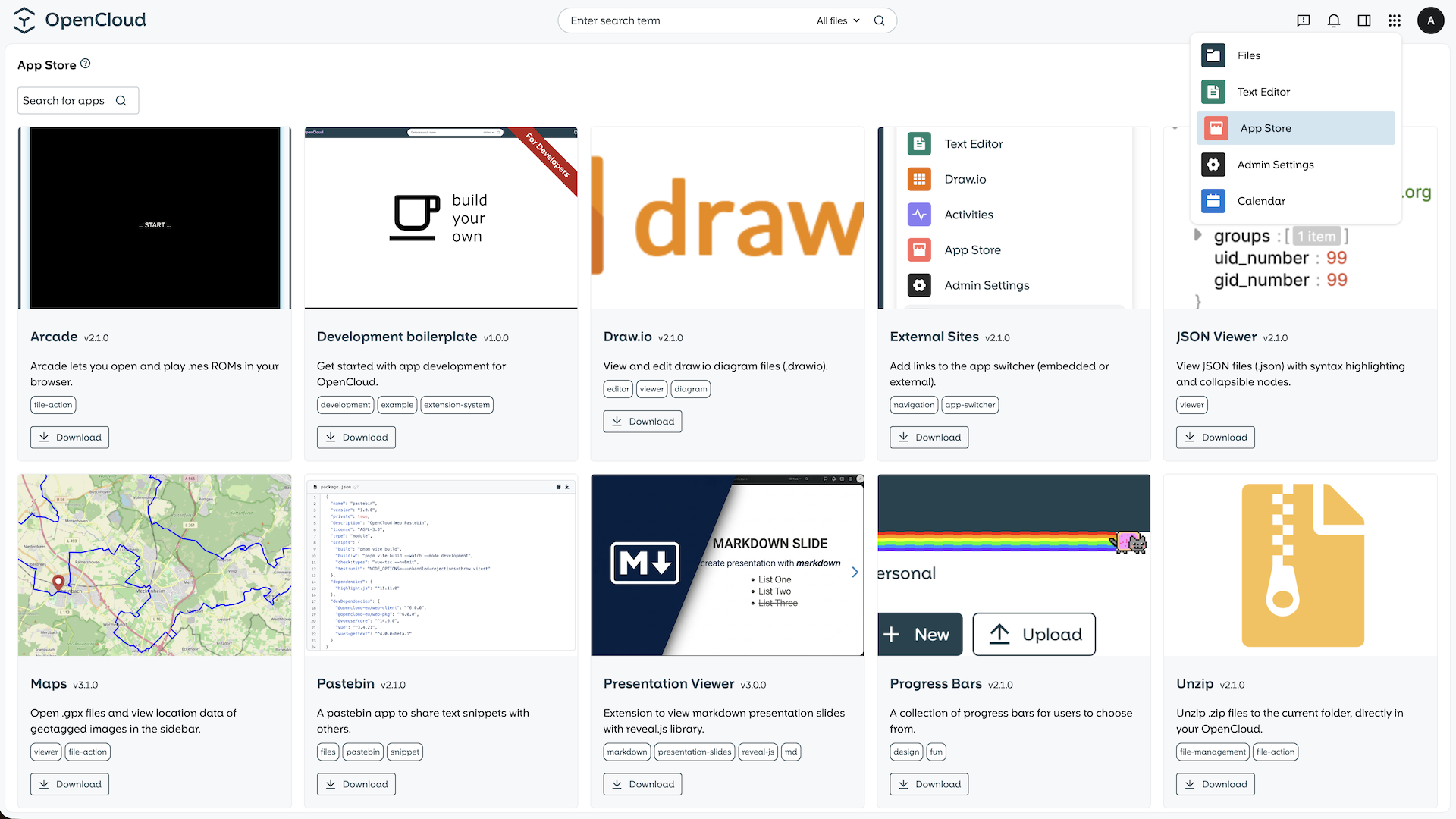
Download the Application
Find and download the application you want to install.
Extract and copy
Unzip the downloaded archive and copy the extracted folder into the web application directory, which defaults to $OC_DATA_DIR/web/assets/apps.
If you're using the opencloud-compose setup, simply place apps in opencloud-compose/config/opencloud/apps. They will get mounted to the correct location.
In any other setup, you might need to manually create the $OC_DATA_DIR/web/assets/apps directory if it doesn't exist yet.
Restart OpenCloud
Restart the OpenCloud stack using the following command:
docker compose restart
Access in OpenCloud
Once the app is copied to the correct location, it will automatically appear in the OpenCloud interface.
Configure a Web Application
Some OpenCloud apps require additional configuration — for example, the External Sites app.
The recommended way to configure such apps is via the apps.yaml configuration file located under $OC_CONFIG_DIR/apps.yaml. That way, you ensure a consistent config that doesn't get overwritten when updating apps.
Using the opencloud-compose setup, you can edit the opencloud-compose/config/opencloud/apps.yaml file to add your configuration.
external-sites:
  config:
    defaultDashboard: 'Main Dashboard'
Alternatively, you can add configuration via a config.json file inside the app's folder.
{
  "config": {
    "defaultDashboard": "Main Dashboard"
  }
}
Configuration details vary between apps. For specific setup instructions, please refer to the official documentation of the respective app.