App Tokens
App Tokens allow you to connect external apps and services (such as WebDAV clients) without using your main password.
This improves security in several ways:
- You never need to expose your login password to third-party applications.
- App tokens can be revoked. If you think one has been compromised, just delete it.
- App tokens have a configurable expiry date. This reduces the risk of misuse.
In addition to improved security, App Tokens also maximize compatibility with third-party applications. Many applications do not support modern login flows like OpenID Connect, but only accept standard logins with a username and password instead. Your username together with any of your App Tokens works as the login credentials.
App Tokens allow third-party applications to access all your data. Make sure that you create one App Token per application and use a reasonable expiration period. If you do not want to expose access to all your data, consider using a public link instead.
Create an App Token
-
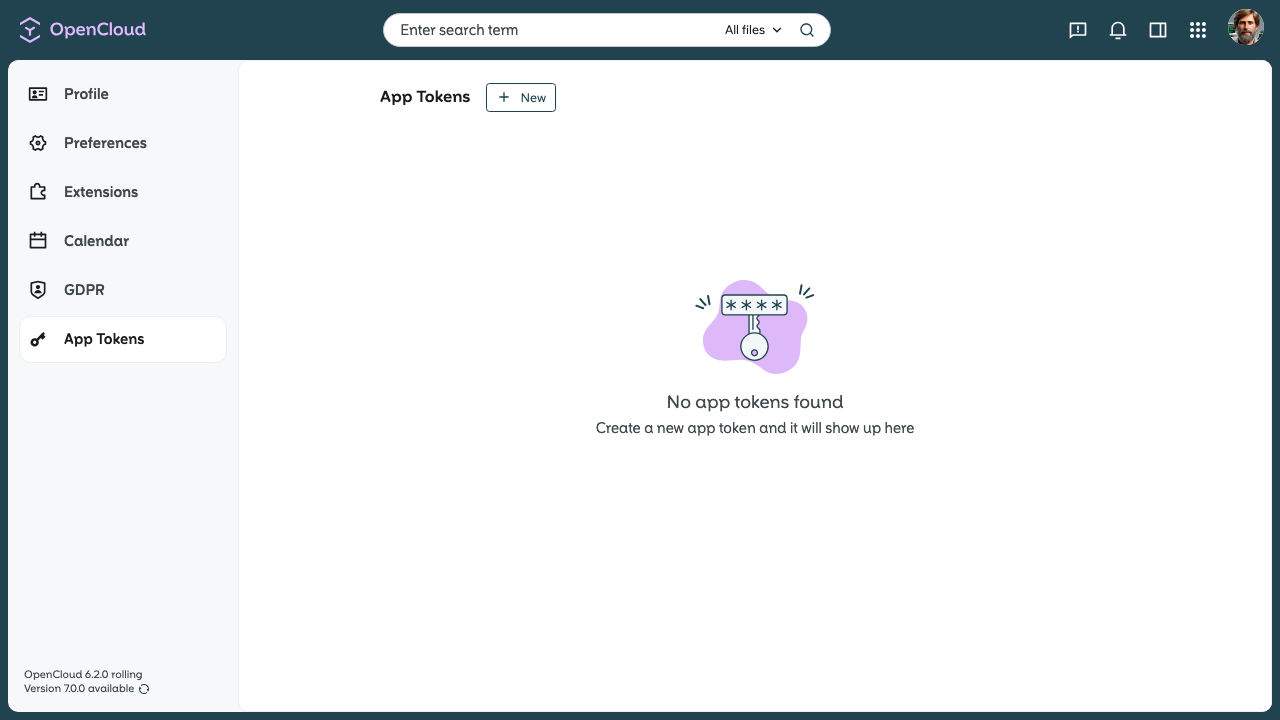
Go to the App Tokens section in your OpenCloud account settings.
-
Click on “+ New” to create a new token.
-
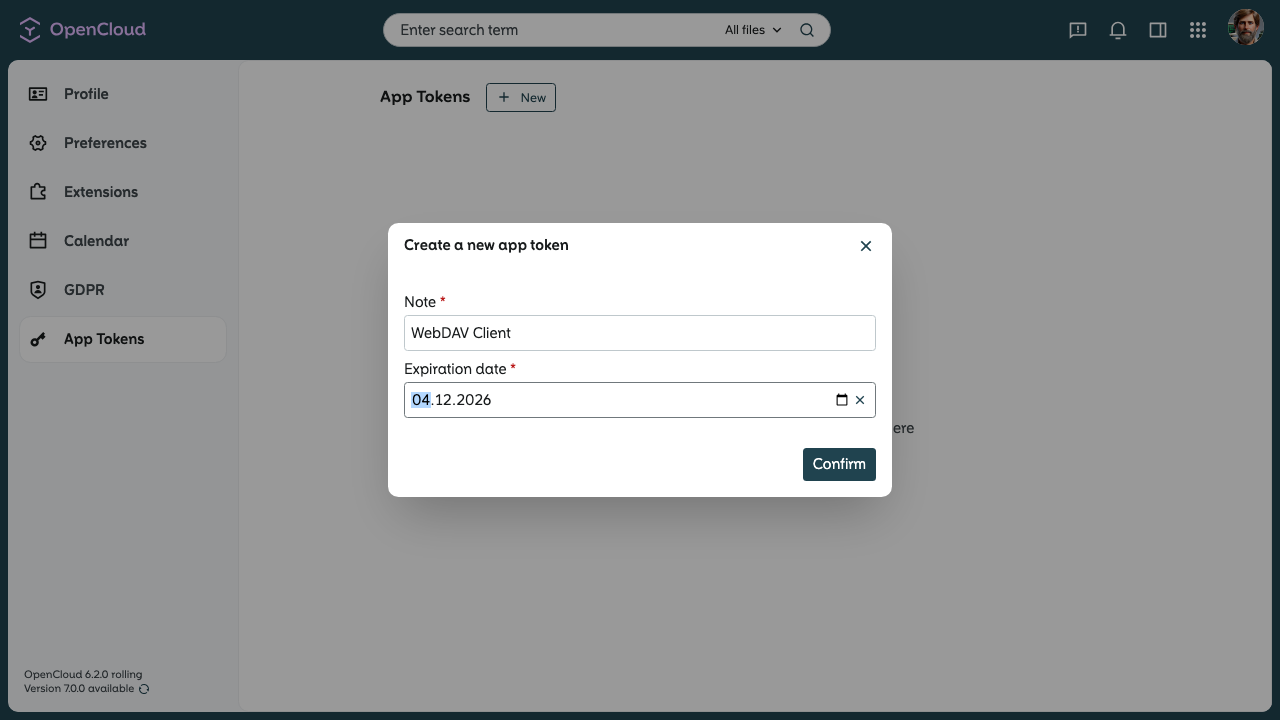
Enter a name for the token (e.g., "WebDAV Client").
-
Select an expiration date for added security.
-
Click Confirm.
Copy the App Token
-
Once the token is created, it will be shown only once.
-
Copy it immediately and store it in a secure place.
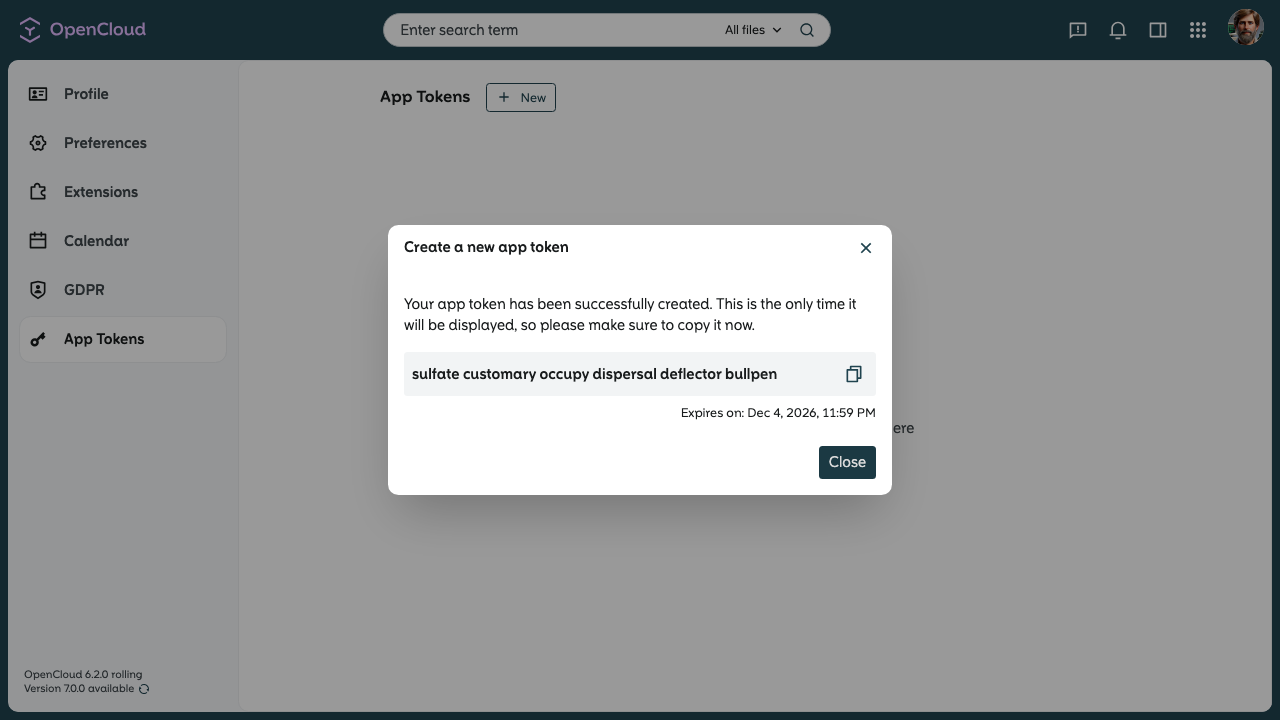
If you lose the token, you need to delete it and create a new one.
Use the App Token
You can now use the token in place of your password when connecting:
- WebDAV
- External apps
- Third-party services
The username is usually the same as the one you use for your regular login.
However, if the identity provider is operating in autoprovisioning mode, only the UUID can be used.
You can find this UUID in the Preferences overview page.
Delete the App Token
If a token is no longer needed:
- Go back to the App Tokens section.
- Click the trash icon next to the token to remove it.
This ensures unused tokens cannot be misused.