Add a new member to your Space in OpenCloud
You can easily invite new members to collaborate within your Space by following the steps below.
-
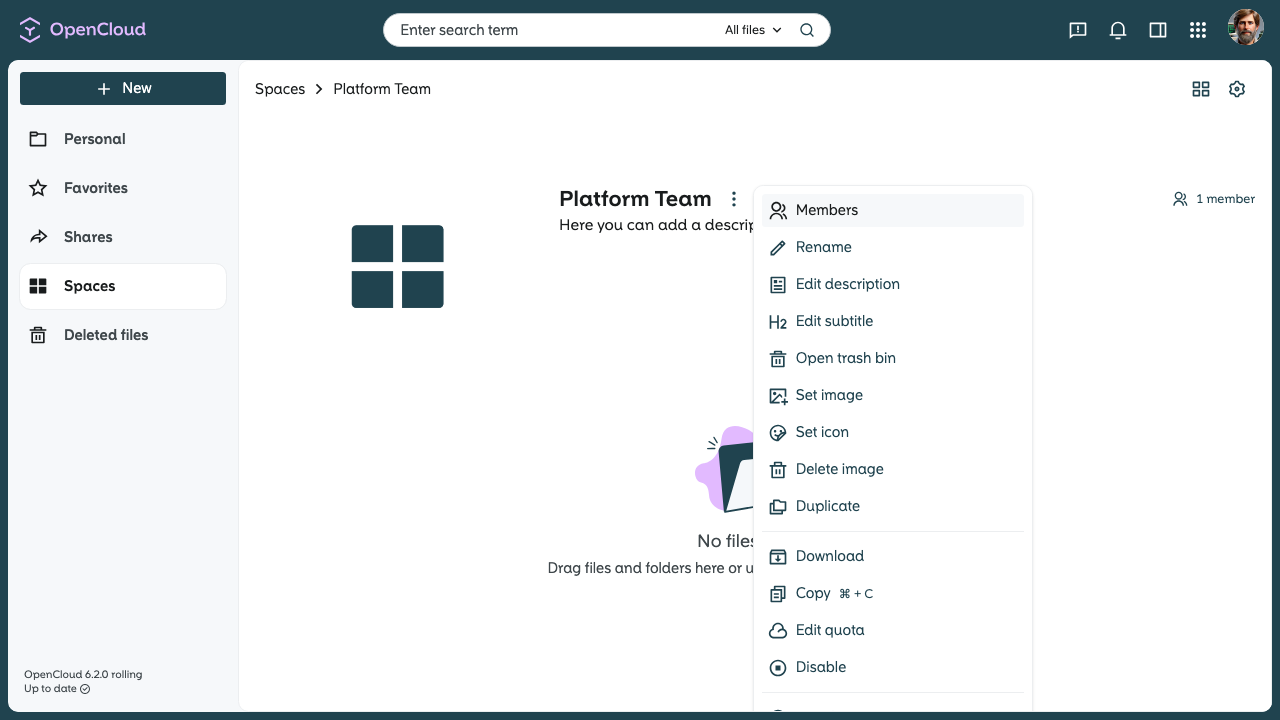
Go to your Space and open the members' menu.
-
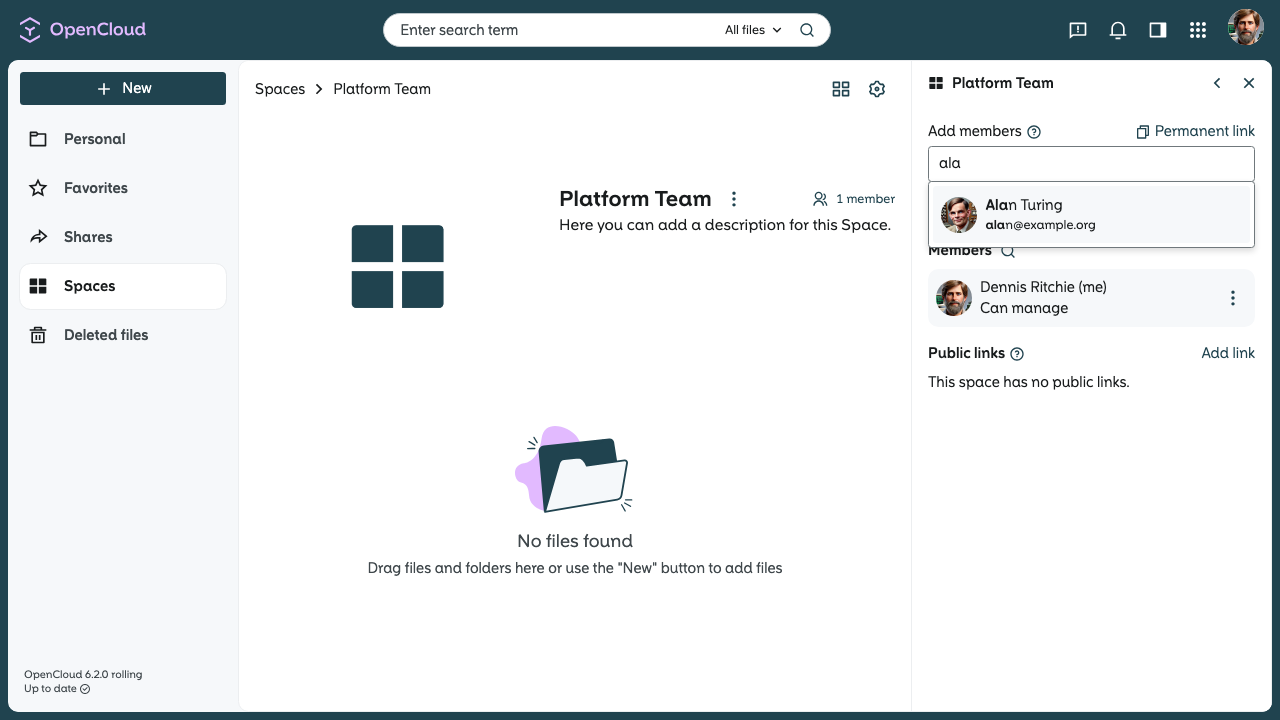
In the members menu, you can search for the user from your organization that you want to add.
-
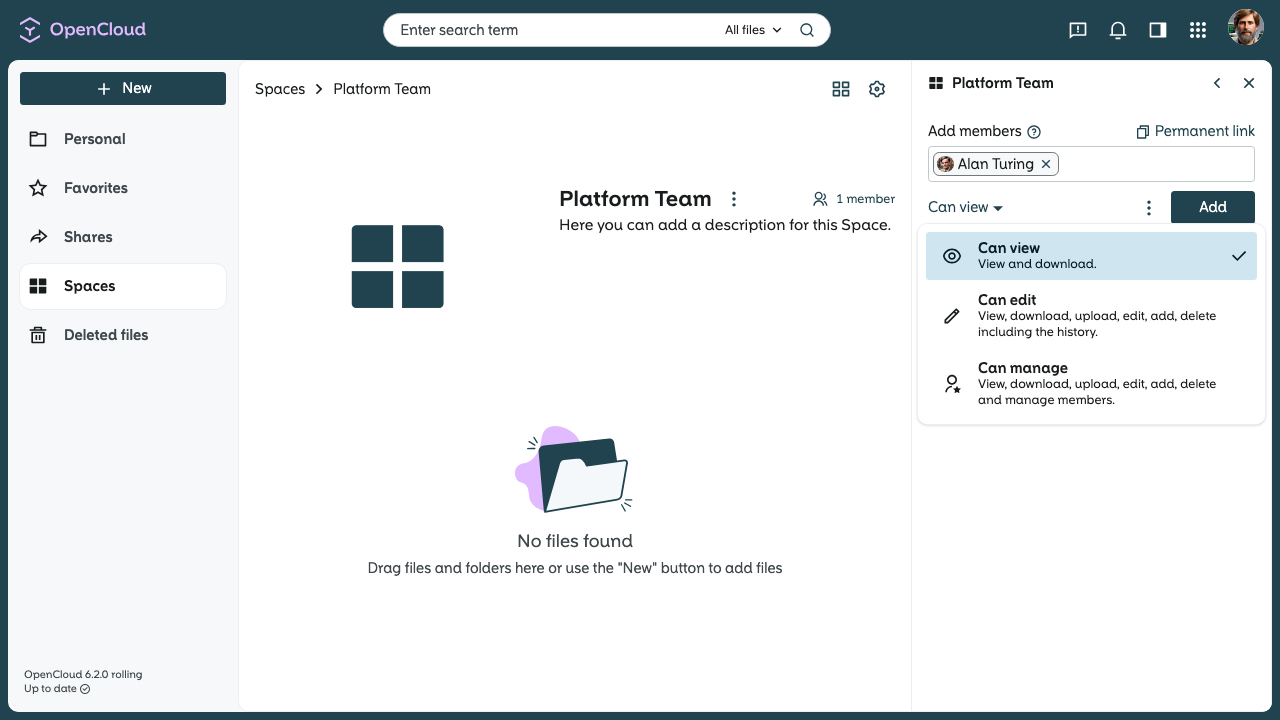
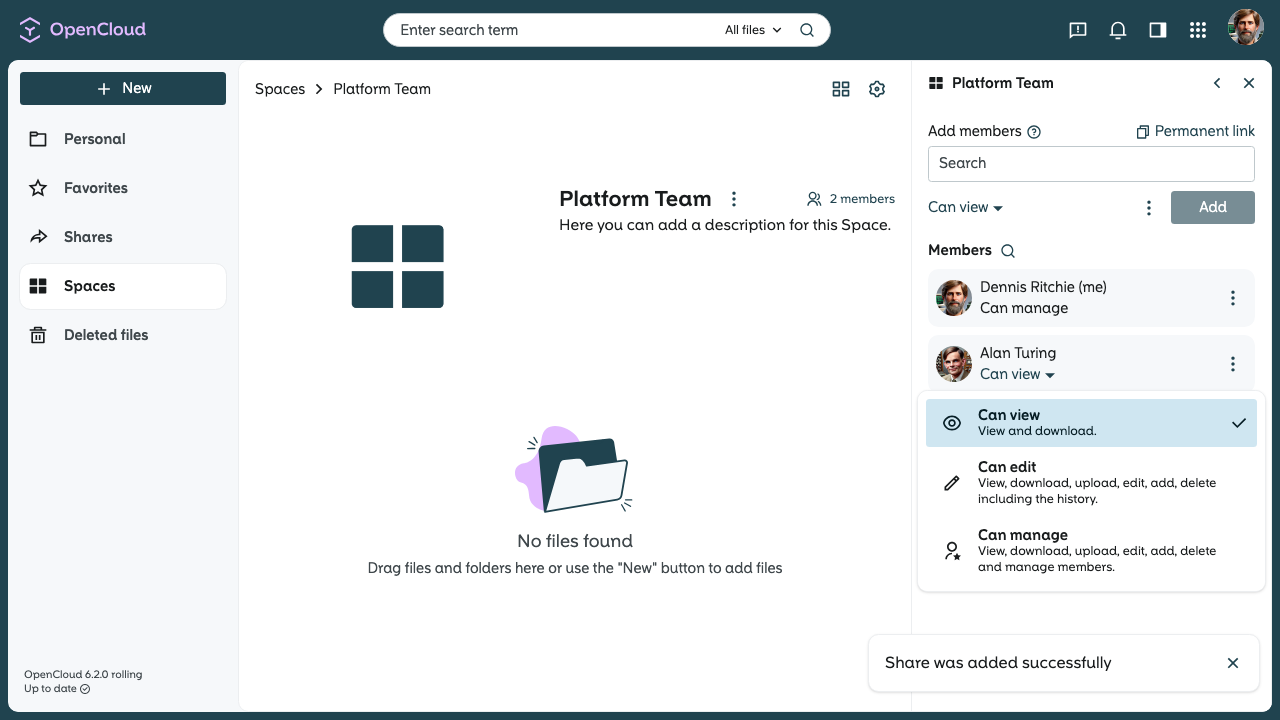
Select the desired rights for the member, e.g. whether the person may only read or also edit.
-
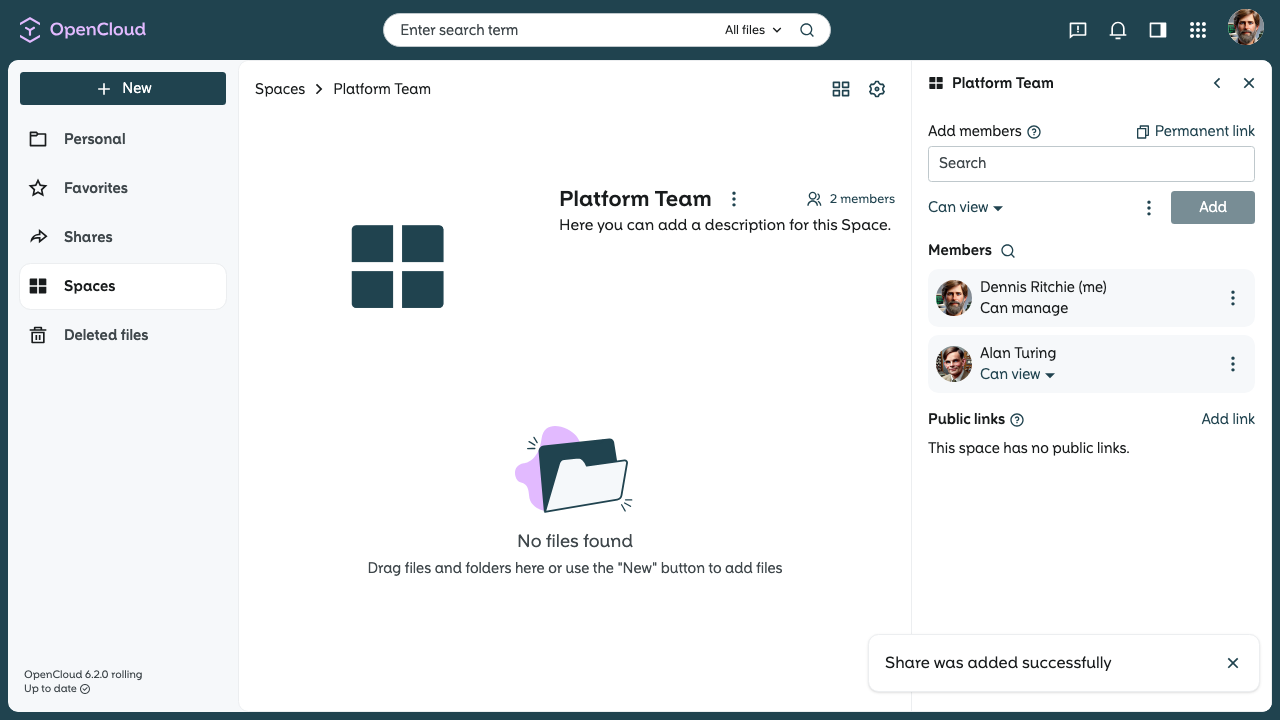
Click on “Add” to invite the member to the Space.
-
To change the rights of a member, open the members menu, click on the corresponding user and select the desired new rights.
-
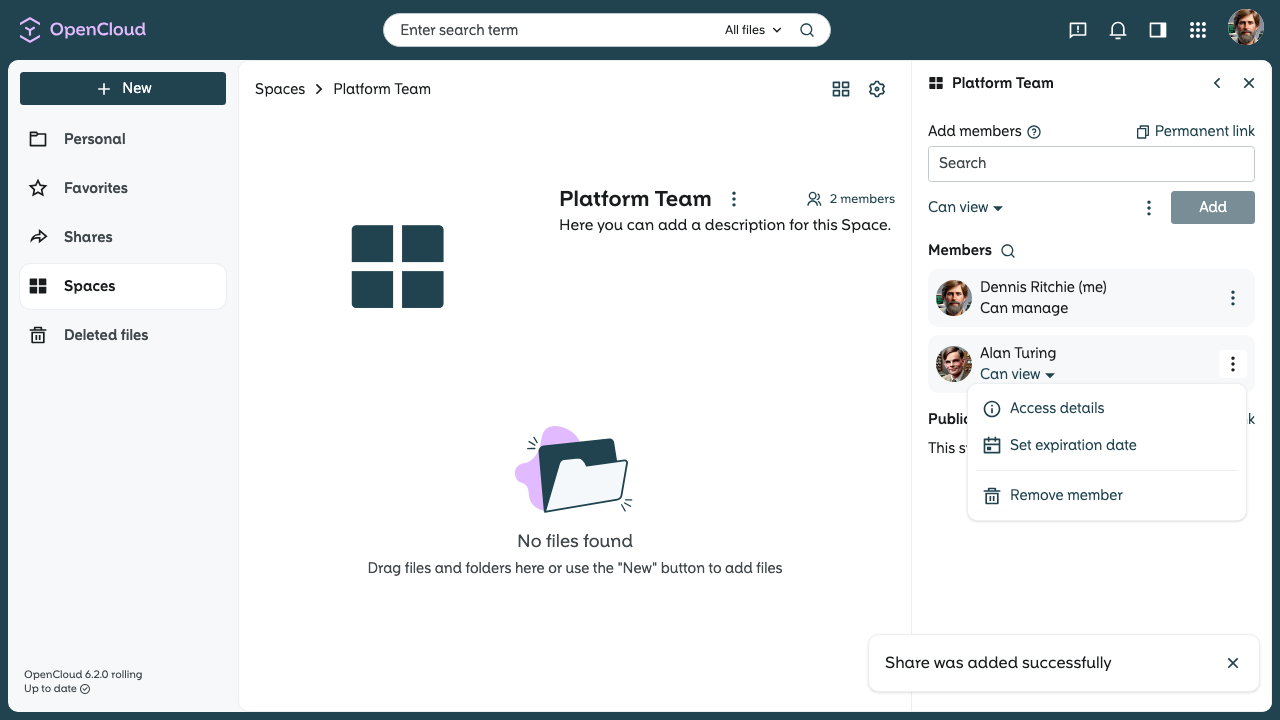
Open the members menu, click on the three-dot menu next to the member and use “Access details”, “Set expiration date”, or “Remove member” as needed.
note
The removed member immediately loses access to the space.
important
- The added member has immediate access to the Space.
- Attention: Every user with the “can manage” right has the authorization to deactivate and delete the Space.
- A deleted Space cannot be restored, so be careful who you grant these rights to.