Organization internal sharing of files and folders in OpenCloud
Files and folders can be shared within the organization with individual members or groups. Different access rights can be assigned.
Create an internal share
-
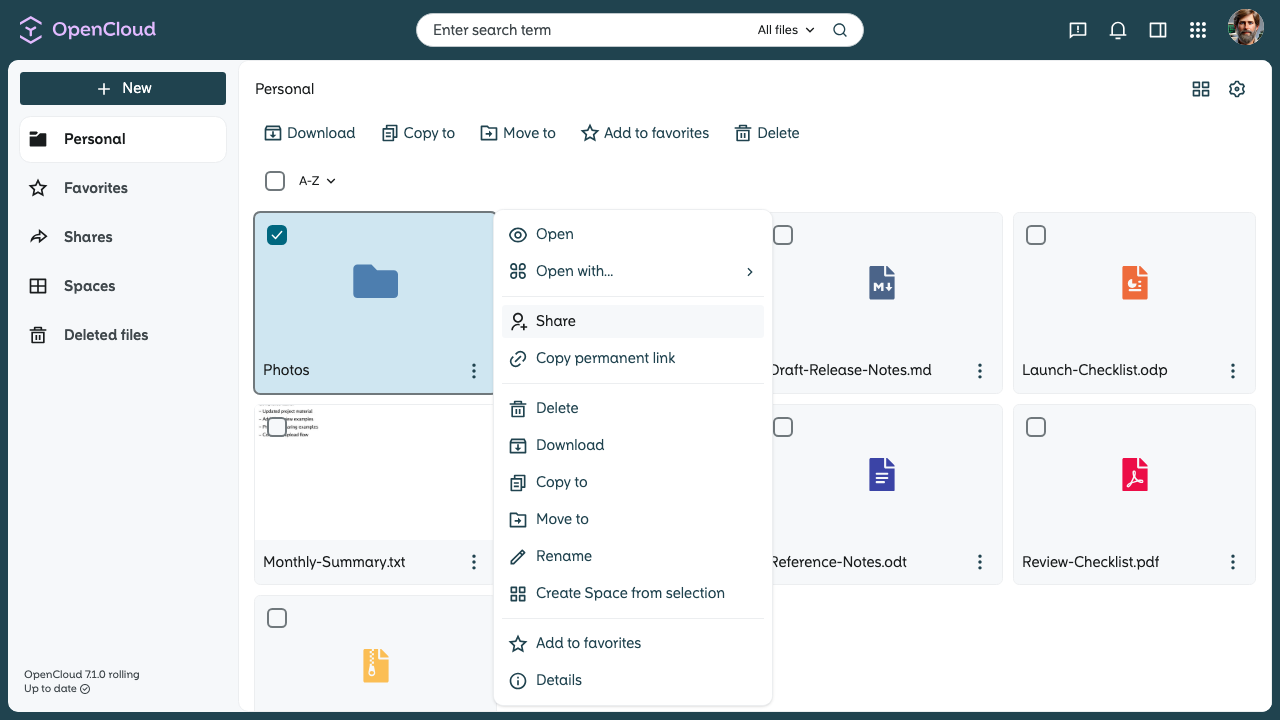
Open the three-dot menu next to the file or folder you want to share.
-
Select “Share” from the context menu.
-
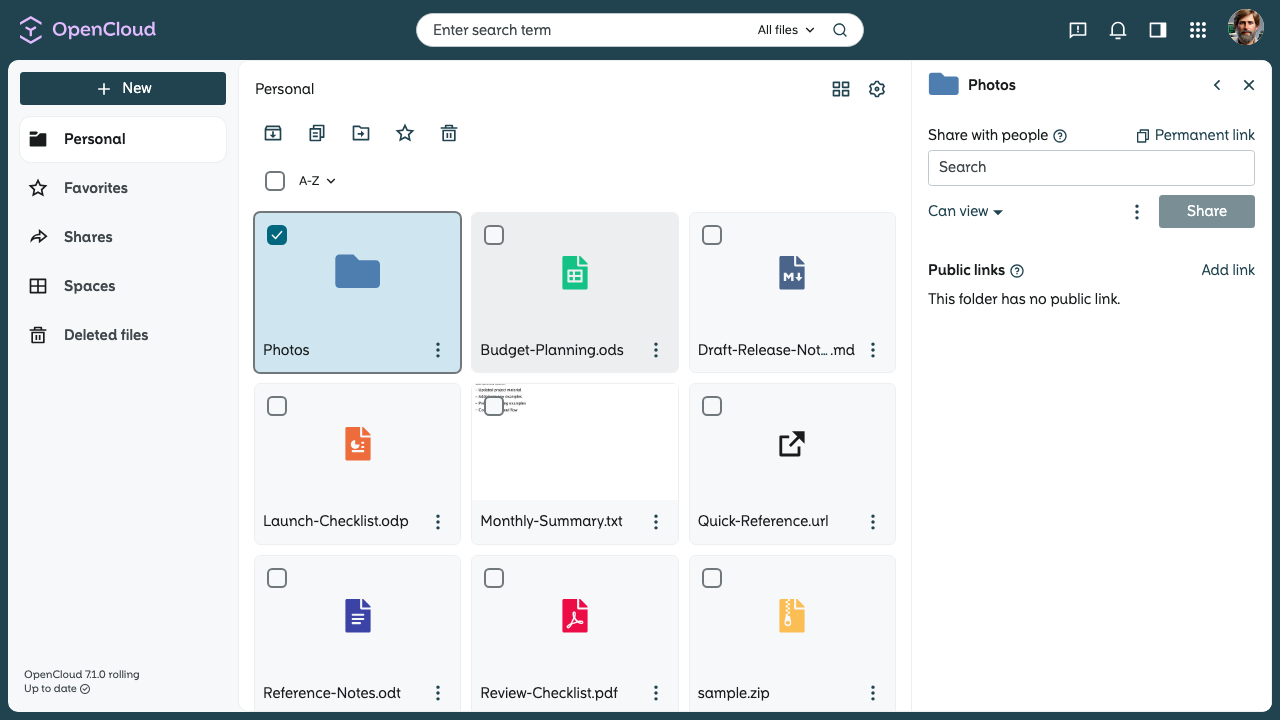
The sidebar opens on the right-hand side of the screen.
-
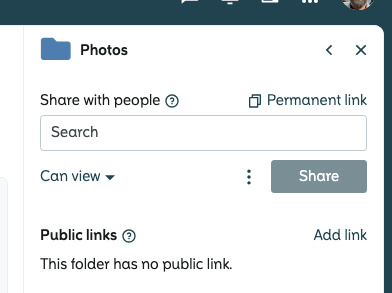
At the top of the sidebar, select the “Internal sharing” section.
-
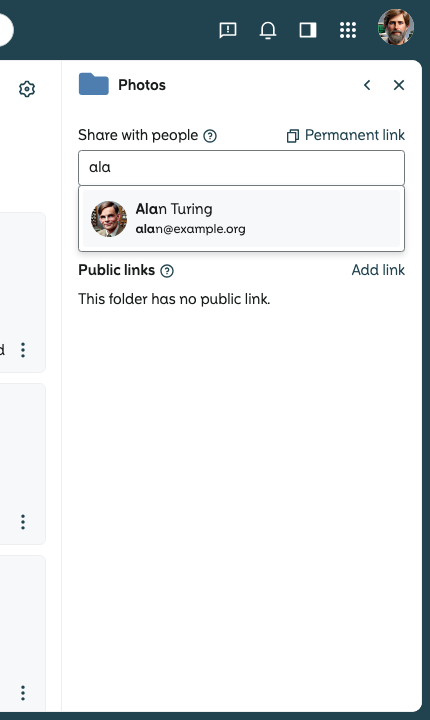
Enter at least three characters in the search field to look up members or groups.
-
Select the desired person or group from the suggestion list.
-
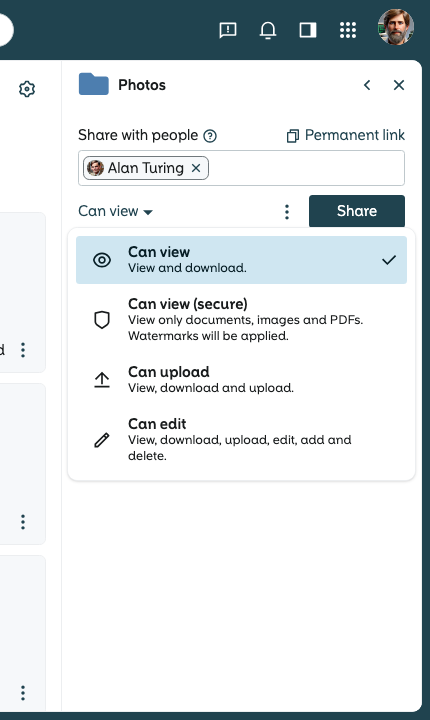
Set the access rights for the selected members or groups:
- “Can view”: Members can view and download the file or folder. They cannot edit content or upload to shared folders.
- “Can upload”: Members can view and download the content. For folders, they can also upload their own files.
- “Can edit”:
Members can view, download, upload, create, edit, and delete content.
-
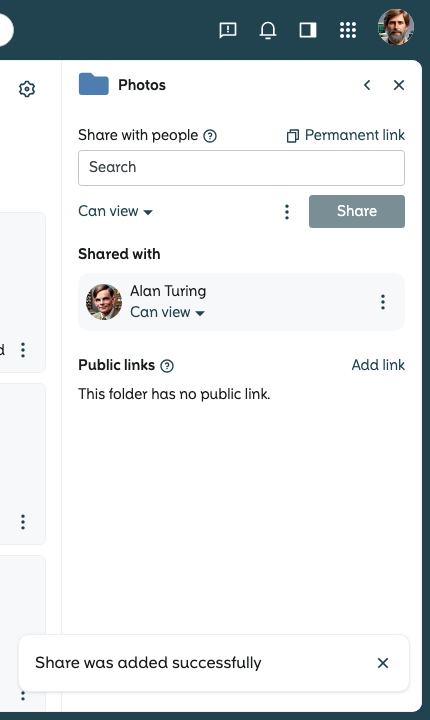
Click on “Share” to create the internal share.
The shared members or groups are then shown under “Shared with”.
Remove an internal share
An existing internal share can be removed at any time.
-
Open the three-dot menu next to the person or group in the “Shared with” section.
-
Select the “Remove share” option.
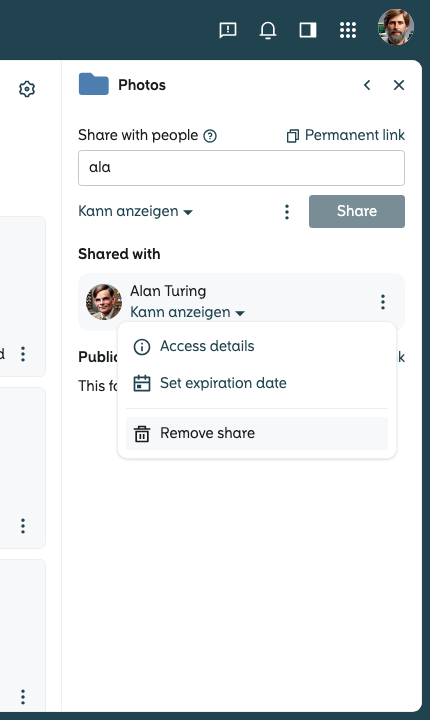
The access is removed immediately. After that, the person or group can no longer access the file or folder through this share.