Logging
The Logging settings allow you to enable diagnostic logging, browse generated log files, and share them when troubleshooting issues.
Open Logging Settings
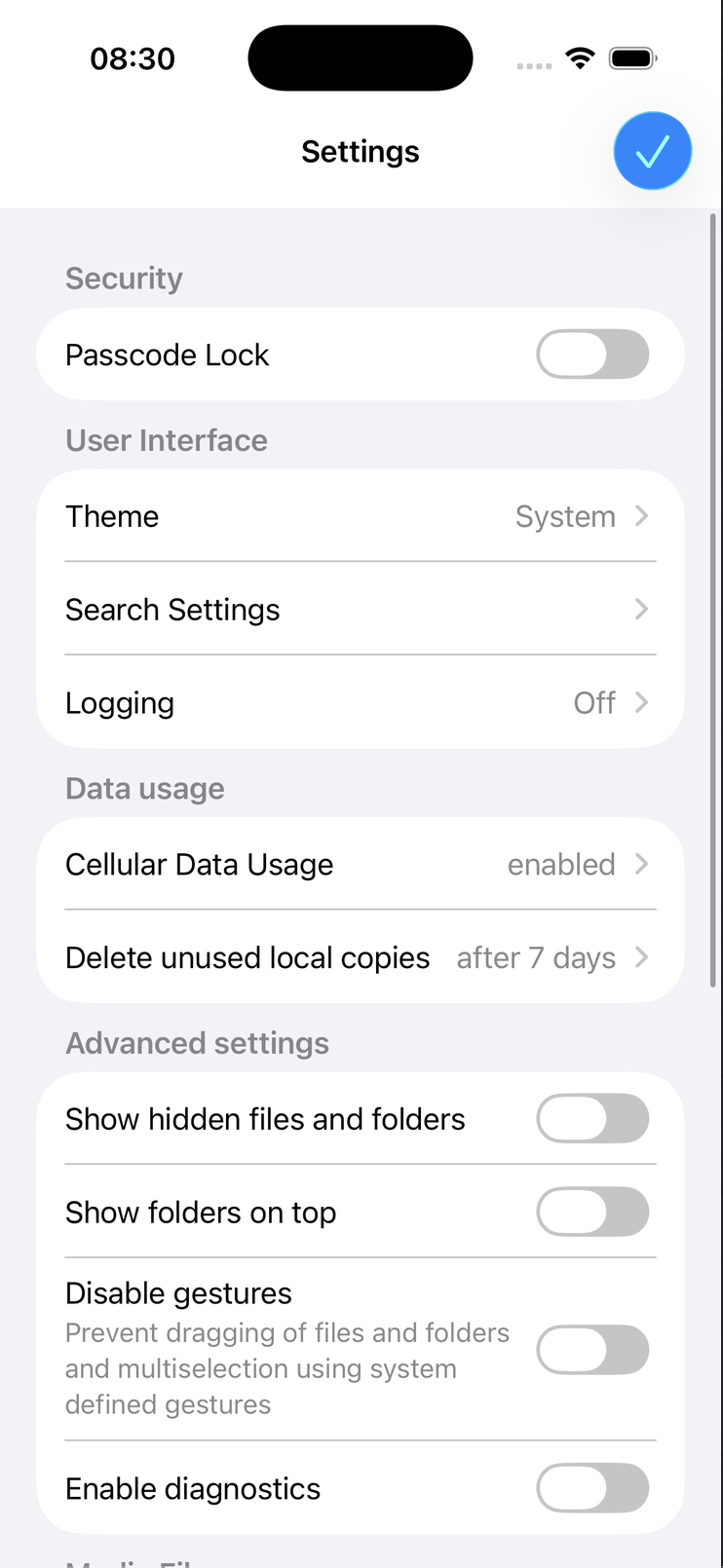
- Open the OpenCloud app.
- Tap Settings.
- Under User Interface, tap Logging.
The Logging page lets you enable or disable logging and manage the generated log files.
Enable Logging
Diagnostic logging can help identify and troubleshoot issues with the OpenCloud app.
- Enable Enable logging to start collecting diagnostic information.
- Tap Browse to view the stored log files.
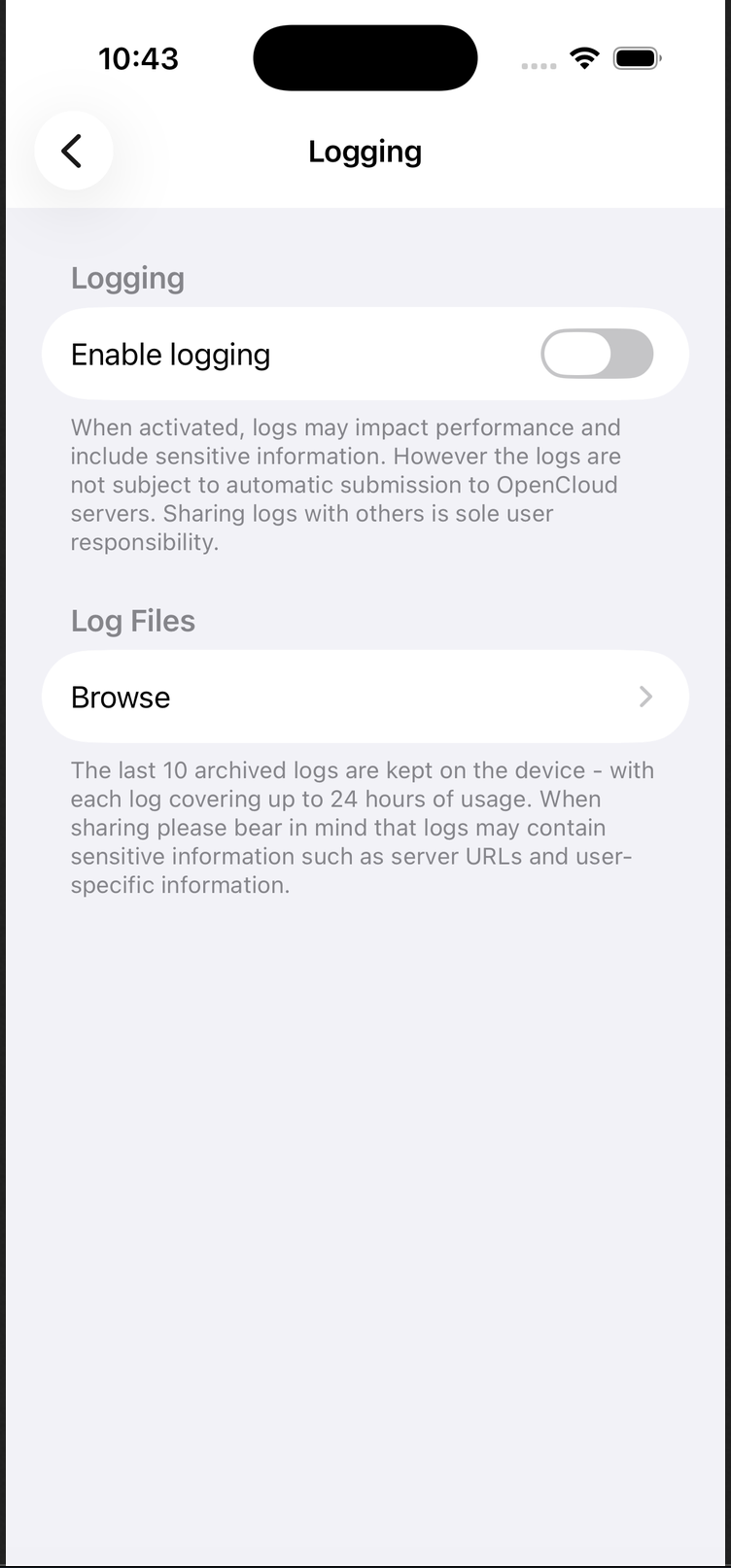
Logging may slightly impact application performance and can include sensitive information such as server URLs or user-related data.
Only enable logging when troubleshooting an issue.
Browse and Share Log Files
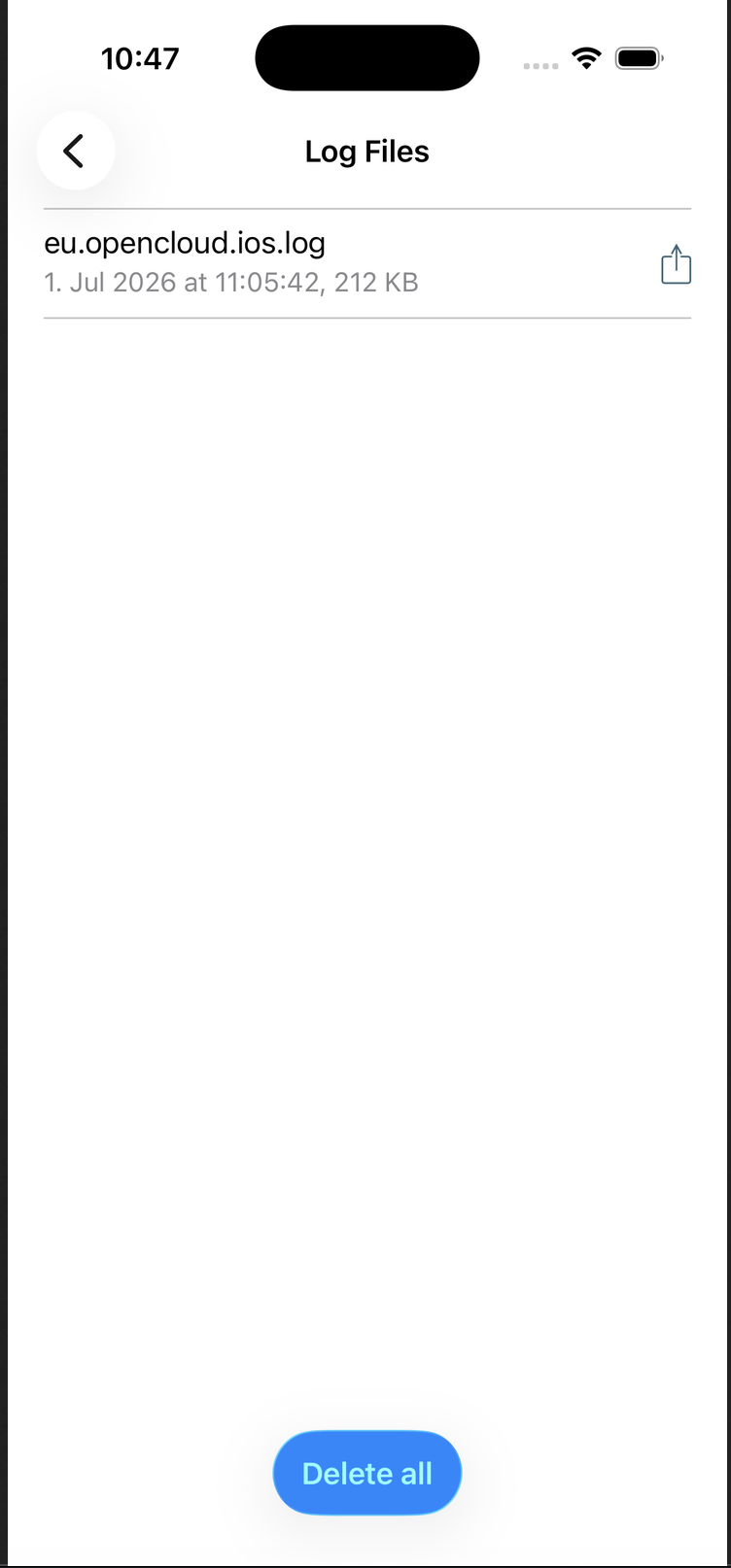
Selecting Browse opens the list of available log files stored on your device.
From this screen you can:
- View available log files.
- Share a log file using the Share button.
- Delete all stored log files using Delete all.
For troubleshooting and log analysis, make sure that HTTPS is enabled for your OpenCloud instance before sharing log files with support.
How Logging Works
The OpenCloud iOS app stores log files locally on your device.
Enable logging only while reproducing an issue. After collecting the required information, disable logging again to minimize performance impact and storage usage.
- Log files remain on your device until you delete them.
- They are not automatically uploaded to OpenCloud servers.
- Up to the 10 most recent archived log files are retained.
- Each log file can contain up to 24 hours of application activity.