Public links - external sharing of files and folders in OpenCloud
Public links let you share files and folders with people outside your organization.
Steps to create a public link
-
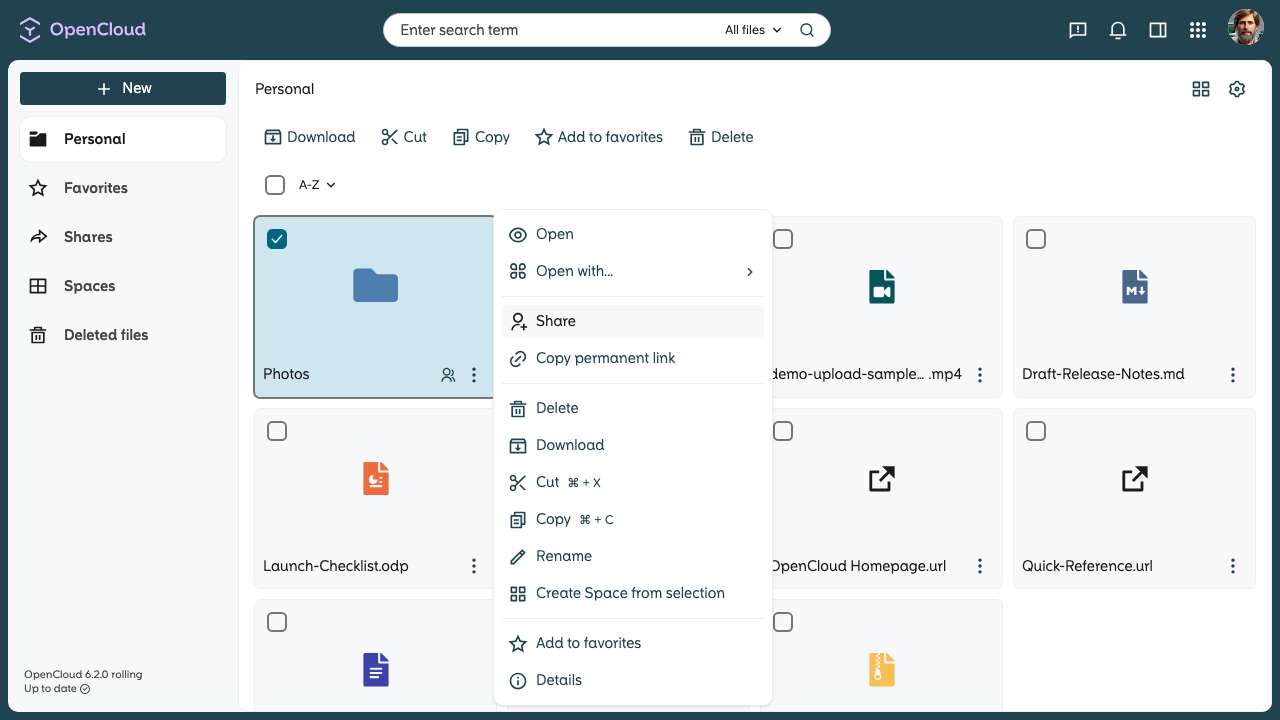
Right-click the file or folder, or click the three-dot menu next to its name, to open the context menu.
-
Select “Share” from the context menu.
-
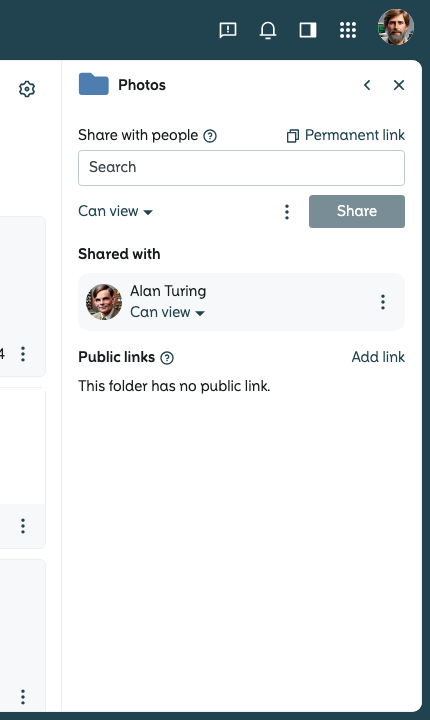
A sidebar window will open on the right-hand side of the screen.
-
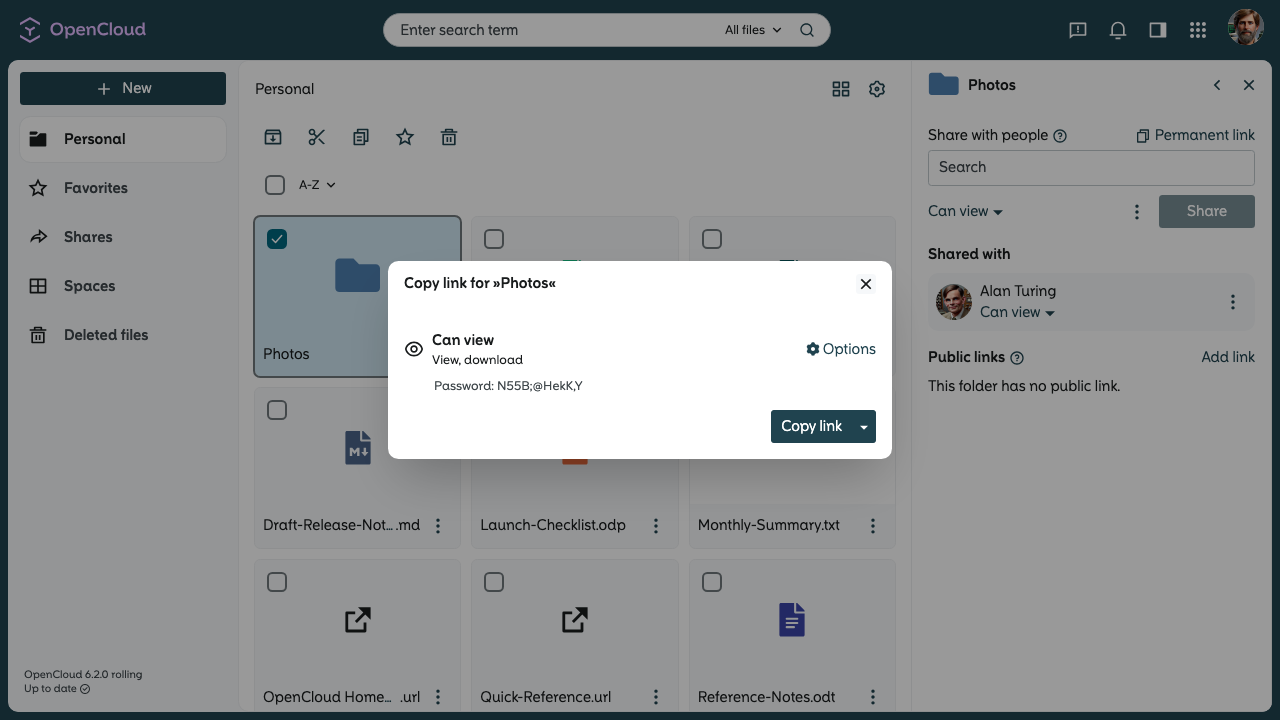
Click “Add link” to open the link configuration window.
-
Click “Options” to configure the link.
-
Select the desired access rights for recipients:
-
“Can view":
Recipients can view and download the file, but cannot edit it or upload files. -
“Can edit":
Recipients can view, download, edit and delete the file, and upload files to the folder. -
“File Drop (secret)":
Recipients can only upload files. They cannot view or edit the content.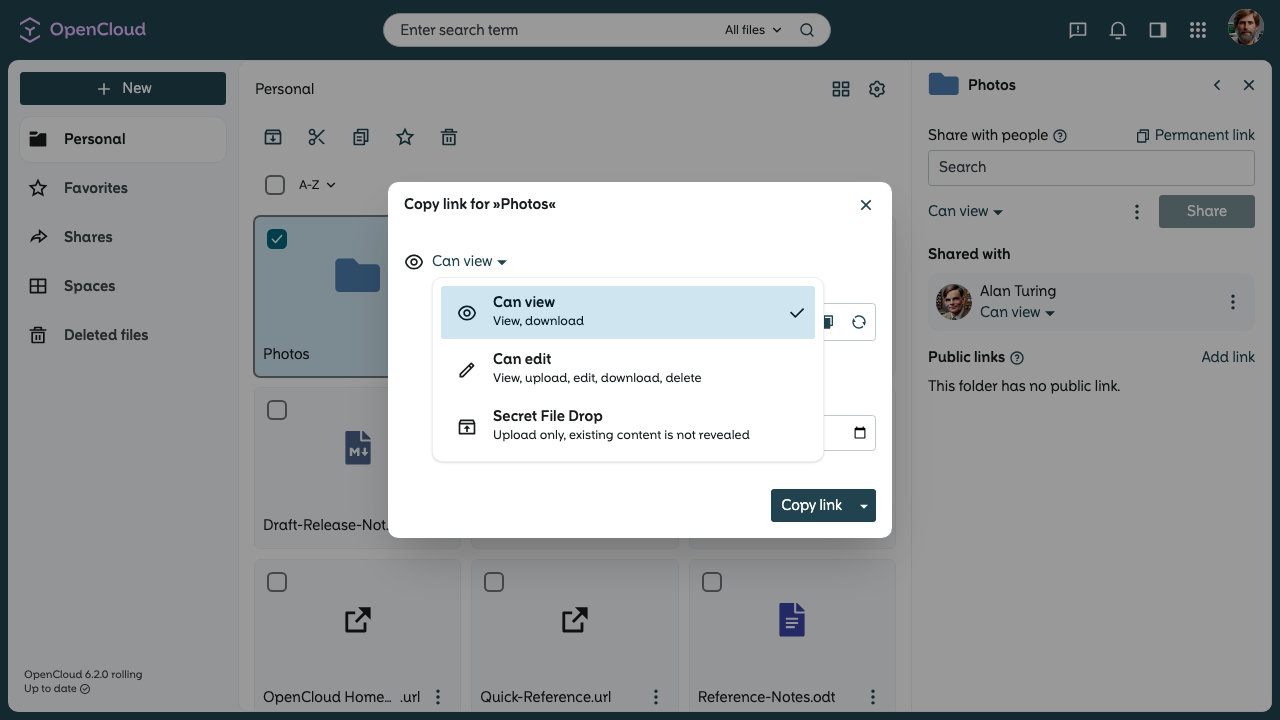
-
-
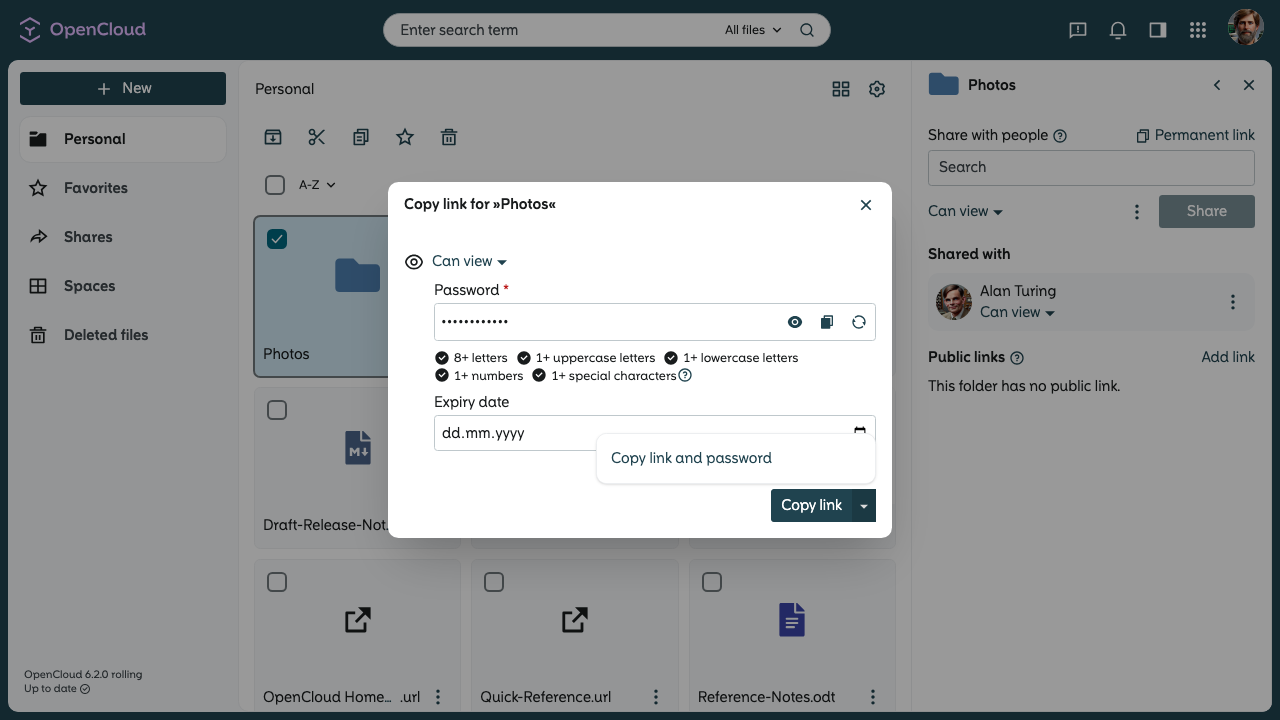
Enter a password in the field under “Password”. A password is required, unless an administrator has changed the setting.
-
Optionally, set an expiry date.
-
After you have configured the link options, click “Copy link” to create and copy the public link. To include the password, open the menu next to “Copy link” and select “Copy link and password”.
-
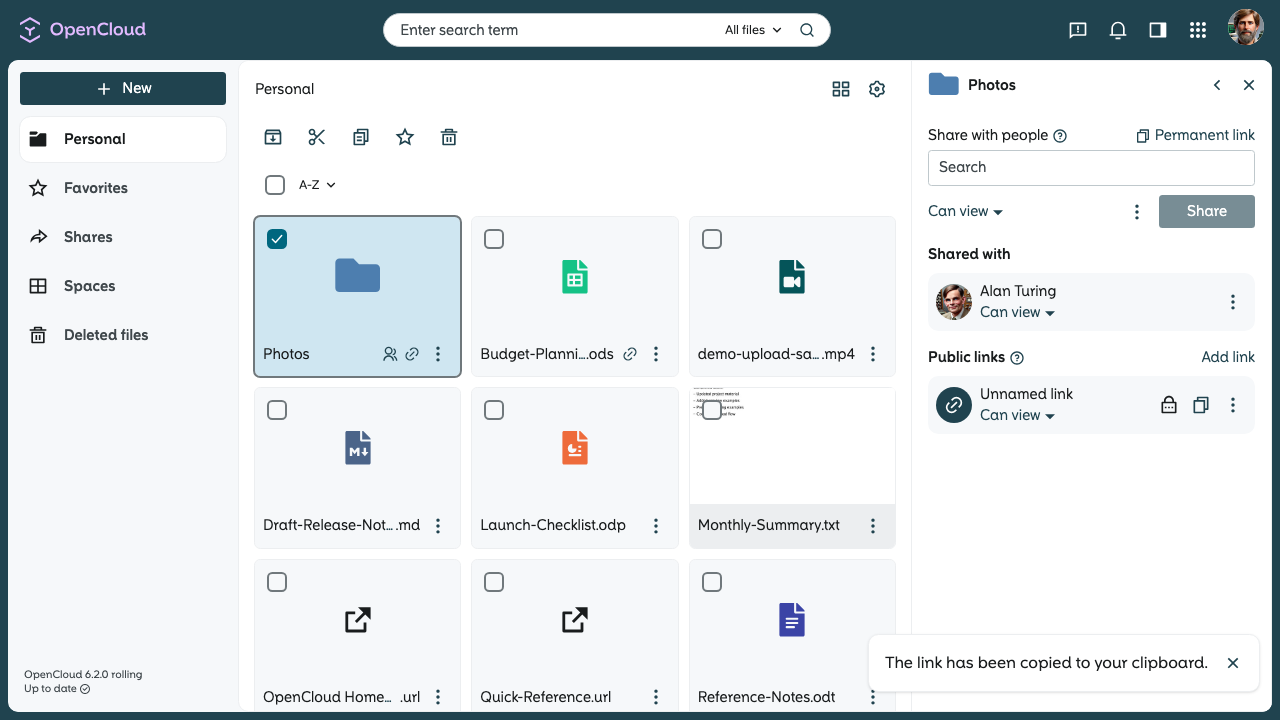
The link is now created and can be shared with recipients.
-
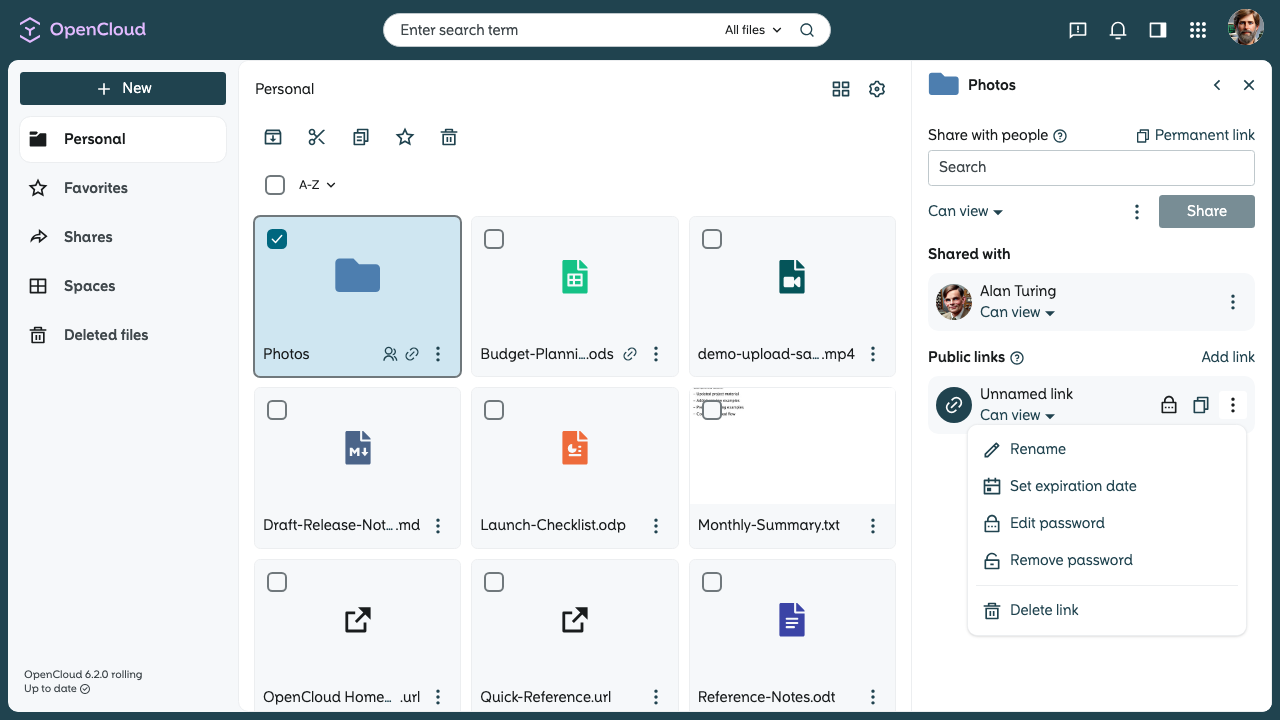
You can edit the link later by clicking the three-dot menu to the right of the link. From there, you can rename the link, change the expiry date, update the password, remove the password, or delete the link.
Now you know how to share files and folders securely with external users.