File Drop (secret) - How it works
File Drop lets people who receive a specific link, the so-called link recipients, upload files to a shared folder. Link recipients cannot see the files that are already in the folder.
Create a File Drop
-
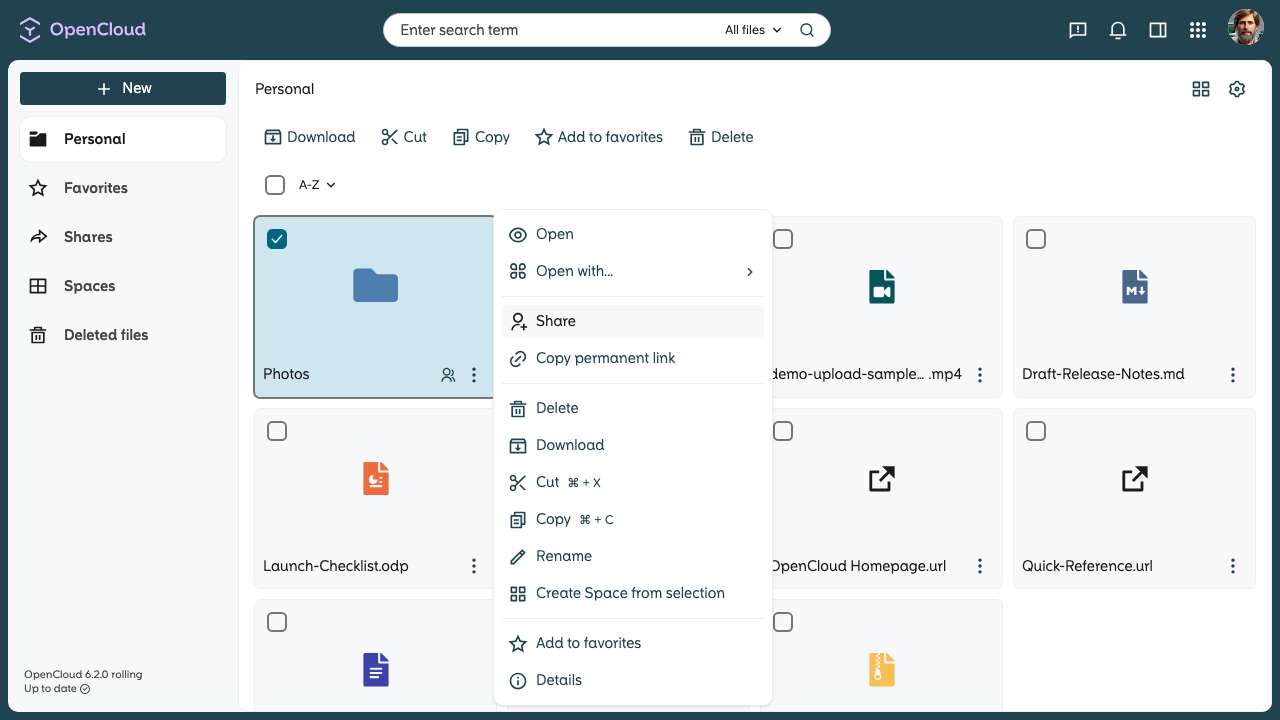
Right-click the file or folder, or click the three-dot menu next to its name, to open the context menu.
-
Select “Share” from the context menu.
-
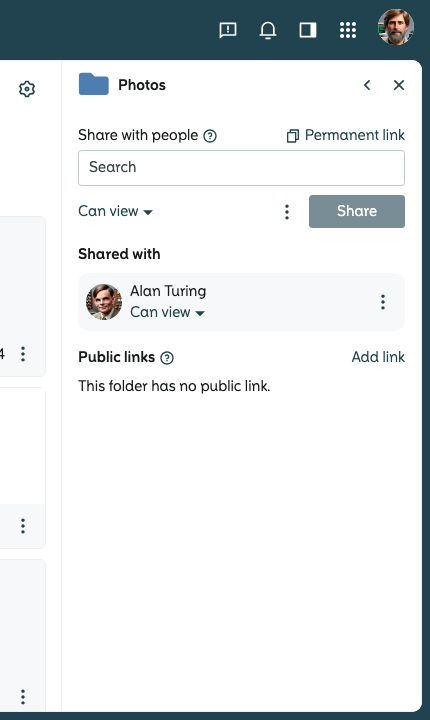
A sidebar window will open on the right-hand side of the screen.
-
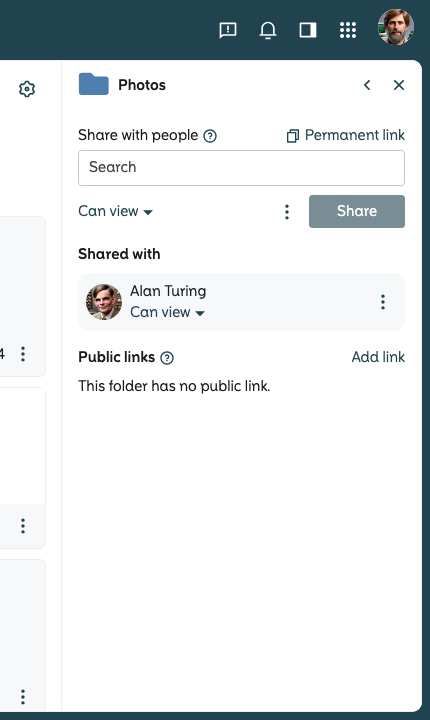
In the sidebar window, find the “Public links” section and click “Add link”.
-
Click "Options" to open the link settings.
-
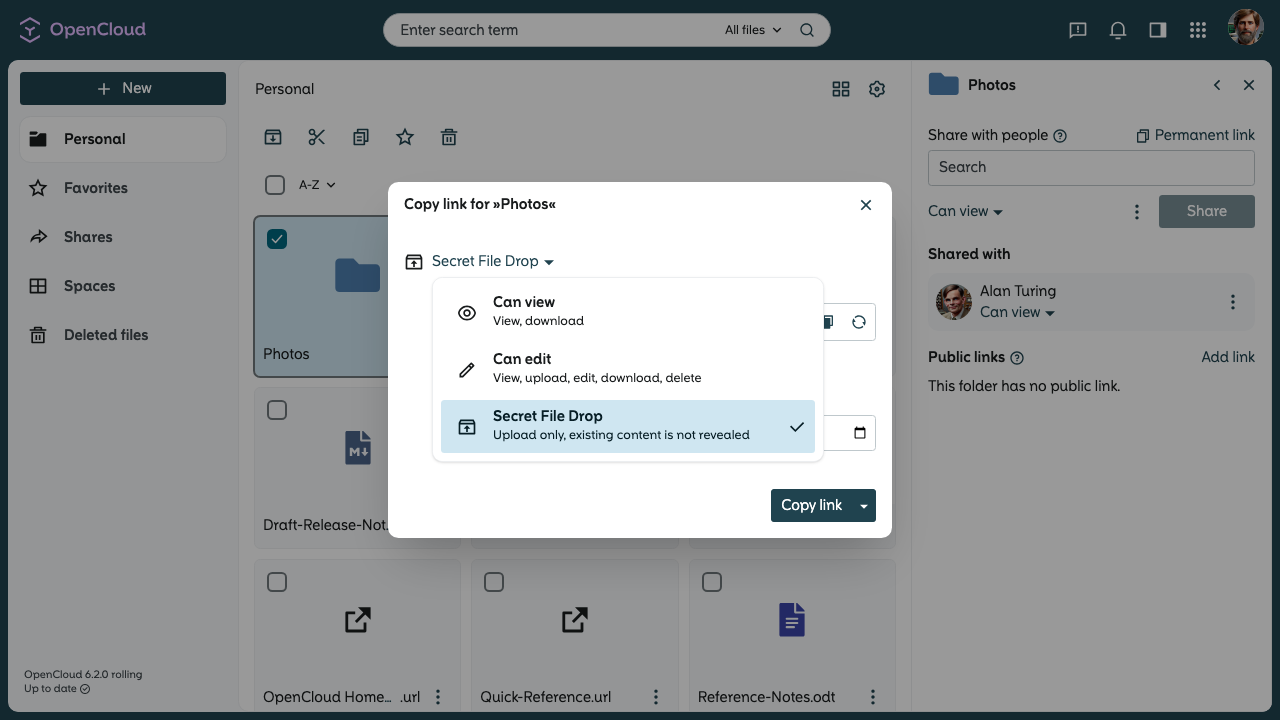
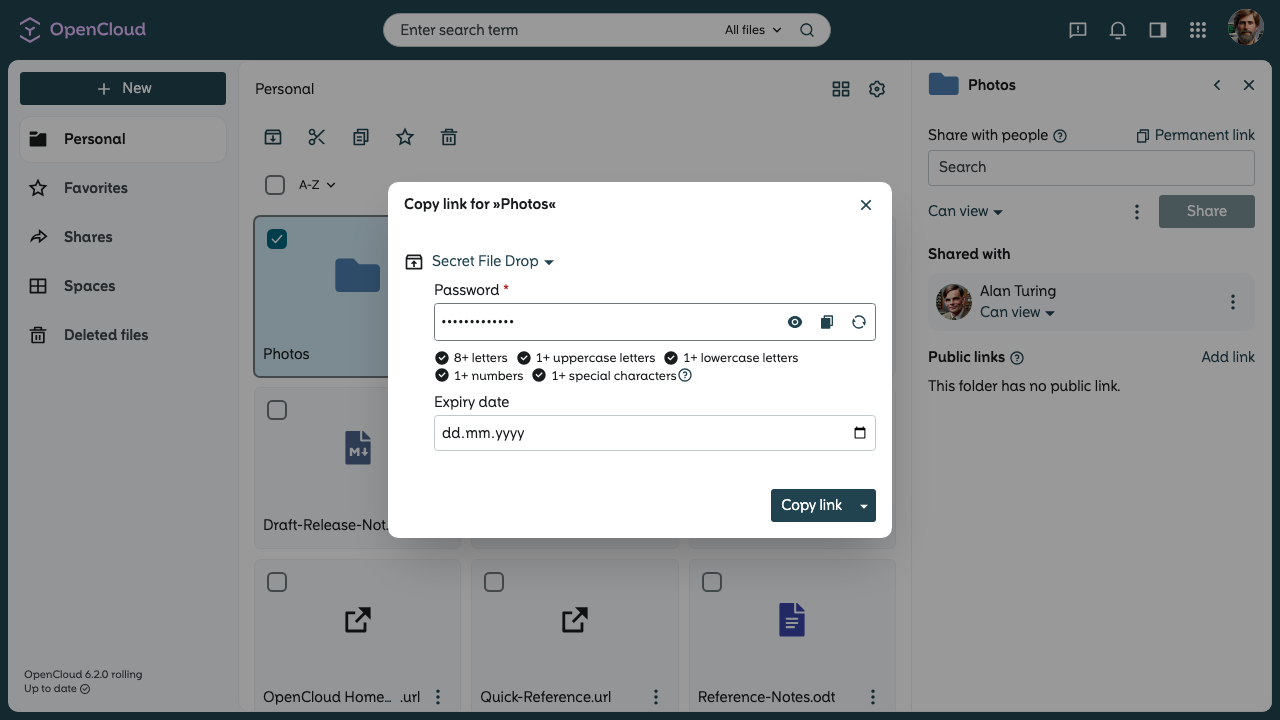
Open the access rights dropdown menu and select "Secret File Drop".
-
Enter a password and click “Copy link” to confirm.
-
You can also set an “Expiry date” if you want the link to expire.
-
Share the link and password with the recipient.
What the recipient does
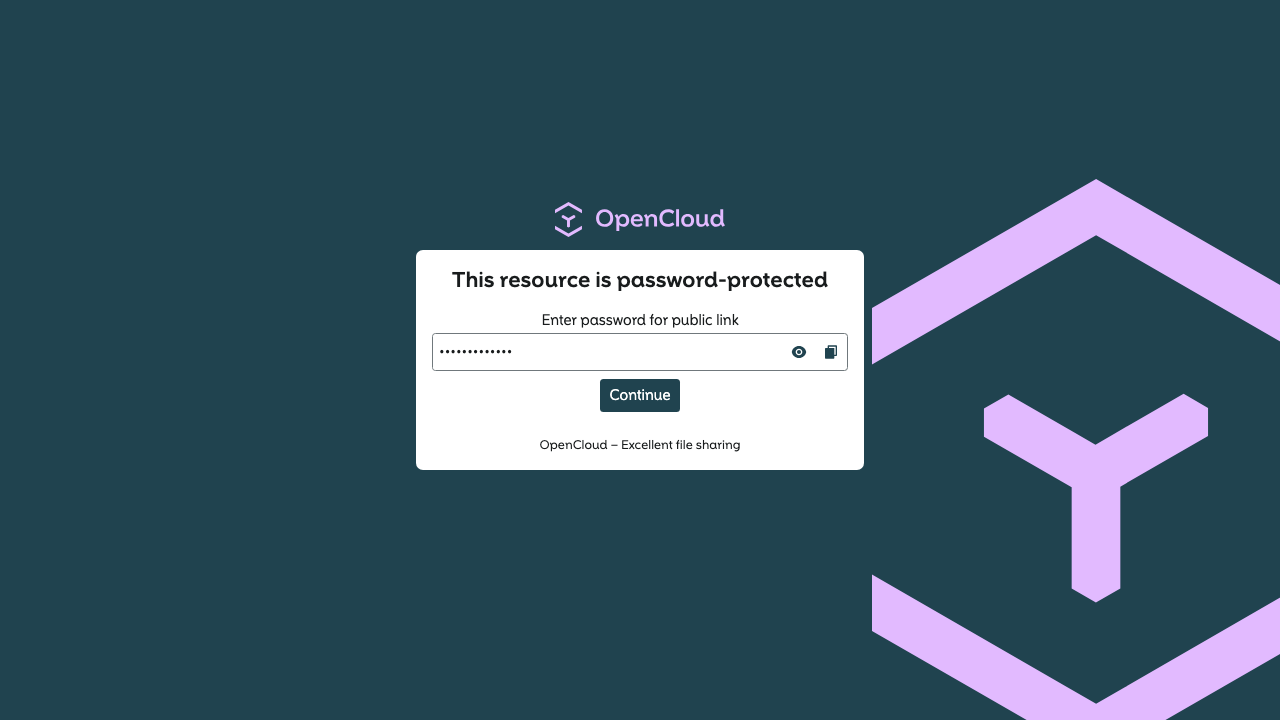
- The recipient opens the received link in a browserand enters the password and clicks “Continue”.
- Upload files:
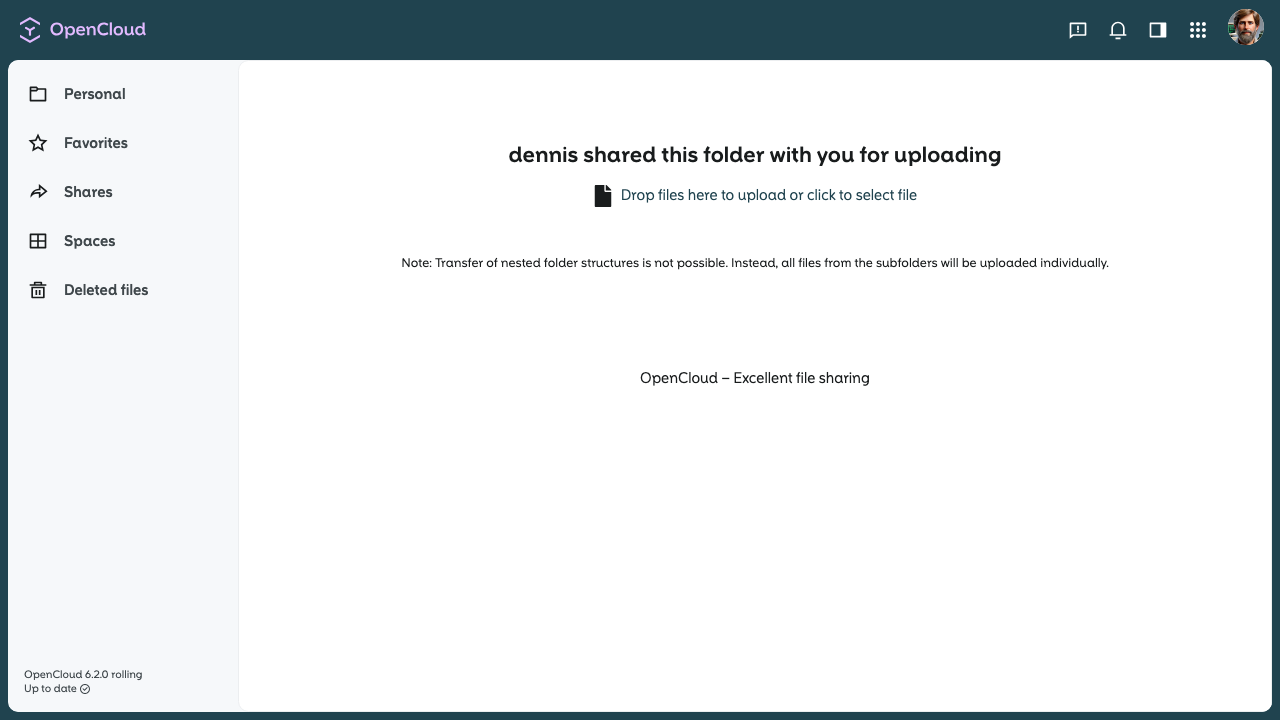
- The File Drop folder opens. The recipient can upload files without seeing the existing contents of the folder.
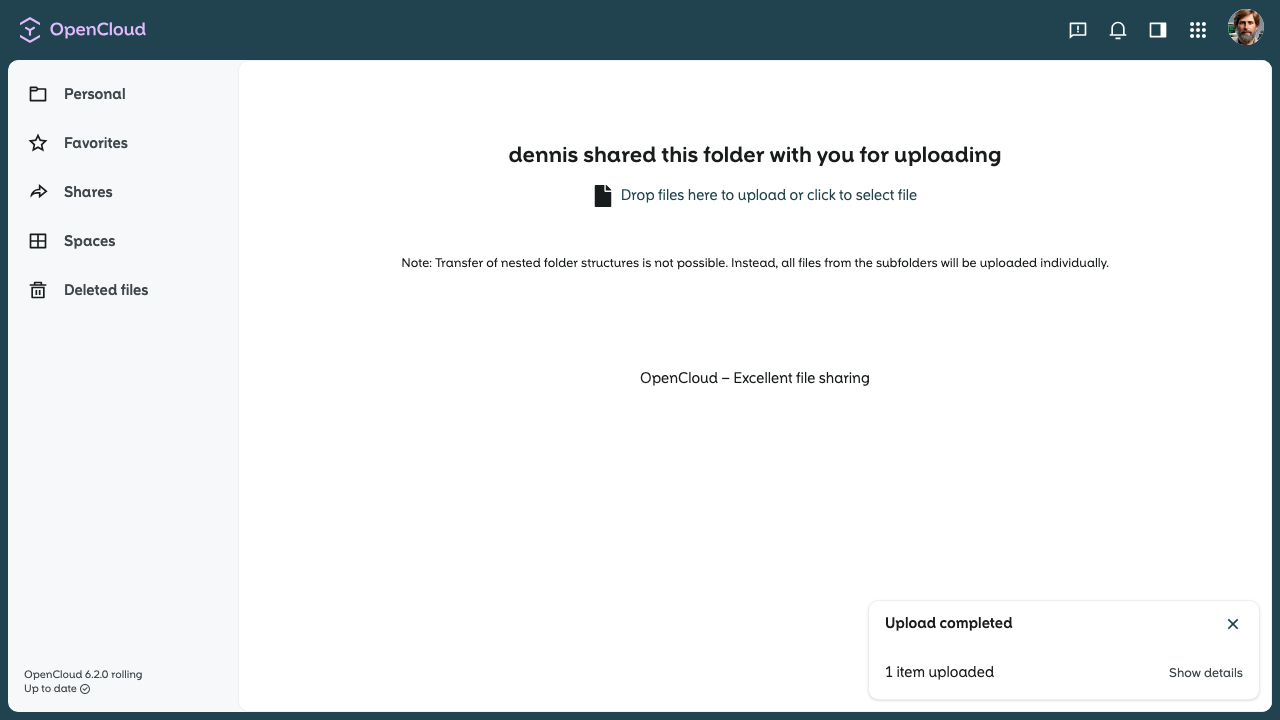
- A pop-up window appears in the lower right corner to confirm that the upload was successful.
- The File Drop folder opens. The recipient can upload files without seeing the existing contents of the folder.
Recipients do not have access to existing files. They can only add new files.
Now you know how to share a File Drop link.