Connect and share with ScienceMesh
The ScienceMesh application lets you connect with users on another OpenCloud instance and share files or folders with them. It uses the OpenCloud Mesh (OCM) protocol for connections between instances.
Before you begin, an administrator must configure OCM on both participating instances. For configuration instructions, see Configure OpenCloud Mesh.
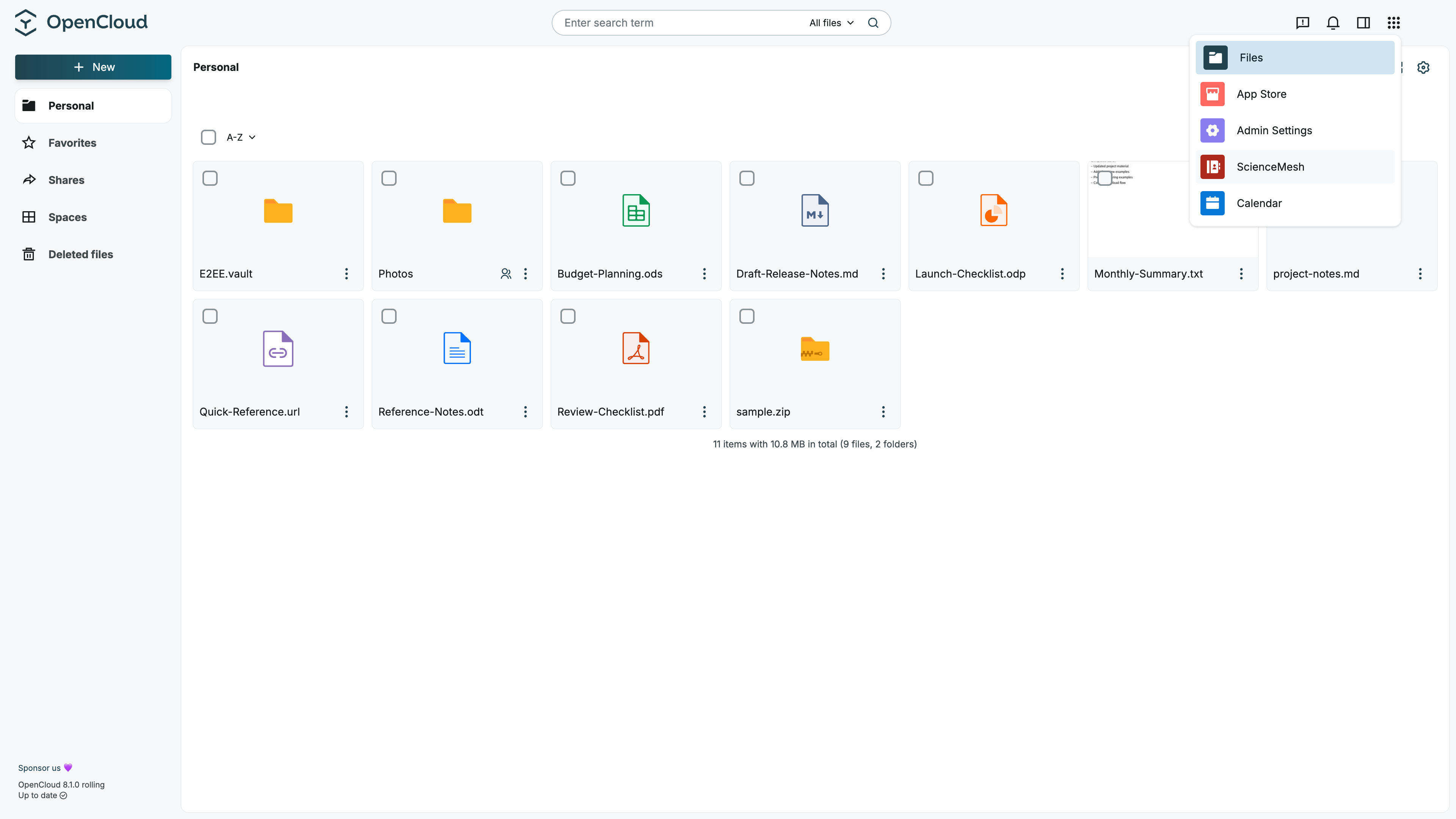
Open the ScienceMesh application
- Sign in to OpenCloud Web.
- Open the application switcher.
- Select the ScienceMesh application.
The ScienceMesh application provides the interface for creating and accepting OCM invitations.
Connect with a user
Before you can share resources with a user on another instance, you must establish an OCM connection.
Create the invitation on one OpenCloud instance and accept it on the other OpenCloud instance.
Do not accept an invitation on the same instance where it was created.
Create an invitation on your instance
-
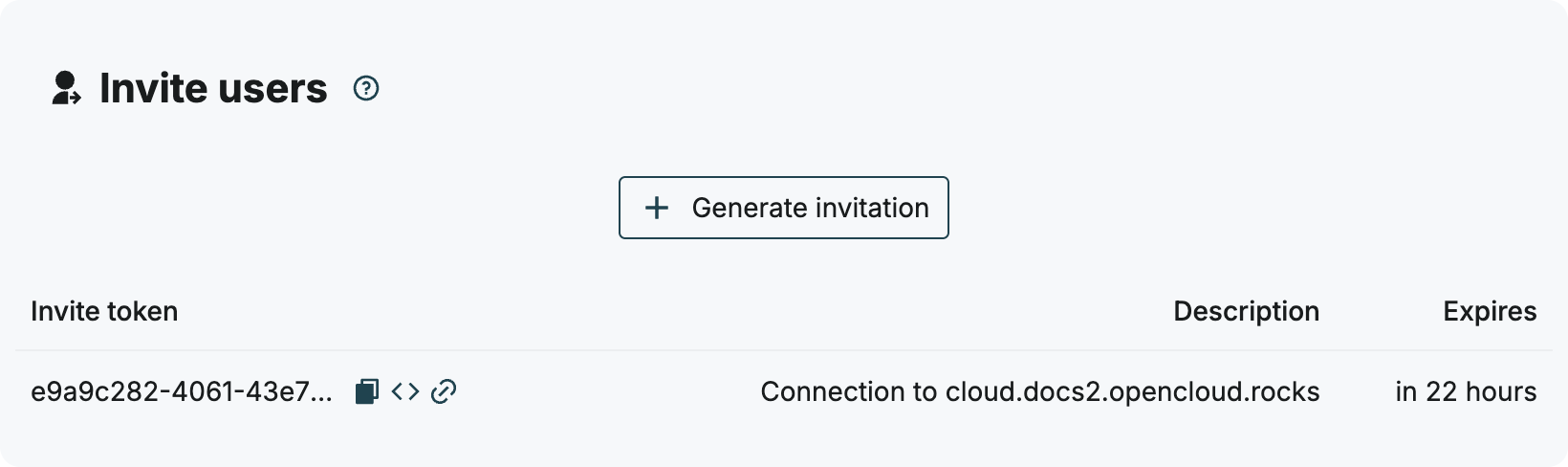
In the Invite users section, select Generate invitation.
-
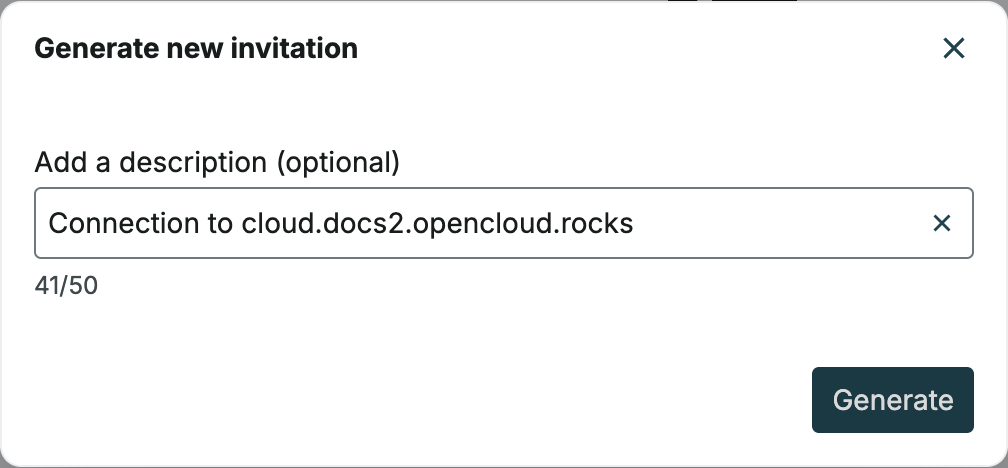
In the Generate new invitation dialog, optionally enter a description that helps you identify the invitation later.
-
Select Generate.
-
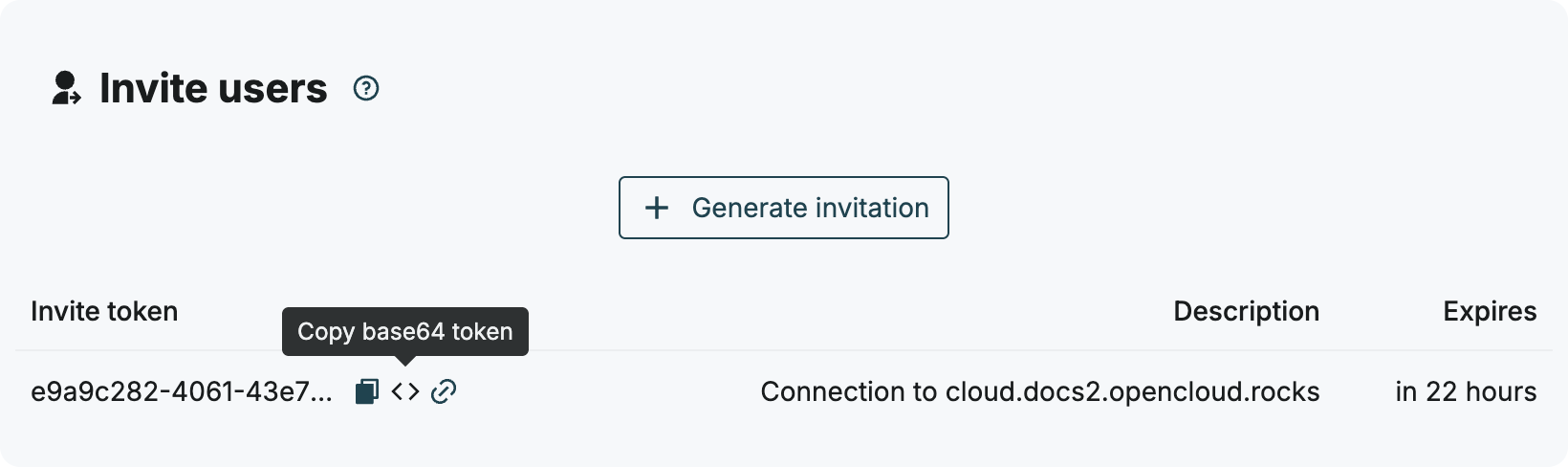
The invitation token is generated and copied to your clipboard automatically.
-
Send the complete copied token to the user on the other instance.
If you need to copy the token again, find the invitation in the Invite users section and use the Copy base64 token action.
Accept the invitation on the other instance
The invited user completes the following steps on their OpenCloud instance:
-
Sign in to OpenCloud Web.
-
Open the ScienceMesh application.
-
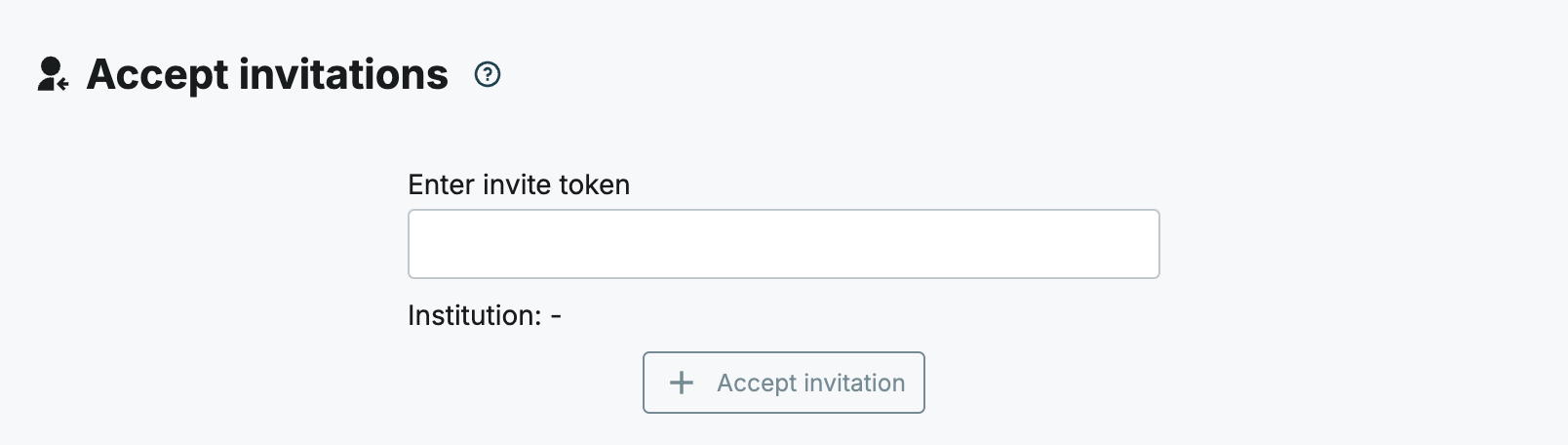
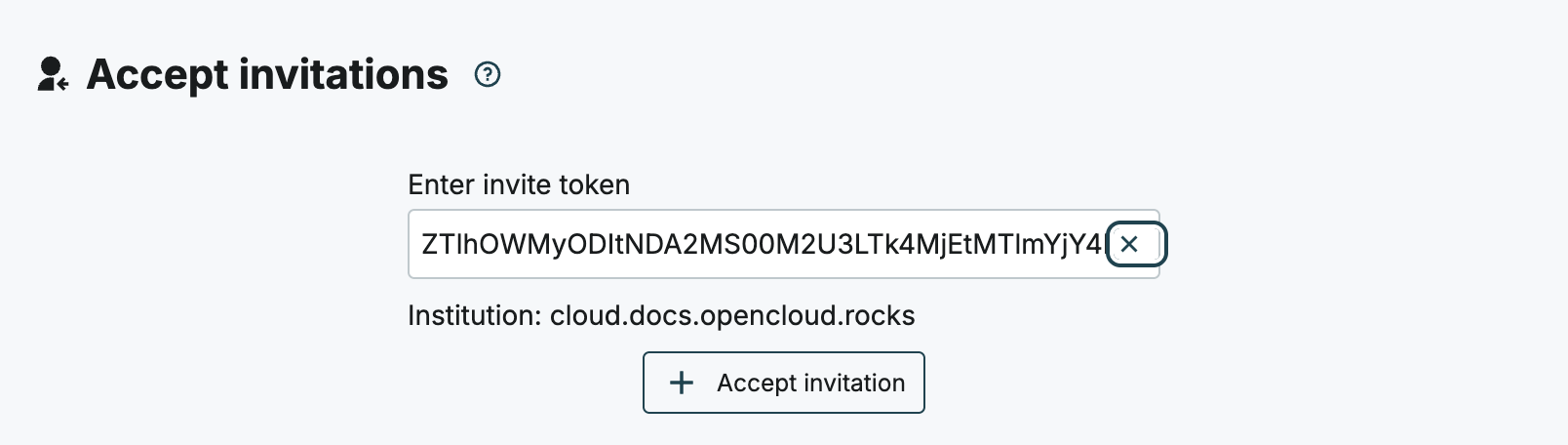
In the Accept invitations section, paste the complete token into Enter invite token.
-
Check that Institution displays the domain of the inviting OpenCloud instance.
-
Select Accept invitation.
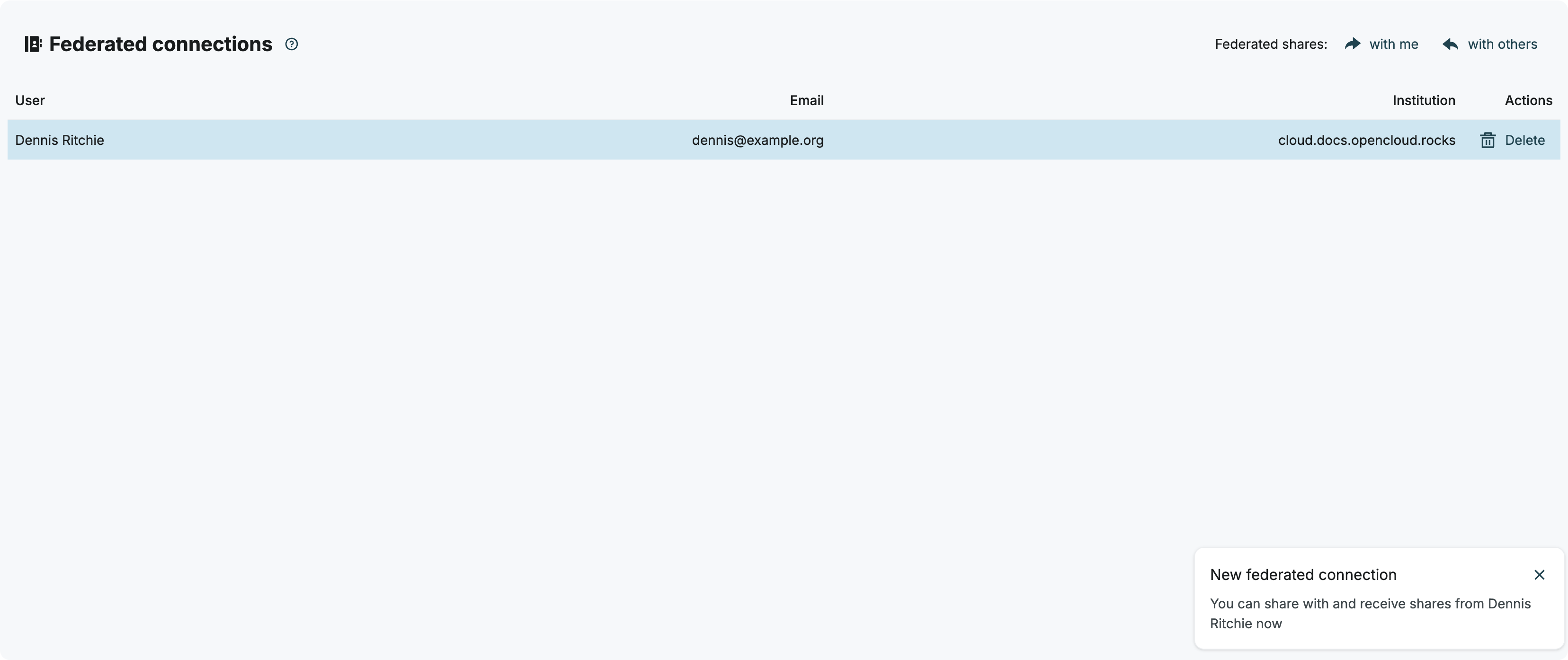
After the invitation has been accepted, the remote user becomes available as an OCM connection.
Send the complete token that was copied automatically or use the Copy base64 token action. Do not manually copy the shortened token text displayed in the invitation table.
By default, invitation tokens expire after 24 hours. If an invitation has expired, create a new invitation.
Share a file or folder
After both users are connected:
-
Open the Files application.
-
Select a file or folder.
-
Open the sharing panel.
-
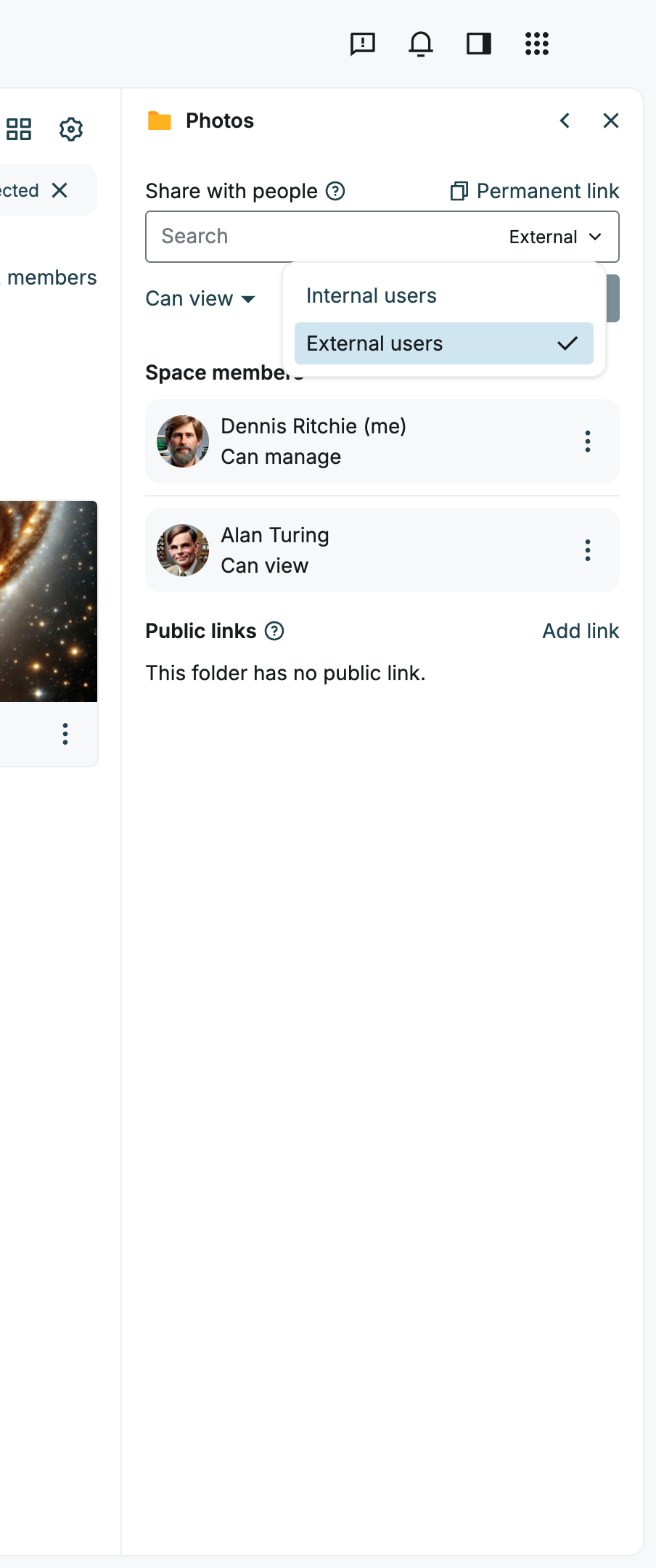
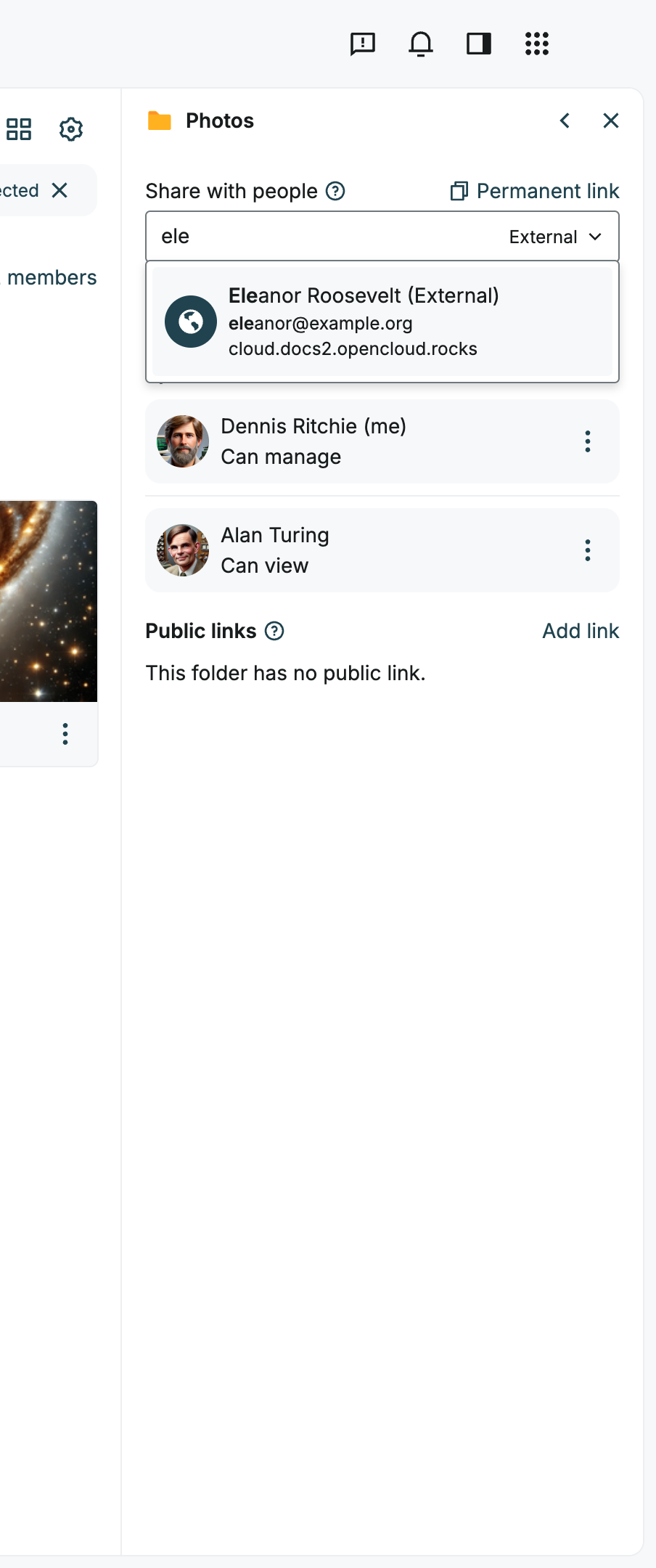
From Share type, select External.
-
Enter all or part of the connected remote user's name in the search field.
-
Select the matching user marked as External.
-
Configure the permissions.
-
Select Share.
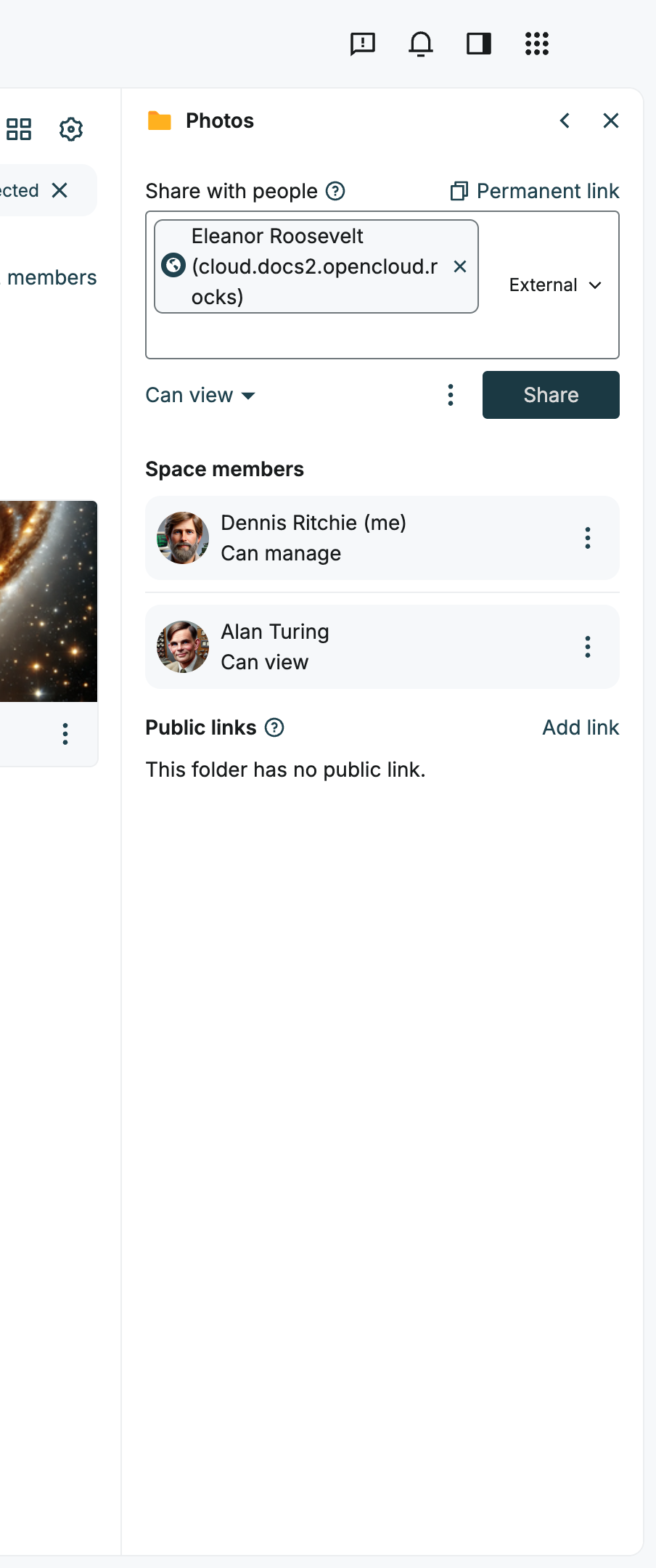
The remote user should now receive the shared resource on the other OpenCloud instance.
Open the shared resource on the other instance
The invited user completes the following steps on their OpenCloud instance:
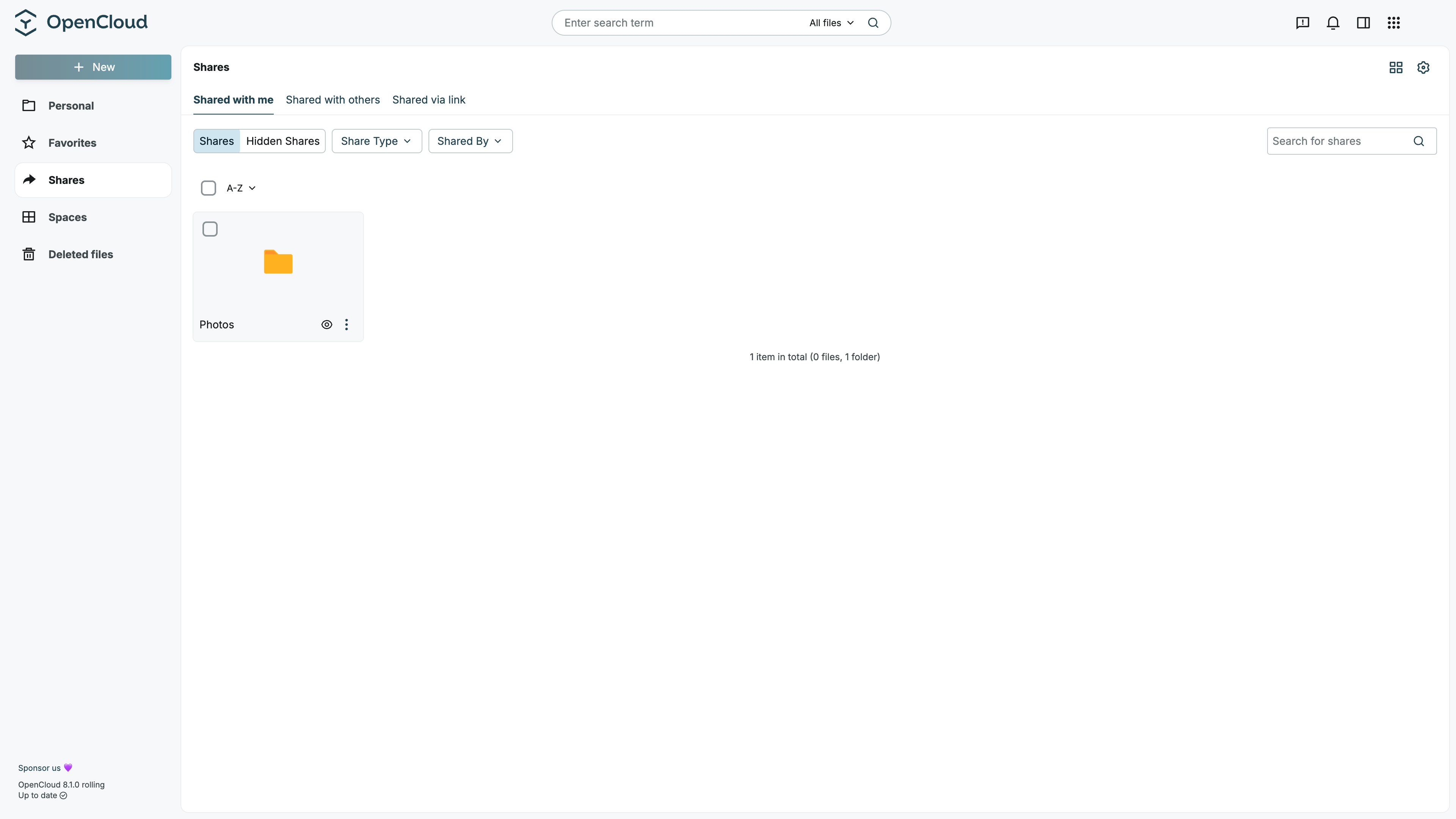
- Open the Files application.
- Select Shares in the left sidebar.
- Open Shared with me.
- Verify that the shared file or folder is listed.
Troubleshooting
The ScienceMesh application is not visible
Sign out of OpenCloud Web and reload the page without using the browser cache, or open a private browser window. Sign in again and check the application switcher.
If the ScienceMesh application is still unavailable, contact your administrator.
A user is not shown in the sharing dialog
Make sure that Share type is set to External and that both users completed the invitation process successfully. Remote users only appear as sharing recipients after the OCM connection has been established.
If the connection exists but the user is not shown, contact your administrator.
An invitation cannot be accepted
Check that:
- The invitation has not expired.
- You are signed in to the receiving OpenCloud instance.
- You are accepting the invitation on the other instance, not on the instance where it was created.
- The full invitation link or token was copied.
If the invitation has expired, ask the inviting user to create a new one. If it still cannot be accepted, contact your administrator.