Guest Access in OpenCloud
Guest access lets you collaborate with external people who do not have an OpenCloud account.
You invite a guest with their email address and grant access to a specific file or folder. The guest receives an invitation email, opens the link in a web browser, and can access only the content you shared with them.
Guest access must be enabled by your administrator. If you cannot invite guests, contact your administrator.
How Guest Access Works
- The person sharing selects a file or folder and opens the sharing panel.
- They enter the external email address and choose a permission level.
- OpenCloud sends an invitation email with a link to the guest.
- The guest opens the link in a web browser.
- The guest accesses the shared content with the assigned permissions.
- The person sharing can change or remove the guest's access at any time.
A guest invitation applies only to the shared files or folders. It does not grant access to any other content in OpenCloud.
If you want to invite someone, continue with For the Person Sharing Content. If you received an invitation, go to For the Invited Guest.
For the Person Sharing Content
The person sharing the content chooses what the guest can access and remains responsible for managing that access.
Invite a Guest
- Log in to OpenCloud.
- Select the file or folder you want to share.
- Open the Share panel in the right sidebar.
- Enter the guest's email address in the Share with people field.
- Select the entry marked (Guest).
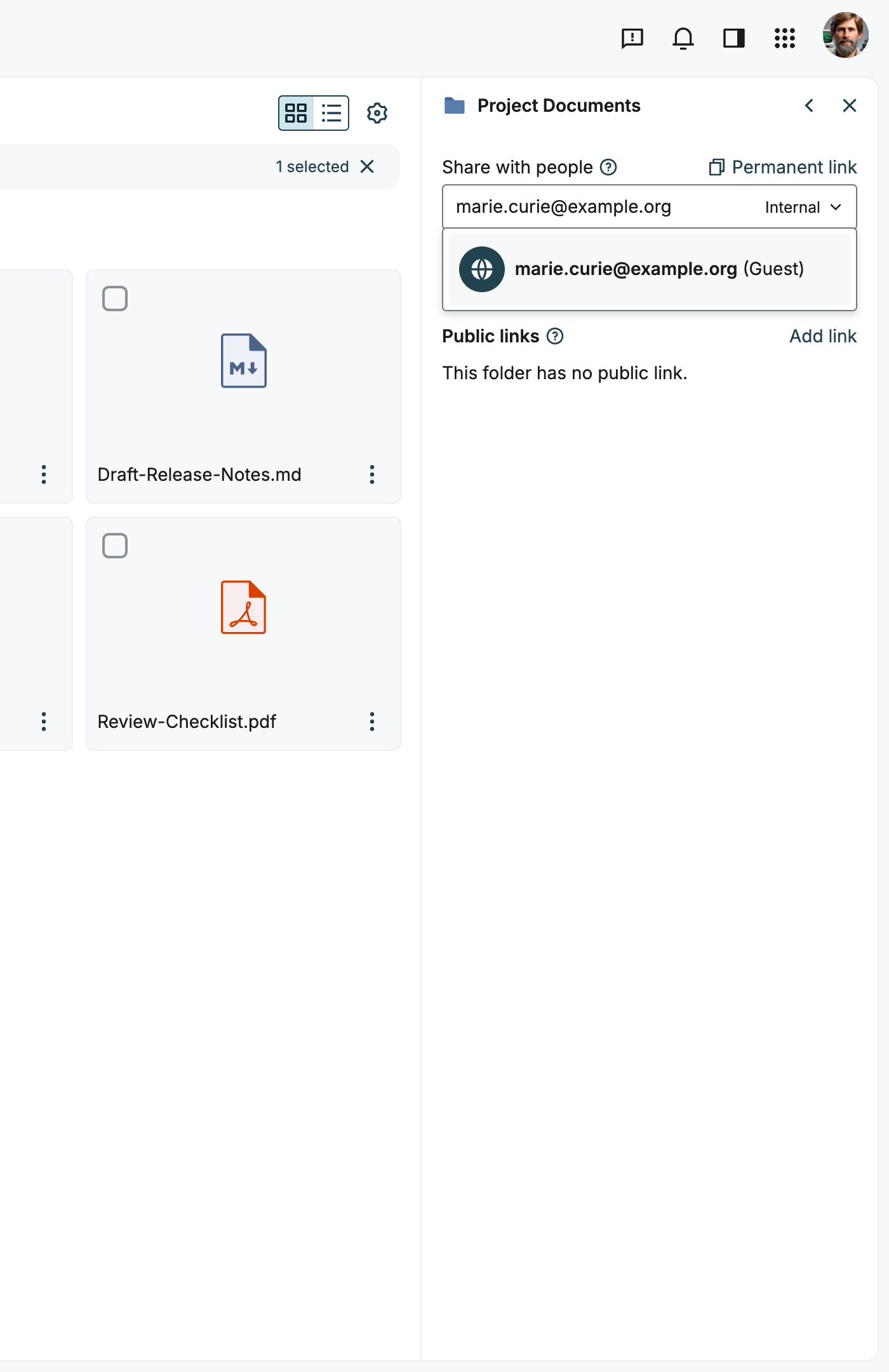
- Choose the permission level, see Set Guest Permissions.
- Click Share.
OpenCloud sends an invitation email to the guest's address.
If an email address belongs to an existing OpenCloud user, OpenCloud suggests that user instead of a guest.
Set Guest Permissions
Guest permissions determine what the guest can do with the shared content.
| Permission | Description |
|---|---|
| Can view | The guest can view and download the shared content. |
| Can view (secure) | The guest can only view documents, images, and PDFs in the browser. Downloading is not possible and watermarks are applied. |
| Can upload | The guest can view and download the shared content and upload new files. |
| Can edit | The guest can view, download, upload, edit, add, and delete content. |
The available permission levels depend on the type of the shared resource. For example, Can upload is available for folders only.
To choose a permission level, open the permission selector below the email address field before you click Share.
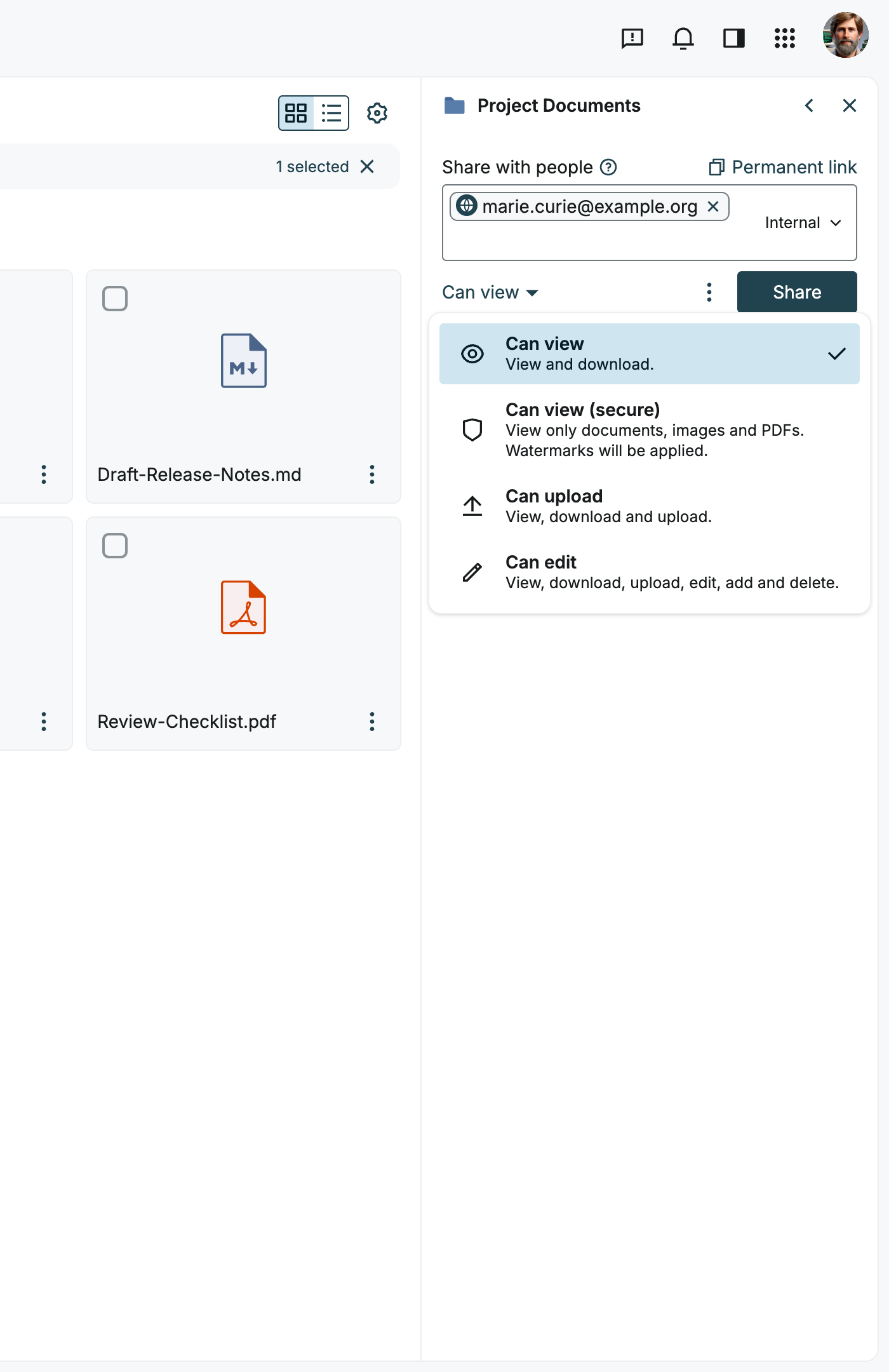
Grant only the permissions required for the collaboration. Use Can view when the guest does not need to make changes, and Can view (secure) when the guest must not download the content.
Manage Existing Guest Access
You can review and change guest access at any time.
- Select the shared file or folder.
- Open the Share panel in the right sidebar.
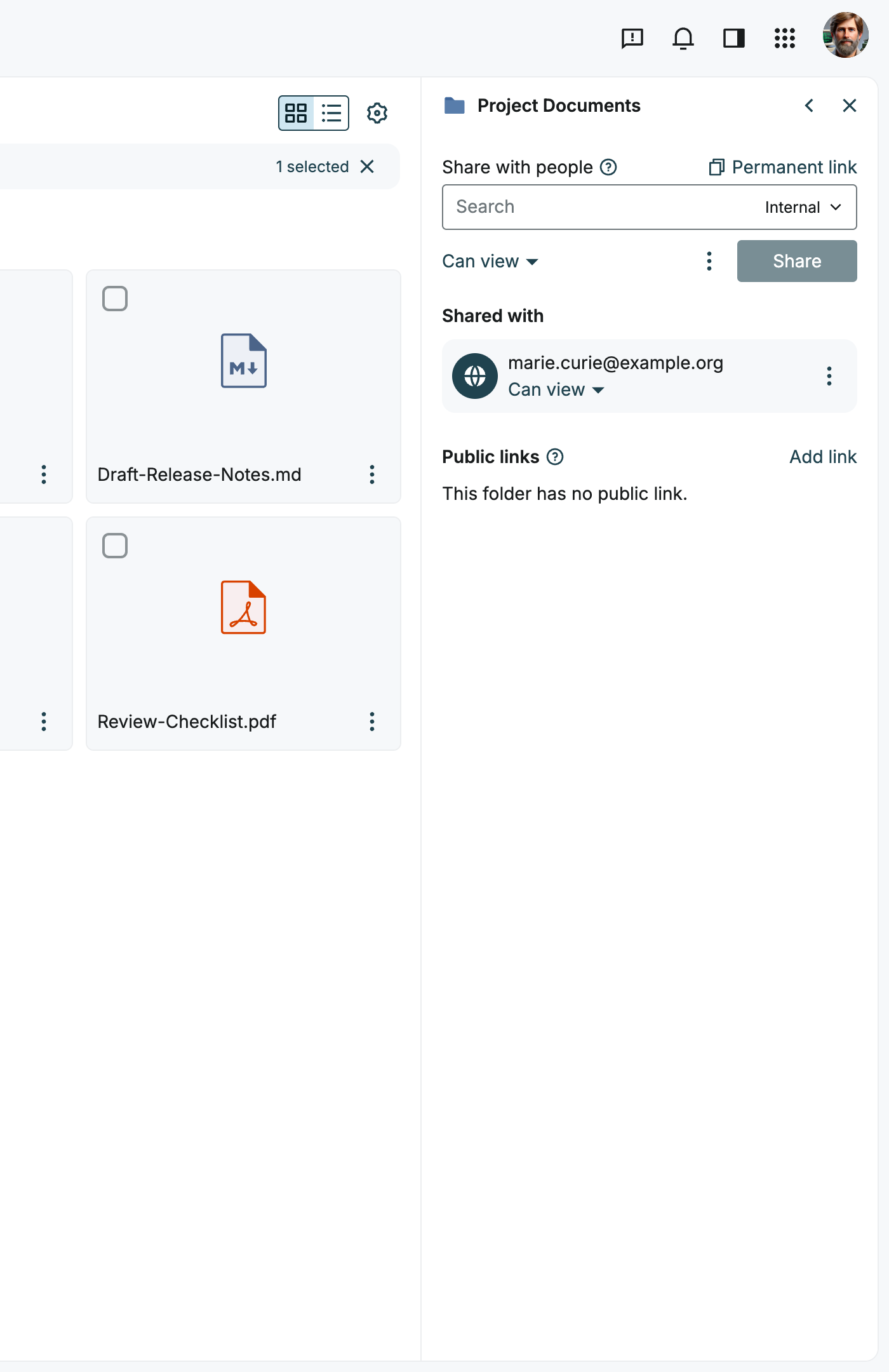
- Find the guest in the Shared with list.
- To change the permission level, use the permission selector below the guest's email address.
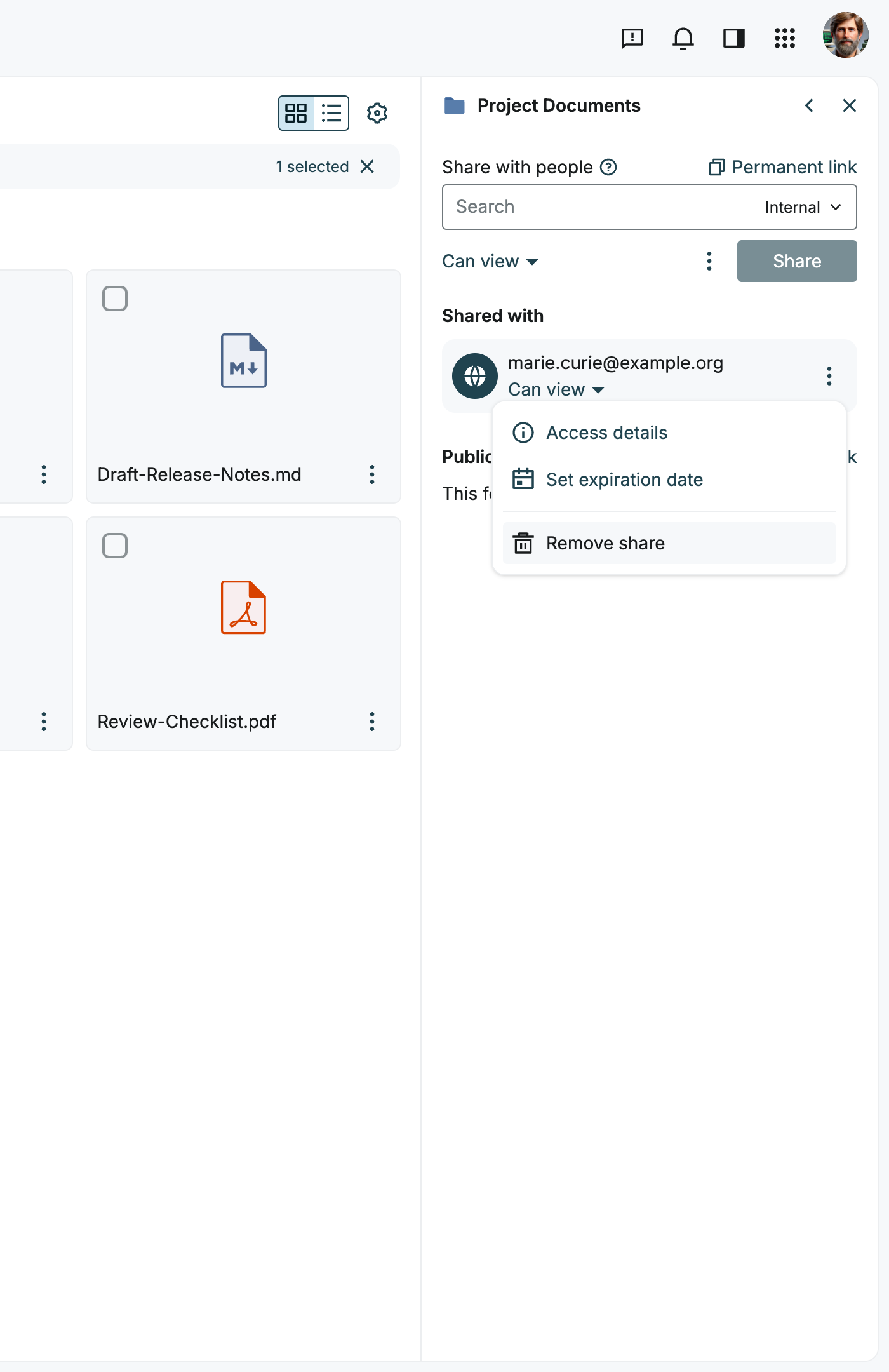
- Open the action menu (⋮) next to the guest for further options:
- Access details – Shows details about the guest's access.
- Set expiration date – Defines a date after which the guest's access ends automatically.
- Remove share – Revokes the guest's access.
Remove Guest Access
- Select the shared file or folder.
- Open the Share panel in the right sidebar.
- Open the action menu (⋮) next to the guest.
- Select Remove share.
After you remove the share, the guest can no longer access the content, even if they still have the invitation link or an active guest session.
Removing access does not delete copies of files that the guest has already downloaded.
Recommendations
- Check the guest's email address before you send the invitation.
- Choose the lowest permission level that is sufficient for the collaboration.
- Set an expiration date for guest access.
- Review your guest shares regularly.
- Remove guest access when the collaboration has ended.
Troubleshooting for the Person Sharing
The Guest Option Is Not Displayed
- Make sure you entered the complete email address.
- Check that you are allowed to share the selected file or folder.
- Ask your administrator whether guest access is enabled.
The Guest Did Not Receive an Email
- Check the spelling of the email address.
- Ask the guest to check their spam folder.
- Remove the guest share and invite the guest again.
- If the problem persists, contact your administrator.
For the Invited Guest
The invited guest uses the personal invitation email to open the shared content. A regular OpenCloud account is not required.
Open a Guest Invitation
This section describes the steps for the invited guest.
- Open the invitation email sent by OpenCloud.
- Click the link in the email.
- The link opens OpenCloud in your web browser.
- OpenCloud verifies the invitation automatically. You do not need to sign in.
- The shared file or folder is displayed.
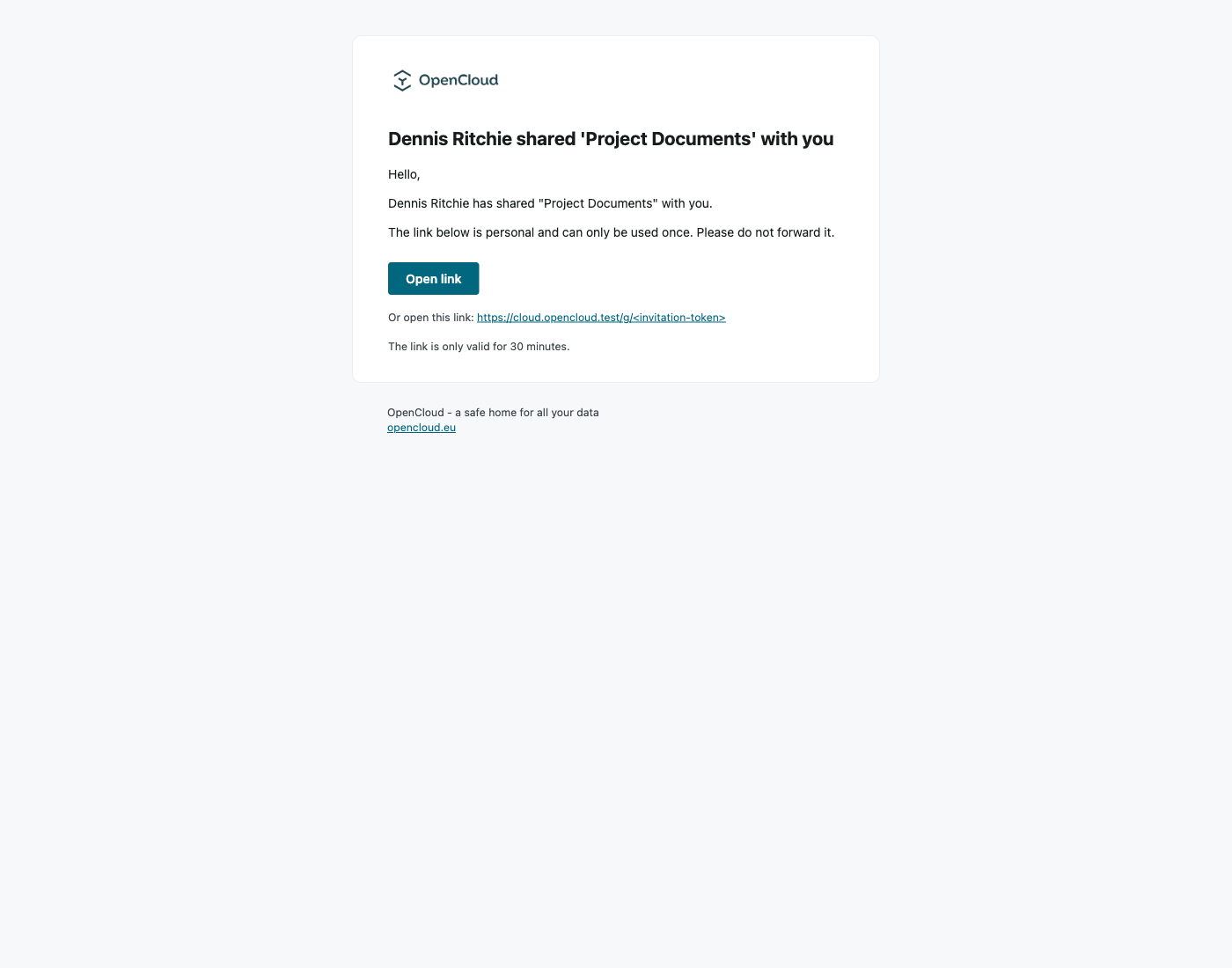
The invitation link is personal. Do not forward it to other people.
Invitation Link and Guest Session
- Invitation link: Open the link in the invitation email within 30 minutes.
- Guest session: Once opened, you can access the shared content in this browser for a limited time, by default 24 hours. During that time, you can use the same link again to get back to it.
- New link: If you open the link after the 30 minutes, in a different browser or after your session has ended, you automatically receive an email with a new link.
The invitation-link lifetime is fixed. Administrators can configure the guest-session lifetime.
If you open an invitation link that has already been used in the same browser while your guest session is still valid, you can continue working.
Access Shared Content
As a guest, you work in the OpenCloud web interface. You can access only the file or folder that was shared with you.
Depending on the permissions you have been granted, you can:
- Open and view shared files.
- Browse shared folders.
- Download files.
- Upload files.
- Edit, add, and delete content.
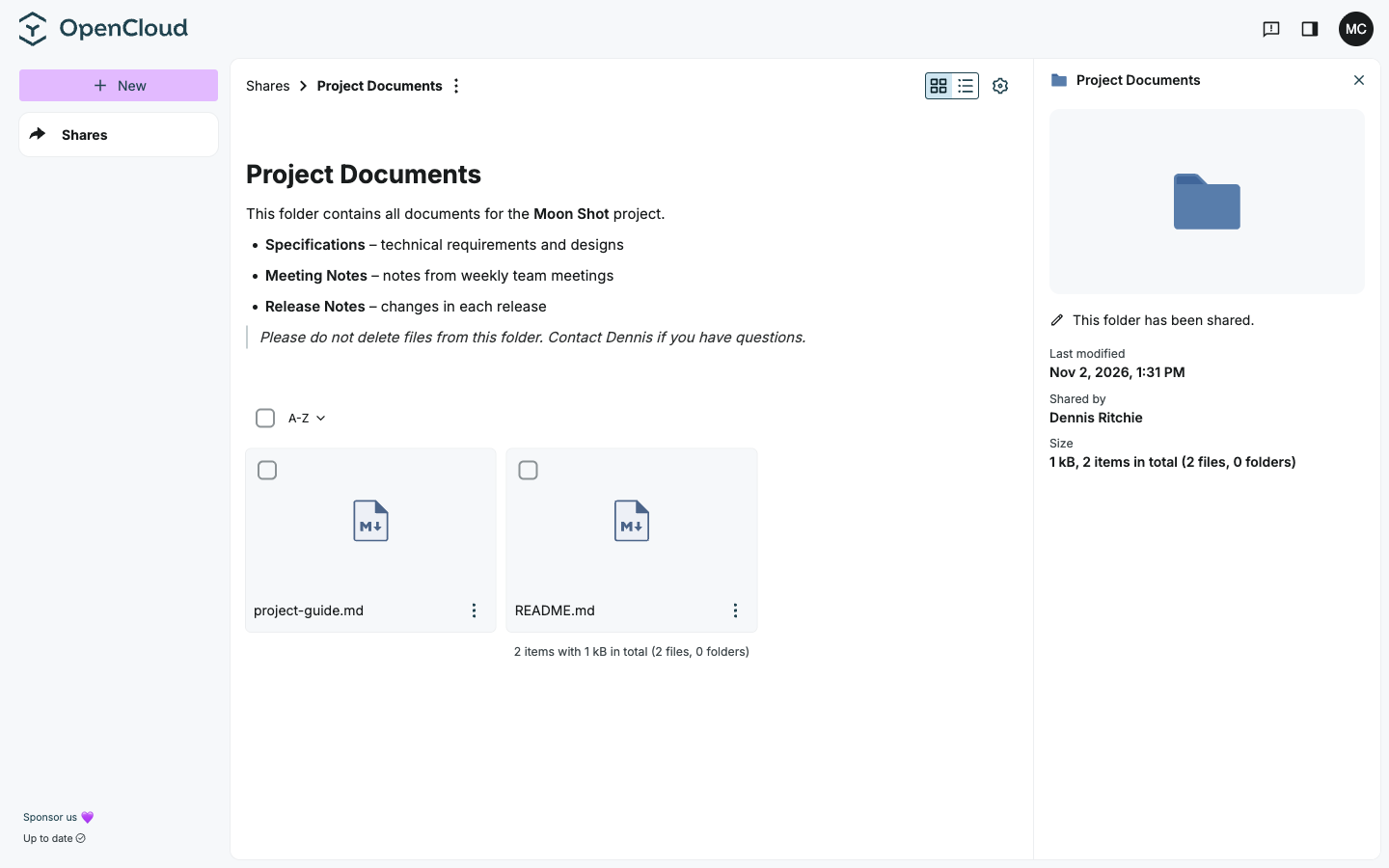
Guest access is available in the web browser only. Guests cannot use the OpenCloud Desktop Client or the mobile apps.
Renew Guest Access
Guest sessions expire after a limited period, by default 24 hours. An expired session does not revoke the underlying share. You can renew your access as long as the share still exists and has not expired via a new email.
Renew with a PIN Before the Session Expires
About 15 minutes before the session expires, OpenCloud displays a warning.
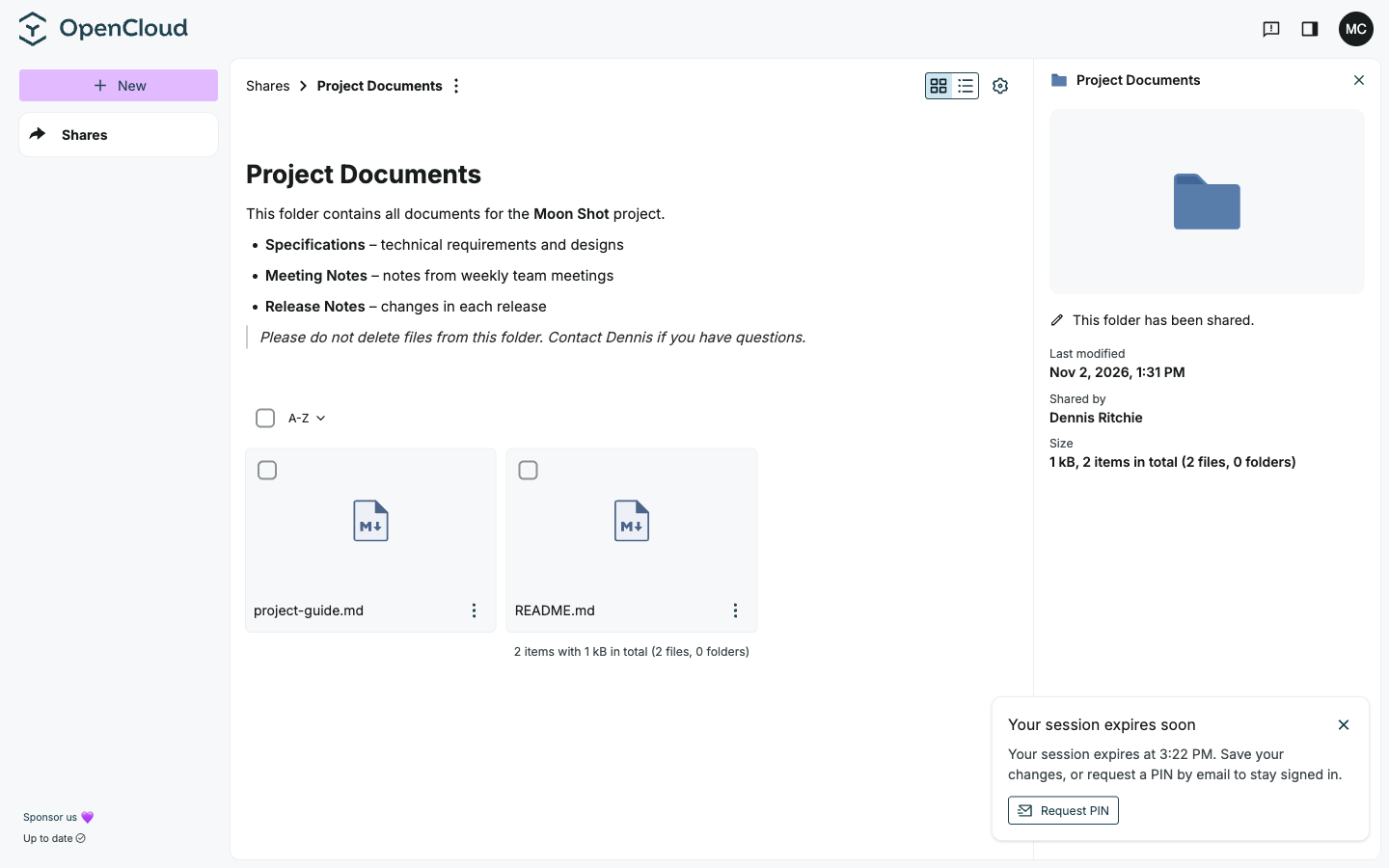
- Select
Request PINbefore the session expires. - Open the most recent email from OpenCloud.
- Return to the browser and select
Enter PIN. - Enter the PIN from the email and select
Continue.
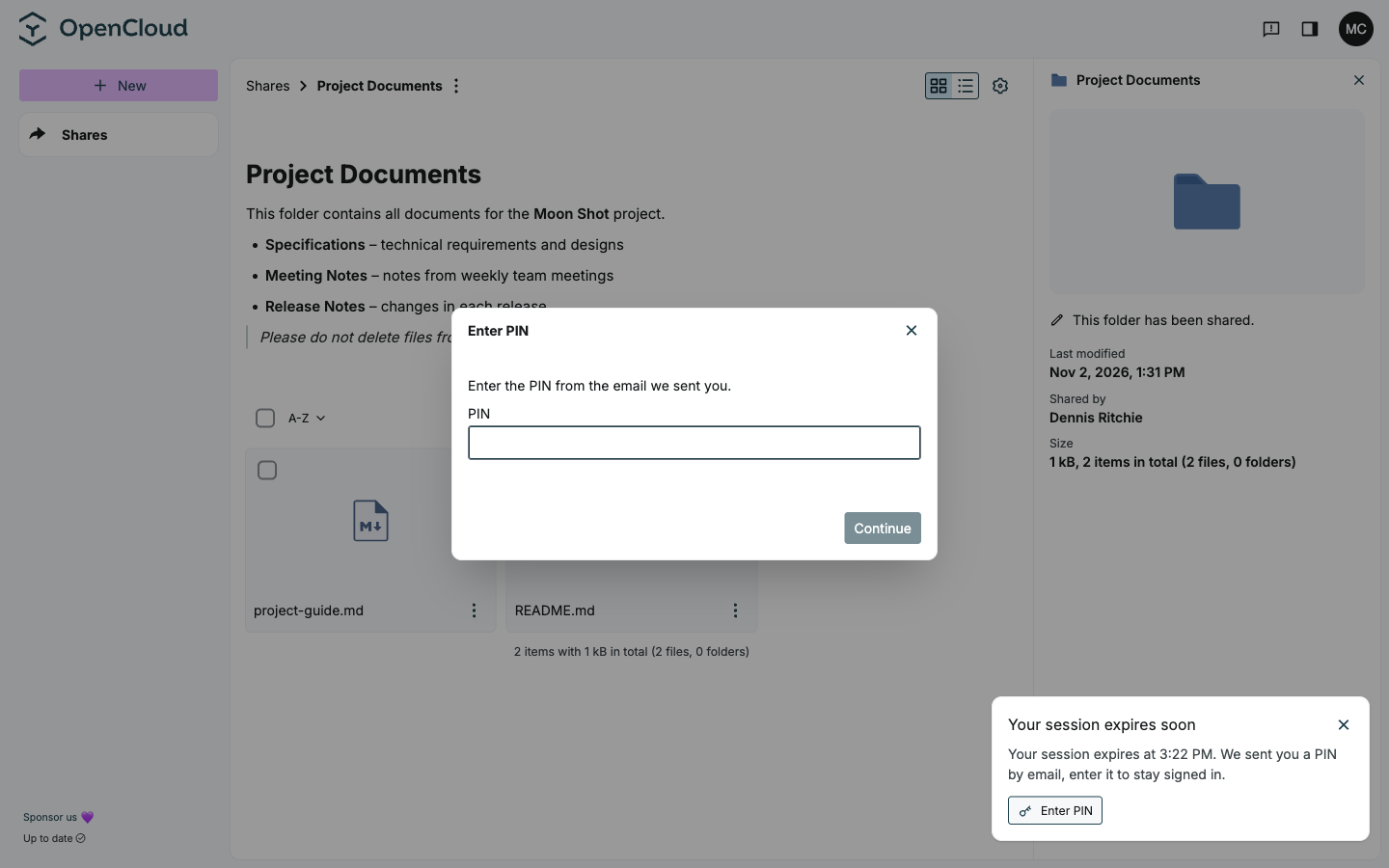
After verification, the guest session is renewed without leaving the shared content.
The PIN option is available only while OpenCloud can verify an existing guest session for this share in the browser that requested the renewal. The PIN is bound to that browser. If you switch browsers, use the invitation link from the email instead.
Renew After the Session Has Expired
When OpenCloud detects that the guest session is no longer valid, it opens the renewal page automatically.
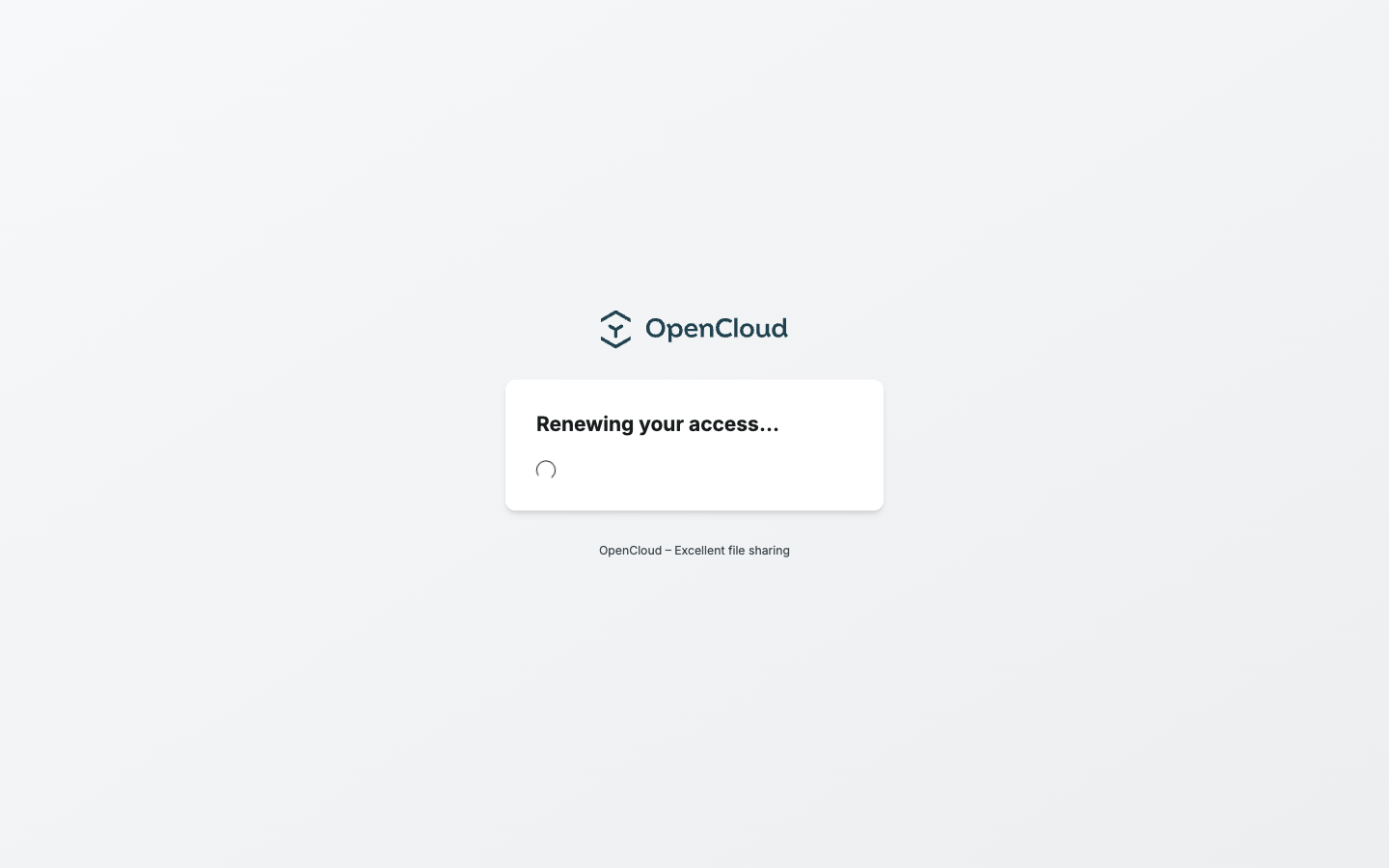
- Wait while OpenCloud displays
Renewing your access…. - When
Check your inboxappears, open the most recent email from OpenCloud. - Open the invitation link from the email to continue. If the most recent link has expired or has already been used, OpenCloud sends a new one.
- After verification, OpenCloud opens the shared content again.
If the share has been removed or has expired, guest access cannot be renewed. Ask the person who invited you to share the content again.
Troubleshooting for the Invited Guest
The Invitation Link Does Not Work
- Make sure the complete link from the email was opened.
- The link may have been used already or may have expired. Ask the person who shared the content to invite you again.
You Cannot Edit a File
- Ask the person who shared the content to check that you have the Can edit permission.
- Check that the file type can be edited in OpenCloud.
Guest Access Compared with Other Ways of Sharing
Guest Access, public links, and regular OpenCloud accounts are different access methods. For a concise comparison, see Sharing Methods.