End-to-End Encrypted Folders
Files and file names in an end-to-end encrypted folder are encrypted in the Web Client before upload. The encryption key is derived from a separate folder password and never leaves your device, so OpenCloud stores only encrypted data. This prevents OpenCloud administrators and anyone with access to the server, storage, or backups from reading the folder contents without the password.
To open an end-to-end encrypted folder, a user needs both access to the folder in OpenCloud and its separate password. You need to enter this password whenever the folder needs to be unlocked in the Web Client.
End-to-end encrypted folders are currently intended for use with the Web Client. Mobile and Desktop Clients do not support the E2EE workflow and should not be used to access or modify encrypted folders.
Keep the password for an end-to-end encrypted folder in a safe place. OpenCloud cannot reset or recover it. If you lose the password, you permanently lose access to the folder and its contents.
Create an end-to-end encrypted folder
To create an end-to-end encrypted folder:
- Go to the location where you want to create the encrypted folder.
- Open the “+ New” menu.
- Select “Folder”.
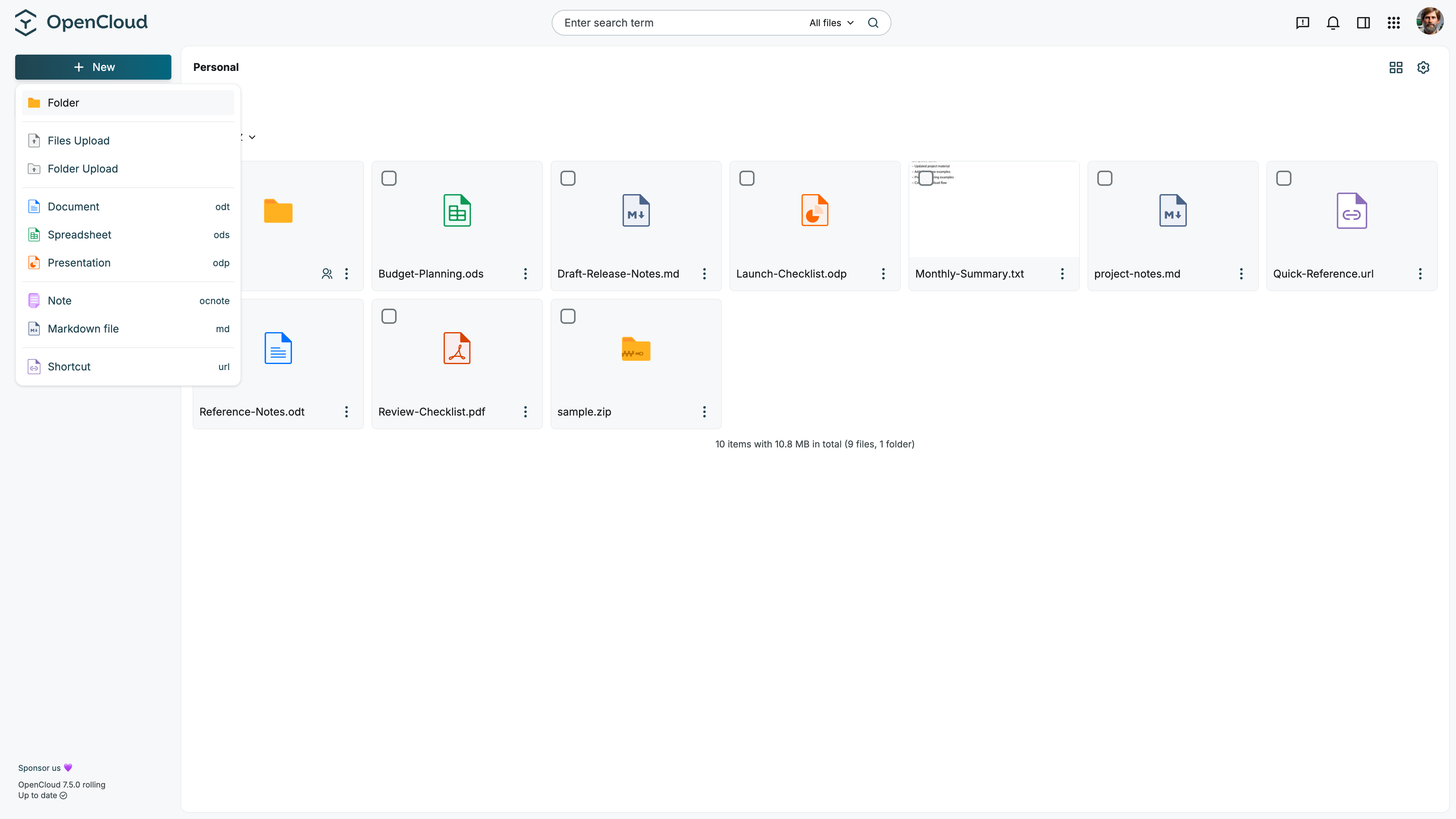
Enable end-to-end encryption
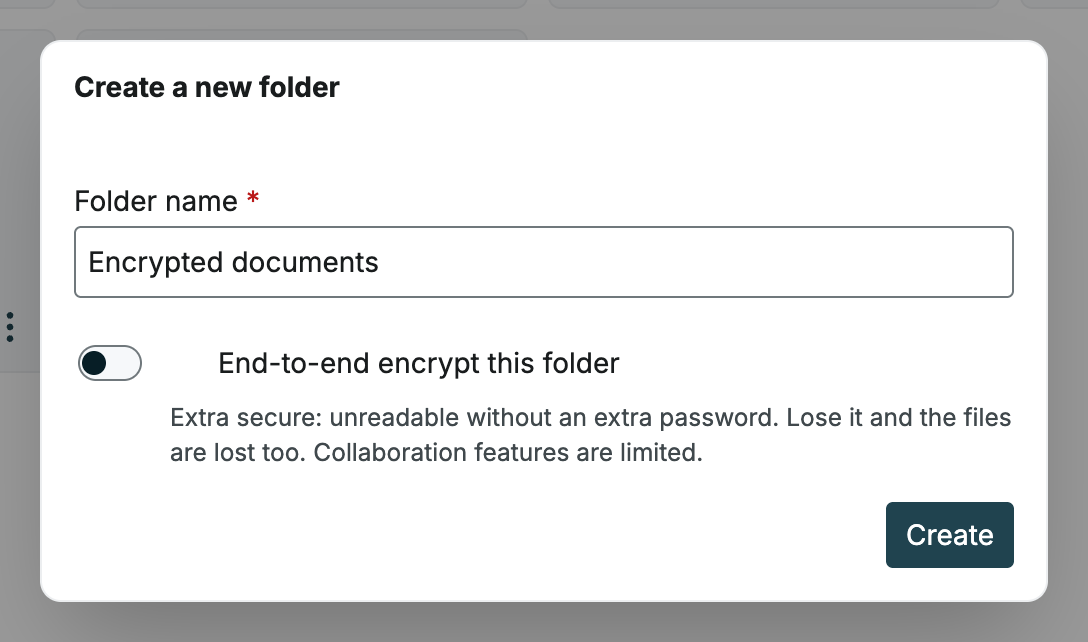
In the “Create a new folder” dialog:
- Enter a folder name.
- Enable “End-to-end encrypt this folder”.
When end-to-end encryption is enabled, OpenCloud automatically adds the .vault suffix to the folder name.
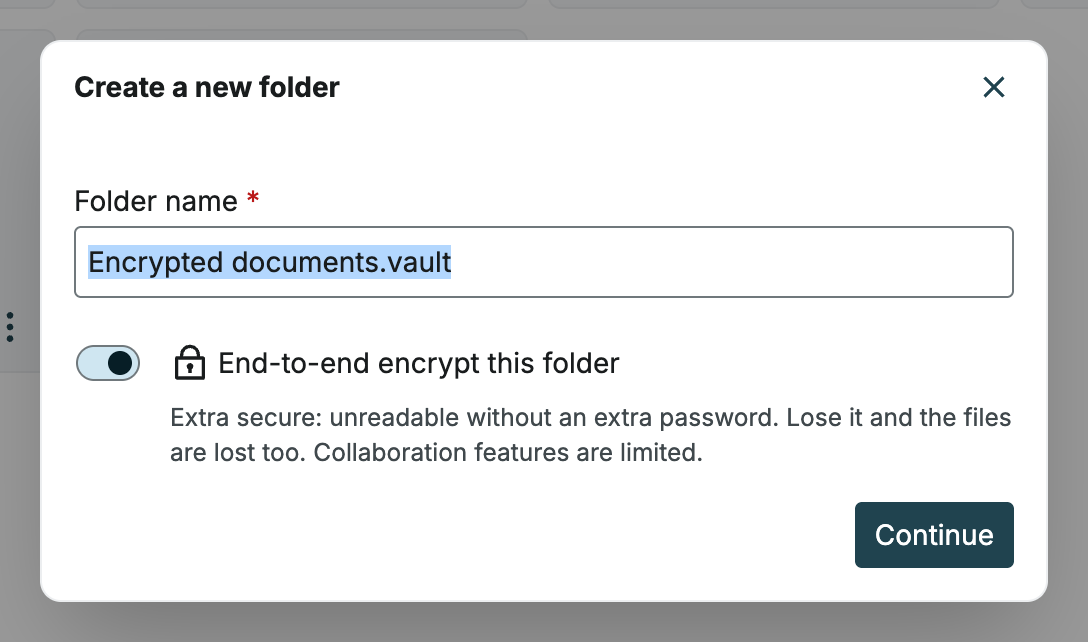
Click “Continue”.
Set the folder password
After enabling end-to-end encryption, you must set a password for the folder.
This password unlocks the encrypted folder and is required to access the files inside it.
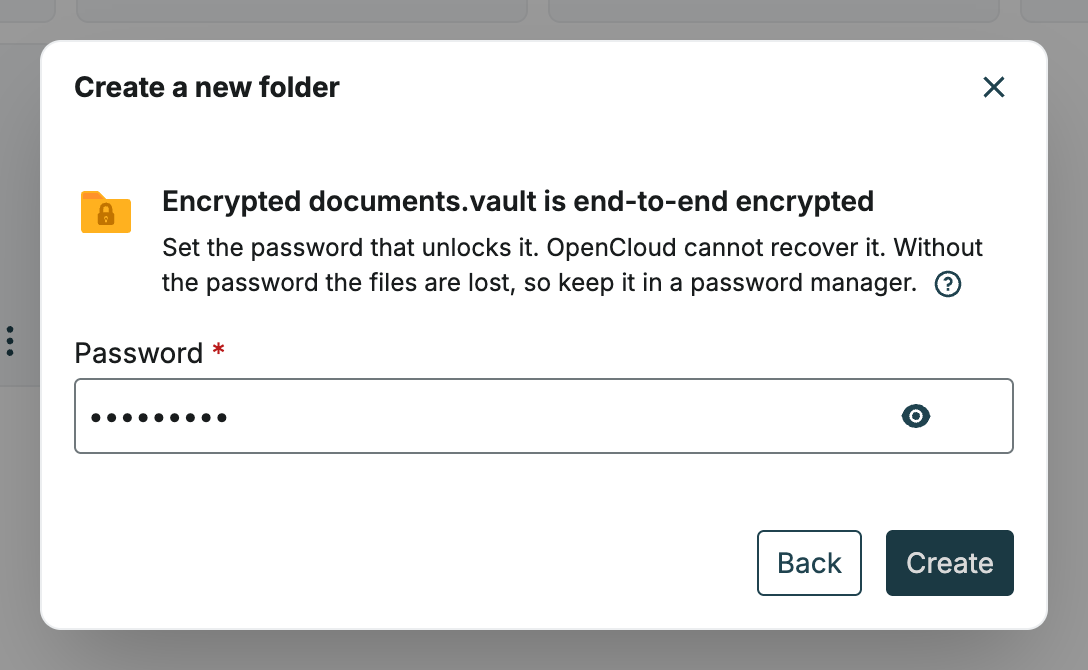
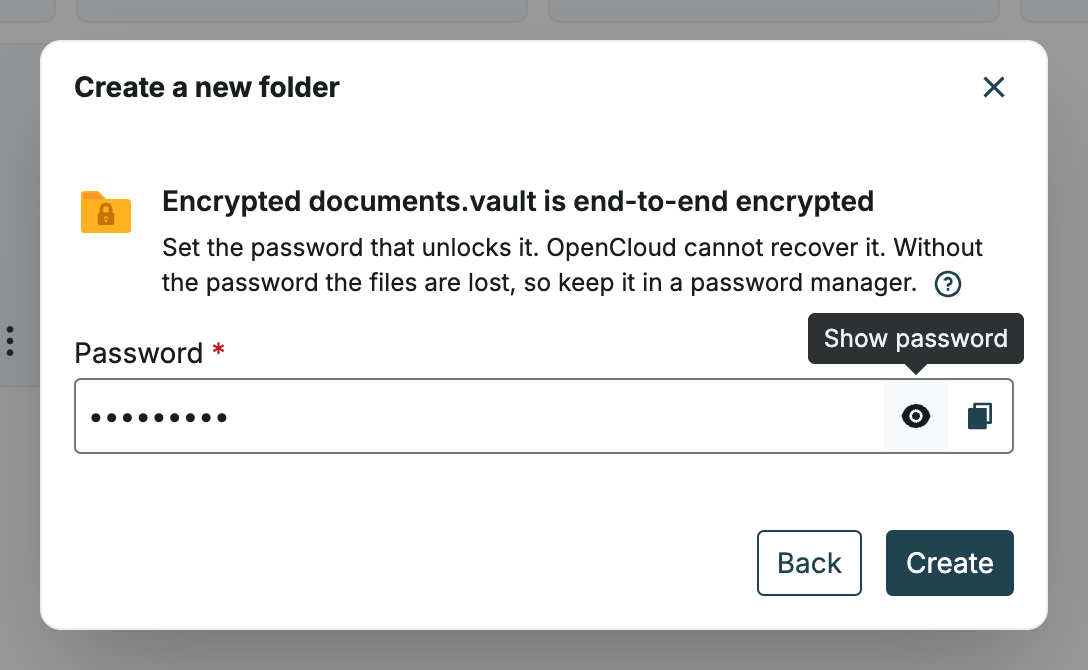
The dialog provides the following controls:
-
“Show password” displays the password you entered.
-
“Copy password” copies the password to the clipboard.
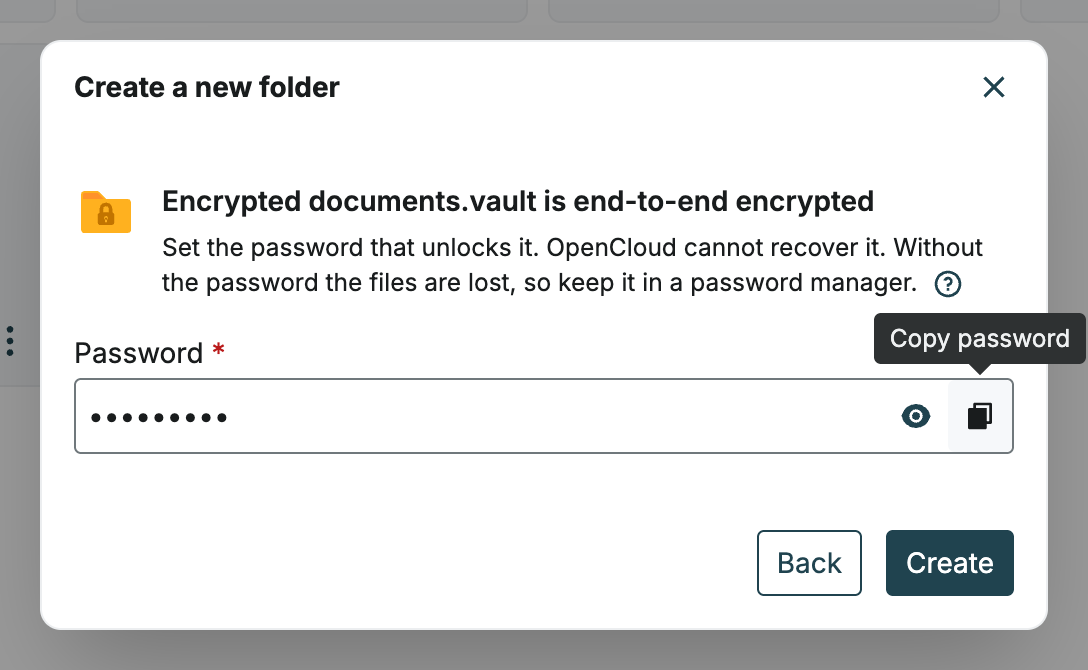
Store the password in a safe place, such as a password manager.
Click “Create”.
Identify an encrypted folder
The encrypted folder appears in the file list with a lock icon.
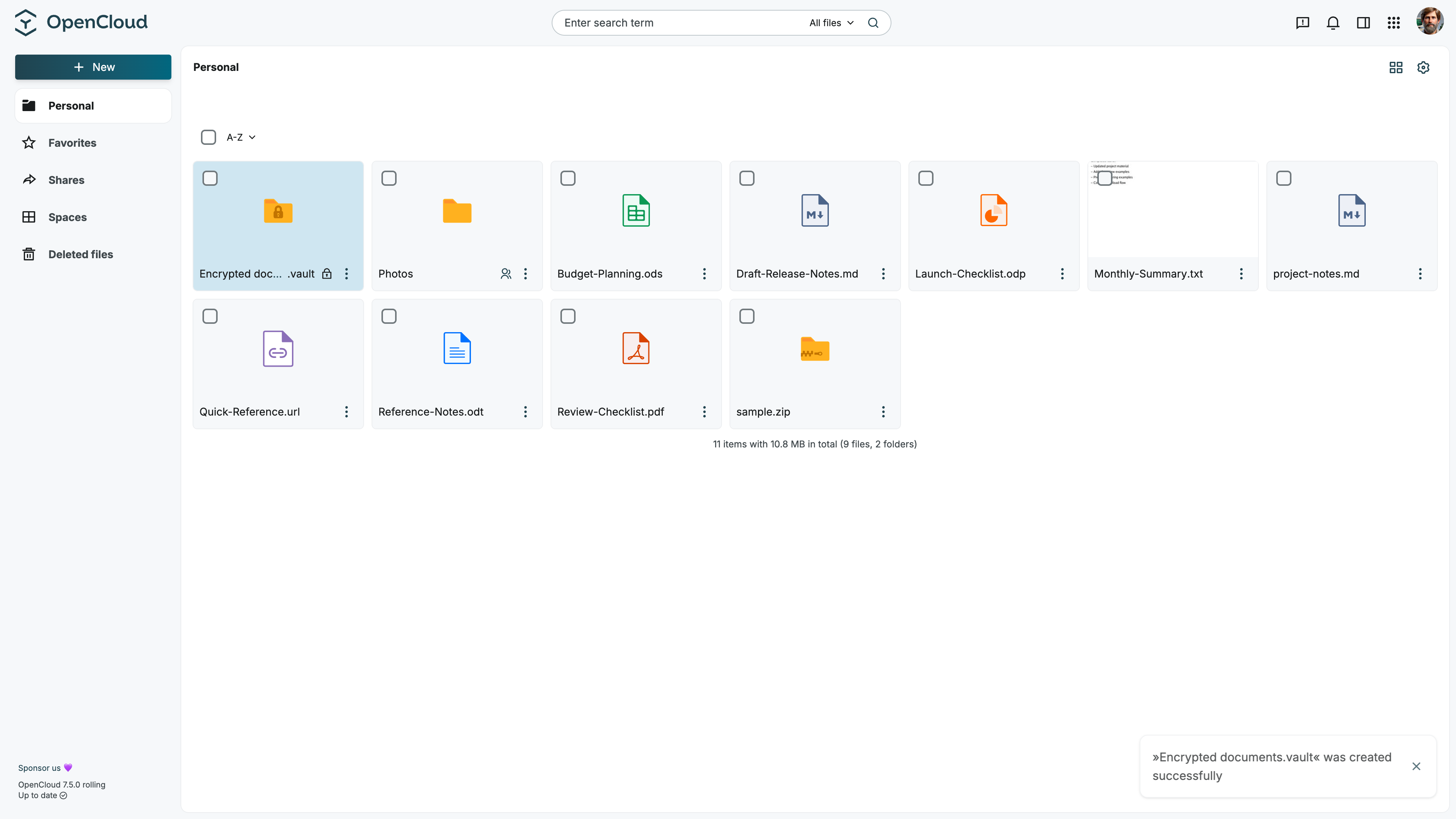
The lock icon indicates that the folder is end-to-end encrypted.
Unlock an encrypted folder
When opening an encrypted folder, you are asked to enter the folder password.
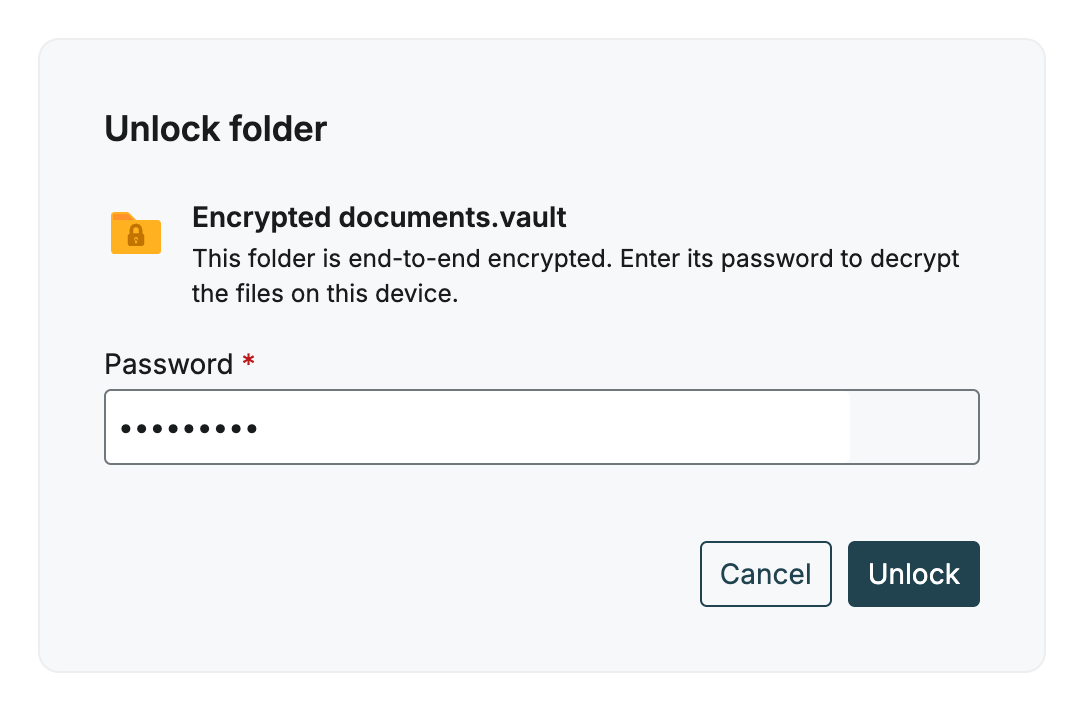
Enter the password and click “Unlock”.
After unlocking the folder, you can access its contents in the Web Client.
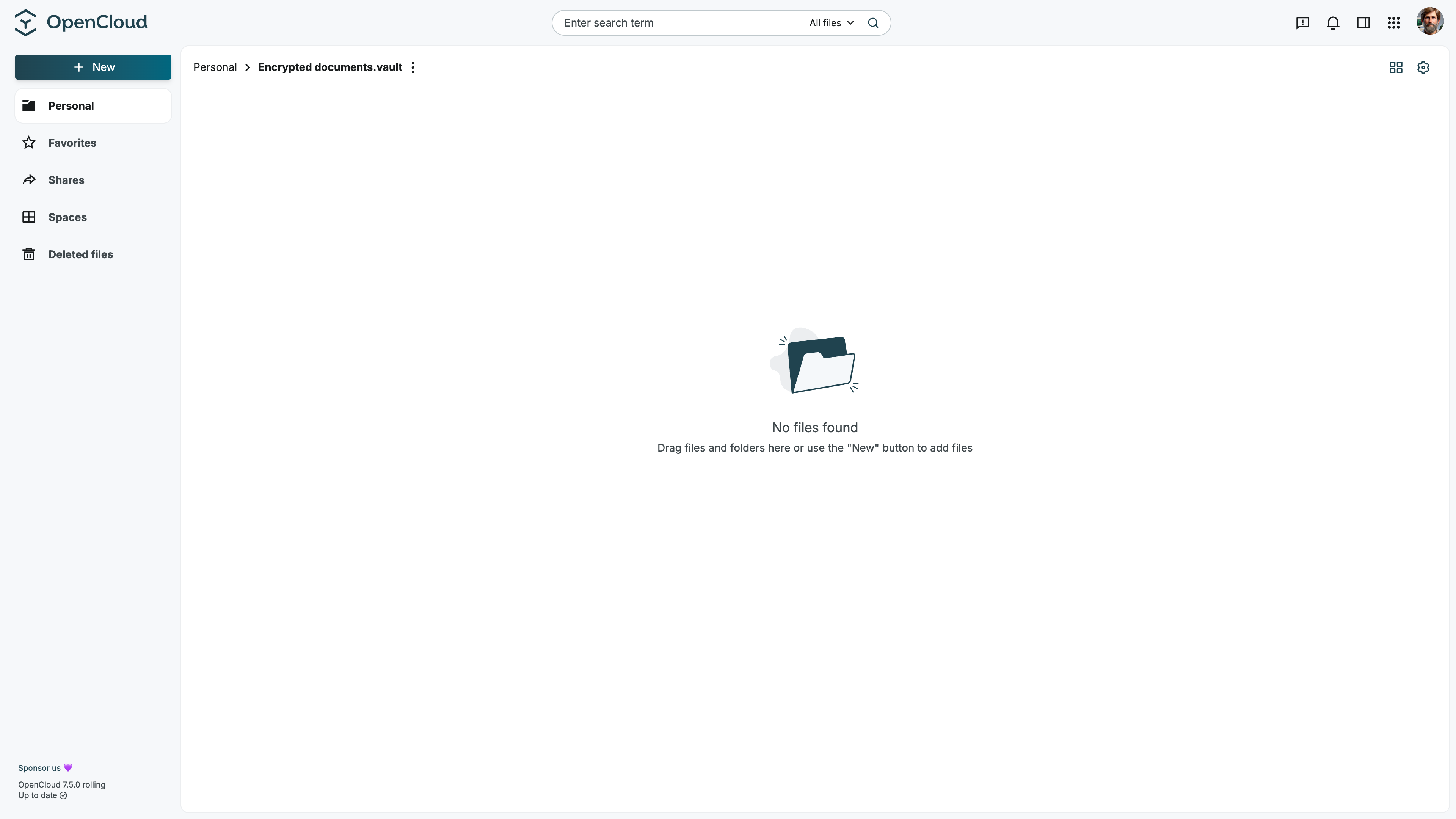
You must enter the password again when the encrypted folder needs to be unlocked in the Web Client.
Add files to an encrypted folder
After unlocking an encrypted folder, you can add files by uploading existing files or by creating supported file types directly in the folder.
Upload files
You can upload existing files or folders to an encrypted folder in the same way as to any other folder.
For details, see Upload files or folders.
Create files
Only the following file types can be created directly inside an encrypted folder:
- Markdown files
- OC Notes
Other file types, such as documents, spreadsheets, and presentations, are not available for direct creation in encrypted folders.
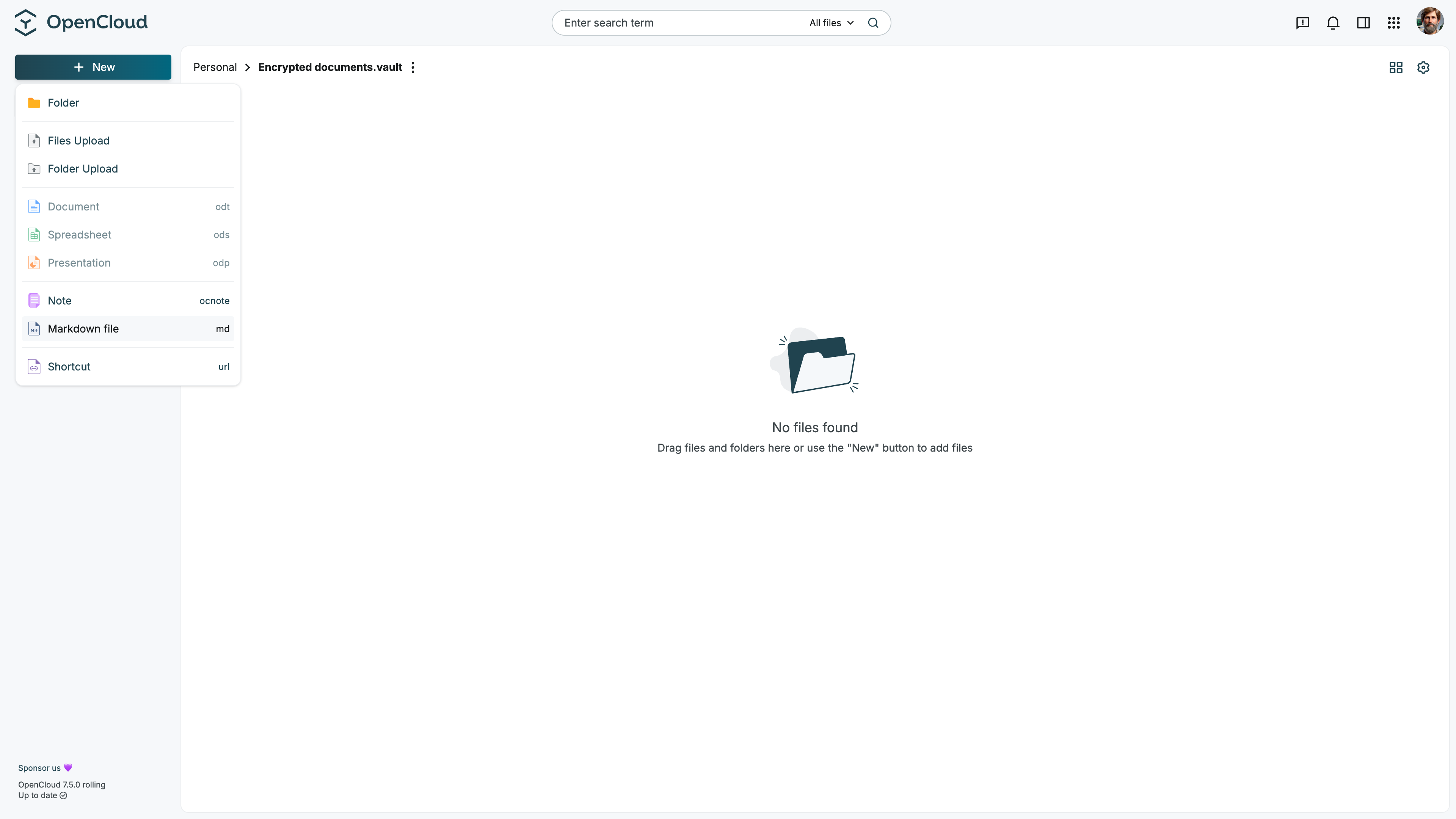
For details about creating files, see Create files and folders.
Share an encrypted folder
You can share an end-to-end encrypted folder with other OpenCloud users.
The recipient must have the folder password to unlock the encrypted folder and access its contents. Share the password separately using a secure channel.
Public links are not supported for encrypted folders or files.
Preview and download behavior
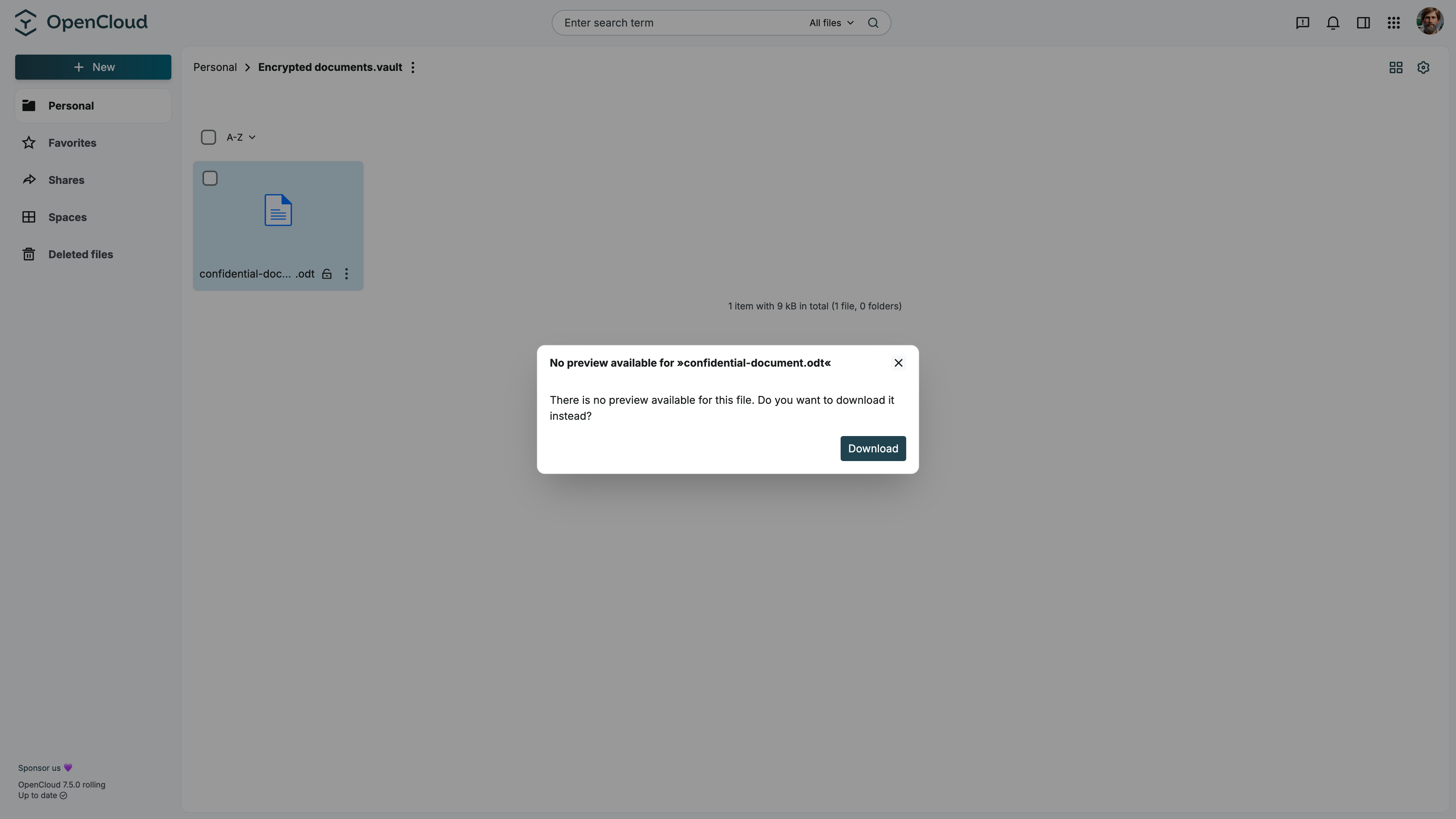
Some files in end-to-end encrypted folders cannot be previewed directly in the browser.
In this case, OpenCloud indicates that no preview is available and offers the file for download instead.
Limitations
End-to-end encrypted folders are designed for storing sensitive data. Because their contents are encrypted, some OpenCloud features and clients are not supported.
The following limitations apply:
- End-to-end encrypted folders are currently intended for use with the Web Client. Mobile and Desktop Clients do not support the E2EE workflow and should not be used to access or modify encrypted folders. Existing encrypted files may be displayed in their encrypted form, while files added through these clients are not end-to-end encrypted and may not be usable in the Web Client.
- Files and folders cannot be moved from another location in OpenCloud into an encrypted folder.
- Files stored in encrypted folders are not included in search results.
- Collaborative editing is not available for files stored in encrypted folders.
- Office documents cannot be opened or edited in the browser with Collabora.
- In-browser previews are not available for encrypted files.
- Public links are not supported for encrypted folders or files.
You can still upload existing files directly to an encrypted folder using the Web Client.