Upload - Download - Unzip
Upload files or folders
-
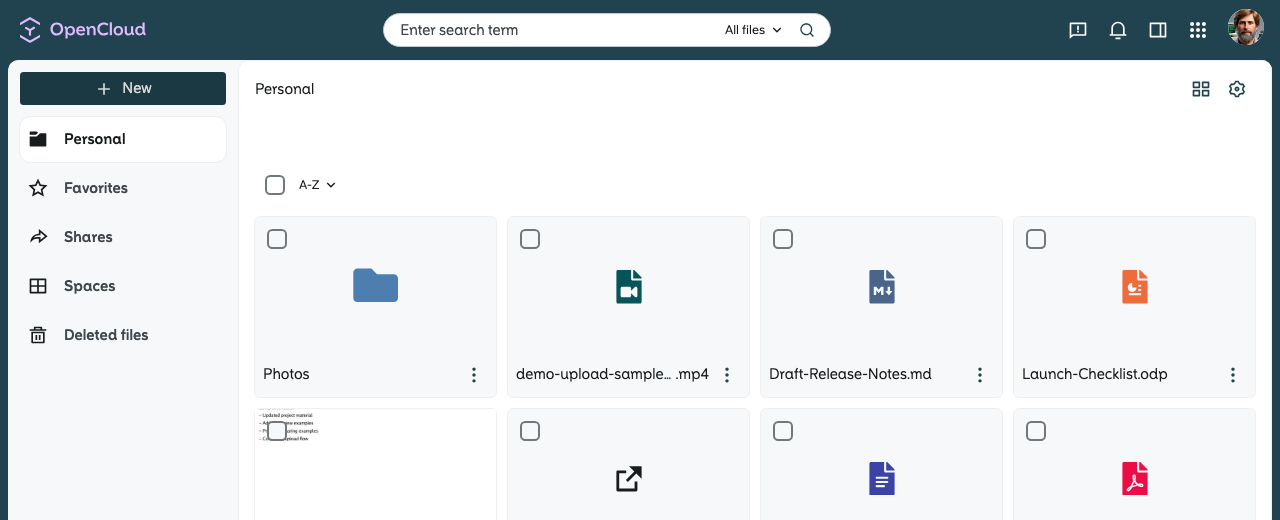
Open the “+ New” menu in the left sidebar.
-
Select whether you want to upload files or folders.

-
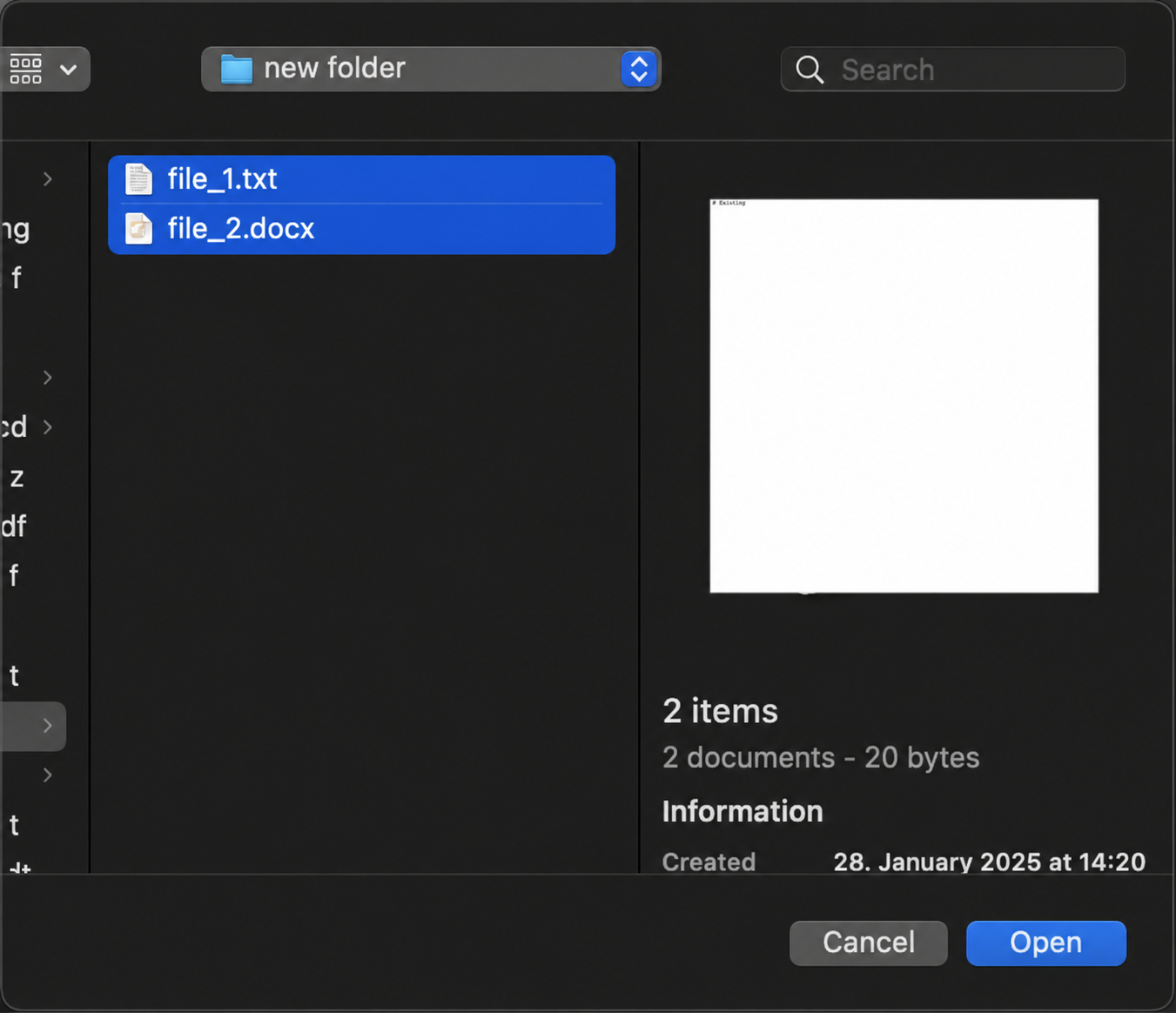
Select files/folders:
- In the window that opens, select the desired files or folders.
- Several files or folders can be selected at the same time.
-
Confirm upload:
-
Click on “Open” to start the upload.
-
Once completed, a message will appear in the bottom right-hand corner.
-
-
Alternatively:
- Drag and drop the files or folders directly from your Explorer window into the browser to upload them.
Download files or folders
-
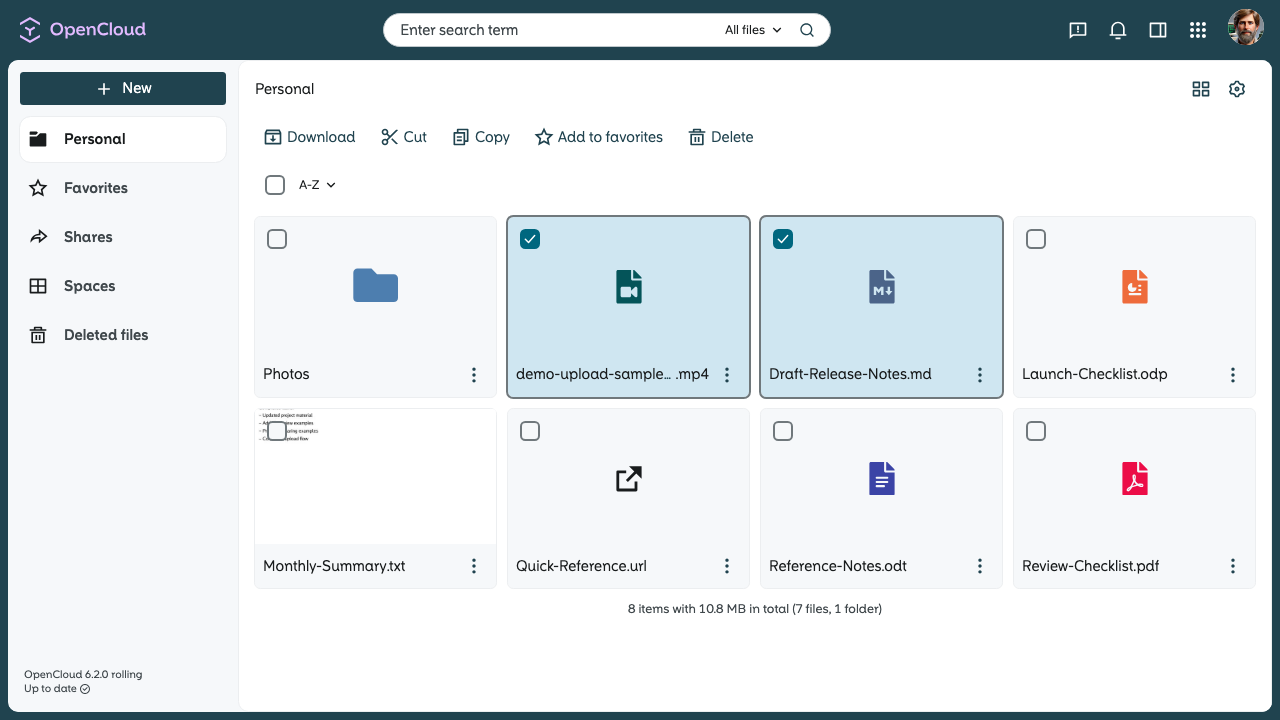
Choose the file(s) you want to download
-
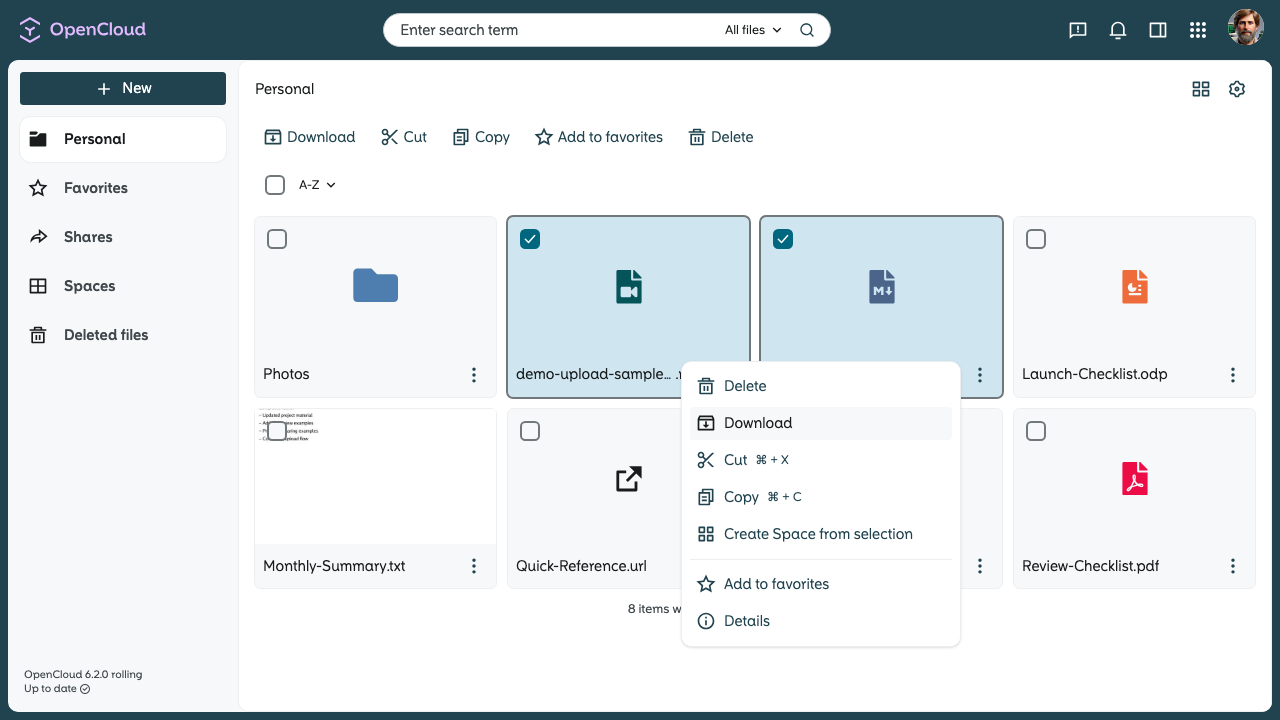
Open the context menu - By right-clicking - or by clicking on the three dots next to the file.
-
Select “Download” from the menu or in the top bar.
-
If you download several files or folders, these are saved as a ZIP file.
-
Unzip the ZIP file on your device after downloading.
Unzip
If activated, you can unzip packed files in the cloud.
-
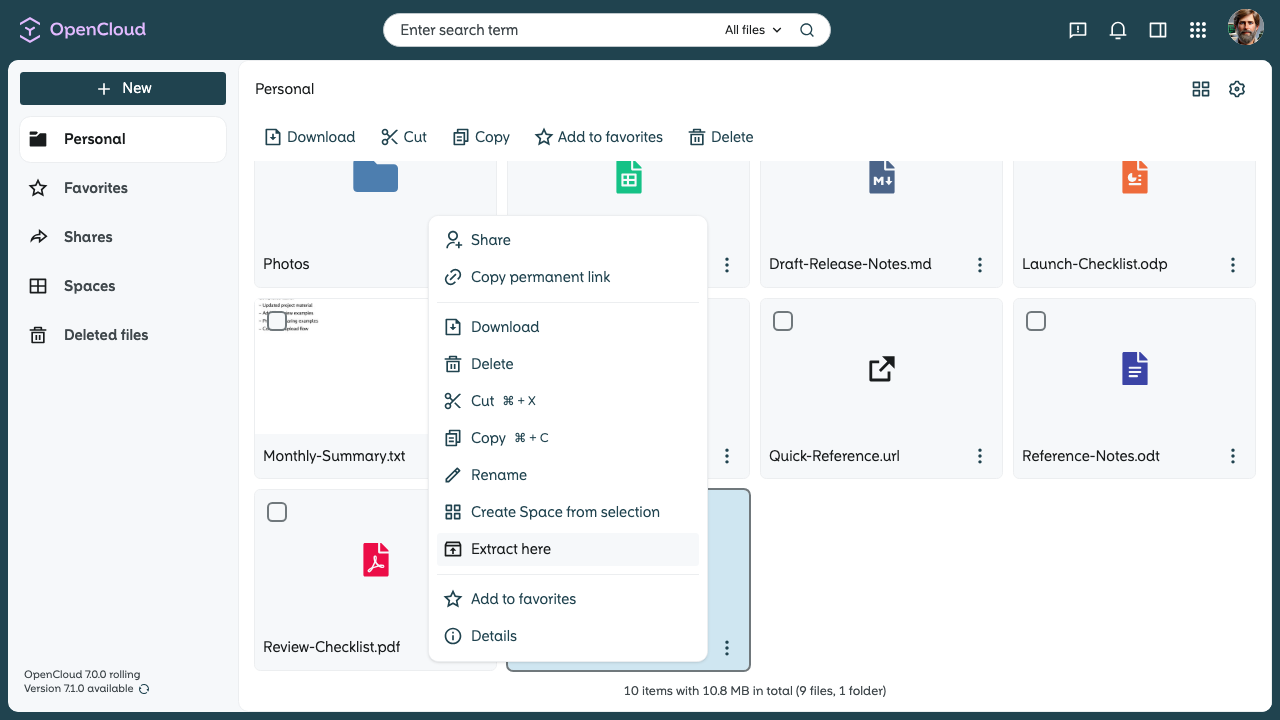
Select the ZIP file in the file list and open the context menu by right-clicking the file or clicking the three dots next to it.
-
Choose “Extract here”.
-
The contents are extracted directly in the cloud and appear in the current folder.
-
Once the process is complete, a notification appears.